
Instagram Story links let you share clickable web addresses directly with your followers. In August 2021, Instagram replaced the old “Swipe Up” feature with a much simpler Link sticker. In this guide, you will learn how to add instagram story links, design your stickers, and use them to drive traffic to your content.
Quick Answer: How to Add Links to Instagram Stories
Open Instagram and swipe right to create a Story. Take a photo or choose an image from your gallery. Tap the Sticker icon at the top of your screen and select the Link sticker. Paste your web address, tap Done, and place the sticker where you want. Finally, share your Story!
What Are Instagram Story Links?
An Instagram Story link is a clickable sticker you add to your photo or video posts. When viewers tap the sticker, an internal browser opens directly inside the Instagram app. This seamless mobile user experience lets your audience view external website content without leaving the app or typing long web addresses.
Types of Links You Can Share
You can link to almost any public website page, including:
- Your personal website or blog
- Product sales pages
- YouTube videos or podcasts
- Email newsletter signup forms
- Affiliate marketing links
- WhatsApp chats, Google Forms, or downloadable PDFs
Businesses and creators use these stickers because Link stickers are designed to convert Story views into website visits by providing a direct, tappable link. Instagram’s official October 2021 announcement stated the Link sticker would help all creators and businesses share links more easily.
![Image: Instagram Story showing a customized Link sticker on a photo.]
Who Can Add Links to Instagram Stories in 2026?
Anyone with an active Instagram account can add links to their Stories. Instagram removed the old 10,000 follower requirement and verified account rules for this feature. Today, availability is open to all users regardless of audience size.
Whether you run a personal profile, creator account, or business page, you can access the Link sticker right away.
| Account Type | Can Add Story Links? | Notes |
| Personal | Yes | Fully supported for all personal accounts. |
| Creator | Yes | Ideal for influencers; tracks story engagement. |
| Business | Yes | Best for brands; integrates with Meta Business Suite. |
Note on Account Restrictions: New accounts or profiles that break Instagram Community Guidelines may face a temporary restriction on link stickers.
How to Add a Link to Your Instagram Story
Follow these simple steps to add a clickable link to your next Story post.
Step 1 — Create a New Story
Open the Instagram app. Swipe right from your main feed or tap your Profile Picture at the top left to open the Story camera.
Step 2 — Add Your Photo or Video
Take a new photo by tapping the shutter button, or swipe up to select a photo or video from your phone’s camera roll.
Step 3 — Open the Sticker Tray
Tap the Sticker icon at the top of the screen. It looks like a square smiley face with a folded corner.
Step 4 — Select the Link Sticker
Scroll down the list of stickers or use the search bar at the top. Tap the sticker labeled Link.
Step 5 — Paste Your URL
Type or paste the full web address into the URL field. Make sure to include “https://” at the start of your link.
Step 6 — Customize the Sticker
Customize the sticker text if desired, then tap Done.
Step 7 — Publish Your Story
Pinch or drag the sticker to adjust its size and position on your screen. When everything looks right, tap Your Story at the bottom left to post it.
Screenshot Sequence Placeholder
- Story Editor View: Selecting a background photo.
- Sticker Tray: Locating the blue Link sticker icon.
- URL Screen: Pasting the web address and editing custom text.
- Final Story: Displaying the finished post with a clickable link.
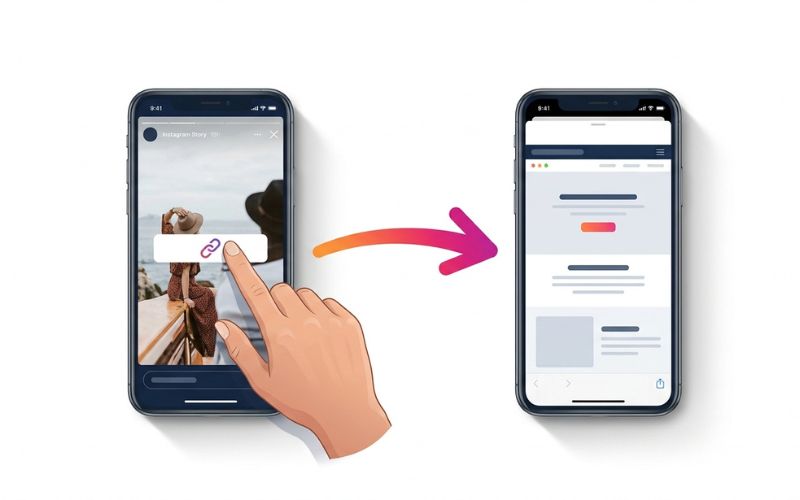
How to Customize Your Instagram Story Link Sticker
Customizing your sticker changes its visual appearance so it matches your brand design. You can adjust the text, color, and size before publishing.
Change Sticker Text
Tap Customize sticker text on the link setup screen. Enter a short, clear title like “Read Article” instead of showing a long, messy web address.
Change Sticker Color
Tap the sticker after placing it on your photo screen. Tapping cycles through white, black, blue, and transparent color options. Choose a background color that stands out clearly against your image.
Use Safe Areas, Emojis, and Branding
- Keep inside safe zones: Keep your sticker inside the central area of your screen so phone borders do not cover it.
- Add emojis: Include simple emojis in your custom text, like a finger pointing to your link.
- Match brand colors: Choose a color combination that fits the aesthetic of your graphics created in design tools like Canva.
Best Ways to Use Instagram Story Links
Using links effectively helps you reach your specific business goals faster. Here are practical examples of how different creators use instagram story links along their conversion funnel.
Drive Website Traffic
Share a sneak peek of new content and send viewers straight to your blog or landing page.
- Example: A travel blogger shares a photo of a beach and links directly to their top ten vacation guide.
Promote Products
Post a picture of an item you sell and link to its product page.
- Example: A clothing brand posts a photo of a coat and links directly to the checkout page for a seasonal sale.
Share YouTube Videos
Post a short preview clip of a video, then send viewers to your full channel upload.
- Example: A tech reviewer shows a five-second clip and links to their full review video.
Grow an Email List
Offer a free downloadable guide or discount code in exchange for an email address.
- Example: A fitness coach shares a free workout PDF and links to a Google Forms signup page.
Affiliate Marketing Links
Recommend products you love and use affiliate links to earn commissions when followers buy them.
- Example: A home chef links to their favorite kitchen tool on Amazon.
Event Registration
Promote a live workshop, party, or webinar with a direct registration link.
- Example: A local restaurant posts an event flyer and links directly to a table reservation page.
Instagram Story Links vs Link in Bio vs Story Highlights
Instagram gives you several ways to share web links. Choosing the right option depends on how long you want your link to stay active.
| Feature | Story Link | Link in Bio | Story Highlight |
| Clickable | Yes | Yes | Yes (if saved from a Story) |
| Lifespan | 24 Hours | Permanent | Permanent (until deleted) |
| Best For | Daily updates & flash sales | Main website & hub tools like Linktree | Evergreen content & FAQs |
| Analytics | Story Insights | Bio link tools & Google Analytics 4 | Story Insights |
How Many Links Can You Add to an Instagram Story?
You can add only one Link sticker per individual Story post. Instagram does not let you place multiple link stickers on the same photo or video.
If you have several web pages to promote, create a Story sequence instead. Post three or four Stories in a row, with each one featuring a single link sticker. This keeps your screen clean and stops viewers from getting overwhelmed by too many options.
Why Your Instagram Story Link Sticker Isn’t Showing
If you open your sticker tray and cannot find the Link sticker, do not panic. This common problem usually stems from a few fixable app issues.
Instagram App Needs Updating
Outdated app versions often lose access to newer features. Visit the Apple App Store or Google Play Store and update Instagram to the latest version.
Temporary Feature Rollout
Instagram occasionally tests new app features on small groups of users. This can cause stickers to vanish for a few hours while updates run in the background.
Account Restrictions and Guideline Violations
Accounts under temporary restriction or profiles that break community rules may lose access to interactive link stickers.
Unsupported URLs
Instagram blocks web links that lead to spam, adult content, or dangerous sites. Make sure your destination page is secure and safe.
App Bugs and Cache Problems
A minor glitch or full memory cache can hide stickers. Clearing your app cache or restarting your phone usually fixes visual bugs.
[Link Sticker Missing?]
       │
       ├──► 1. Update the App ──► Go to App Store/Google Play ──► Check for updates
       │
       ├──► 2. Restart App ────► Force close Instagram ─────────► Reopen app
       │
       ├──► 3. Clear Cache ─────► Go to Phone Settings ─────────► Clear Instagram Cache
       │
       └──► 4. Check Account ──► Go to Settings ───────────────► Check Account Status
How to Track Clicks on Instagram Story Links
Adding links is only half the work. You also need to track outbound clicks to see if your audience engages with your content.
Instagram Insights and Meta Business Suite
If you use a Business or Creator account, swipe up on your active Story to view native story analytics. Look for the metric labeled Link Clicks in Story Insights to measure quick story engagement. Link Clicks data in Instagram Insights expires after 14 days; export or screenshot before then if you need a longer record. You can also view long-term performance inside Meta Business Suite.
UTM Parameters and Campaign Tracking Tags
A UTM parameter is a snippet of tracking code added to the end of a URL. You can build these codes using the Google Analytics Campaign URL Builder. When a user taps your link, Google Analytics 4 records the exact traffic source and campaign name.
Link Shorteners and Scheduling Tools
Services like Bitly shorten long links and track click totals in real time. Tools like Later and Agorapulse can schedule Stories with link stickers; for click tracking, pair them with UTM parameters and Google Analytics 4, as native click tracking varies by platform.
| Method | Tracks Clicks | Tracks Sales | Free? |
| Instagram Insights | Partial | No | Yes |
| UTM Tracking Tags | Yes | Yes (with GA4) | Yes |
| Bitly | Yes | Limited | Yes |
| Google Analytics 4 | Yes | Yes | Yes |
Best Practices to Get More Clicks on Instagram Story Links
Getting high engagement requires strategic placement and clear writing. Follow these proven optimization steps to improve your click-through rate.
- Use action-oriented CTAs: Tell viewers what to do next. Use direct phrases that promise a benefit, like “Tap to read the full guide.”
- Place stickers in the thumb zone: Put stickers in the middle or lower third of your screen so users can tap easily with one hand.
- Keep Stories uncluttered: Leave empty space around your link so it stands out from other text blocks.
- Combine with polls and countdowns: Add a poll sticker or a countdown timer on the slide before your link to boost engagement rates.
- Add urgency: Use phrases like “Offer ends tonight” to prompt fast clicks.
- Create Story sequences: Build a short three-slide story arc that leads up to your link on the final slide.
- Match link with Story content: Make sure your landing page topic matches the text on your Story photo.
CTA Library: Copy and Paste These Phrases
- Tap to Read
- Shop Now
- Watch the Video
- Get the Guide
- Claim the Offer
- Learn More
- Download Free
- See the Full Tutorial
- Reserve Your Spot
- Try It Today
Pre-Publishing Checklist for Story Links
Before you share your post, run through this quick checklist to ensure your link works properly:
- [ ] Does the URL open the correct page in a web browser?
- [ ] Is your custom sticker text short and easy to read?
- [ ] Is the sticker placed away from screen edges and profile buttons?
- [ ] Did you include a clear call-to-action phrase?
- [ ] Did you add UTM tracking tags if you are running a marketing campaign?

Common Mistakes to Avoid
Avoid these simple mistakes to keep your link click rates high and maintain a good user experience.
- Broken URLs: Always test your web address in a mobile browser before adding it to a sticker.
- Long unattractive links: Avoid ugly web addresses filled with random numbers. Use custom sticker text instead.
- Generic CTA text: Do not use plain text like “Click Here.” Tell users what value they get when they tap.
- Too many stickers: Placing multiple interactive items on one slide distracts users from your main goal.
- Forgetting to test links: Tap your own link sticker immediately after posting to confirm it opens the right page.
- Using misleading CTAs: Never trick people into tapping a link that leads to unrelated content.
Conclusion
Sharing instagram story links is a reliable way to turn social media engagement into website traffic. By adding clear CTA phrases, placing stickers in easy-to-tap spots, and tracking your clicks with UTM codes, you can turn daily updates into steady web traffic.
Frequently Asked Questions
Can anyone add links to Instagram Stories?
Yes. Instagram made the Link sticker available to all personal, creator, and business accounts.
Do I still need 10,000 followers?
No. Instagram removed the 10,000 follower requirement when they replaced the old Swipe Up feature.
Can I add more than one link?
No. You can only place one Link sticker on each individual Story slide.
Can I edit a Story link after posting?
No. Once a Story is published, you cannot edit its link. You must delete the Story and post a new one.
Can I add links to Story Highlights?
Yes. If you save a Story containing an active link sticker to your Highlights, the link remains clickable permanently.
Why isn’t my Link sticker appearing?
Try updating your Instagram app, clearing your cache, or restarting your phone. Also check if your account has safety restrictions.
Can I link to YouTube videos?
Yes. You can paste any valid, public YouTube video URL into the Link sticker text box.
Can I use affiliate links?
Yes. You can share affiliate links, but you should disclose paid partnerships clearly in your Story text.
Do Story links expire?
Regular Story posts expire after 24 hours. However, saving the post to a Highlight keeps the link active indefinitely.
Can I schedule Stories with Link stickers?
Yes. Many third-party scheduling tools let you prepare and schedule Stories that include functional Link stickers.
You May Also Like:
Instagram Story Fonts: How to Make Your Stories Stand Out
How to Make Custom Instagram Story Templates
Disclaimer:
This article is for informational and educational purposes only. We do our best to keep the information accurate, but features may change over time. Some images in this article may be AI-generated for illustration only. All trademarks, logos, brand names, and copyrights belong to their respective owners.

Eleanor Karen is an administrator at PVStory.co.uk who writes about digital tools, social media trends, and online resources. She shares helpful insights on Instagram Story Viewer tools and other web-based solutions, helping readers stay informed and make the most of their online experience.