
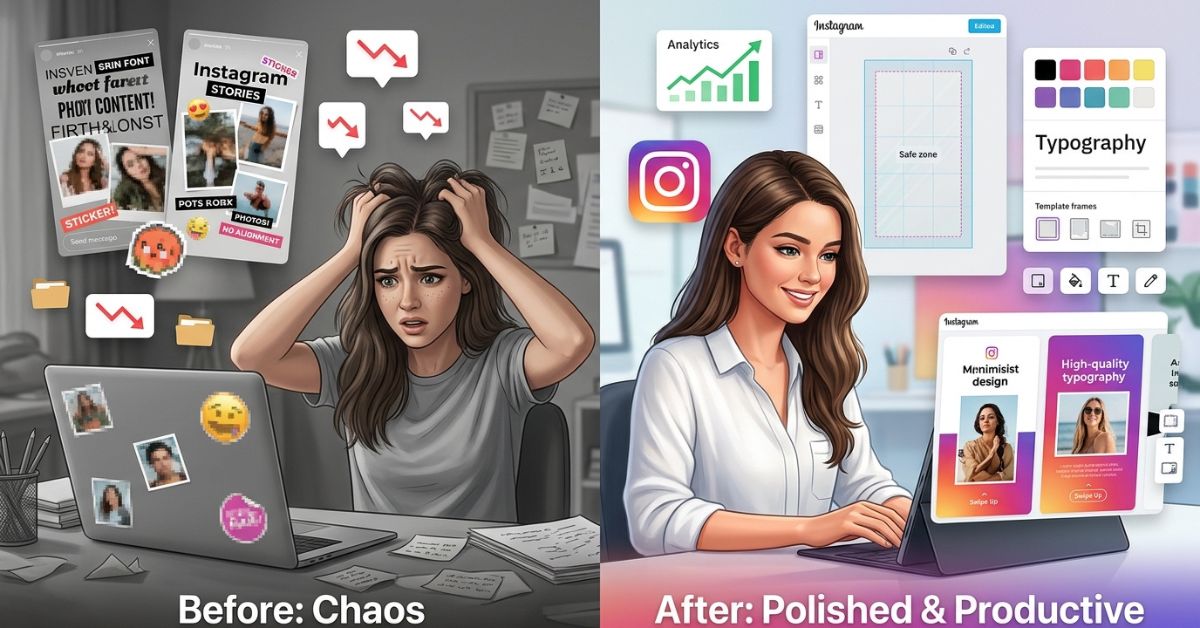
Ever wonder how top creators post clean Instagram Stories every day? They use Instagram Story templates.
An Instagram Story template is a design setup you can use again and again for vertical posts. You can quickly drop in new text, pictures, and videos without starting over from scratch.
Whether you run a personal account or a business page, templates make creating posts simple. You can build them using Instagram’s built-in app features or other design apps.
What Are Instagram Story Templates?
An Instagram Story template is a ready-made design layout made for tall phone screens. Think of it as a fill-in-the-blank page for your daily updates.
Instead of starting with a blank screen, you open a background that already has your style and layout ready to go.
+---------------------------+     +---------------------------+
| [ Brand Logo / Header ]   |     | [ Brand Logo / Header ]   |
|                           |     |                           |
|  +---------------------+  |     |  +---------------------+  |
|  |                     |  |     |  |   [ Your Image ]    |  |
|  |  Image Placeholder  |  | --> |  |                     |  |
|  |                     |  |     |  +---------------------+  |
|  +---------------------+  |     |                           |
|                           |     |   "Check out our new    |
|  [ Your Text Here ]       |     |   summer arrival!"       |
|  [ Call to Action ]       |     |   [ Tap link below! ]    |
+---------------------------+     +---------------------------+
       BLANK TEMPLATE                  CUSTOMIZED STORY
Fixed vs. Editable Templates
- Fixed Templates (Static): These are set background pictures like PNG or JPG files. You upload the image to Instagram and type your text on top.
- Editable Templates: These are master files built in apps like Figma. You can change every shape, text box, and color before saving.
Built-in vs. Outside Design Layouts
Built-in templates are made right inside Instagram using features like the “Add Yours” sticker. Outside templates are created in separate graphic design software. Outside tools give you complete control over fonts, layouts, and custom pictures.
Why You Should Use Instagram Story Templates
Posting on Instagram without a plan leads to messy pictures and missed deadlines. Using custom templates gives your page big advantages:
- Save Time: You build the design setup once. Updating your daily story takes just a few seconds.
- Build a Clear Style: Followers recognize your account faster when you use matching colors, fonts, and layouts.
- Get More People to Notice Your Story: Clean designs keep people from swiping away. Simple layouts direct eyes straight to your text and links.
- Make Many Posts at Once: You can plan a full week of posts in one sitting by swapping photos in your master files.
- Look Professional: Reusable frames stop text from looking crooked, hard to read, or cut off.
Keeping a matching visual style across your pages helps build trust with your audience.
Instagram Story Size, Measurements & Safe Zones
To keep your pictures crisp and easy to read, you must use the correct screen measurements.
| Feature | Recommended Size | Notes |
| Dimensions | 1080 × 1920 pixels | Standard full-screen tall screen size |
| Shape (Aspect Ratio) | 9:16 | Tall vertical screen shape |
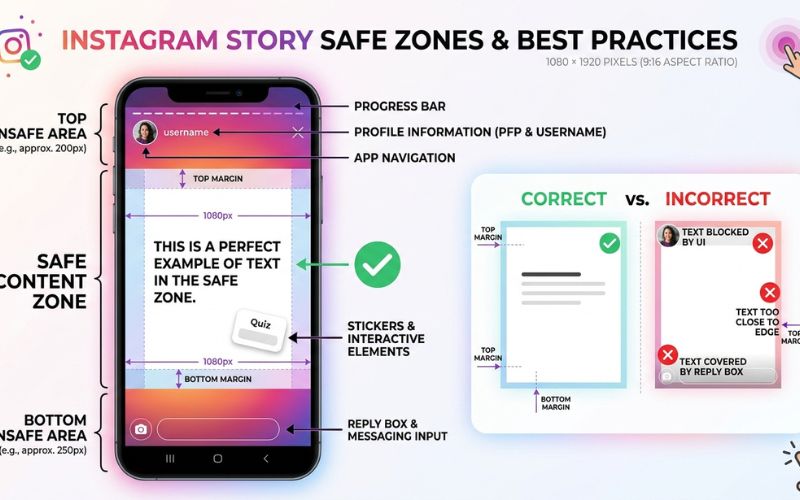
| Safe Zone | Middle area of the screen | Keep important text inside the safe center space. Top and bottom margins change on different phones, so leaving about 250 pixels at the top and bottom (or at least 155 pixels on newer screens) keeps your content safe from being covered. |
Safe Zones Explained
When someone views your Story, Instagram places app buttons over your picture.
- The top space holds your profile name and progress bars.
- The bottom space holds the message box and share buttons.
If you place text inside these outer edges, the app icons will cover your words. Keep all important text, logos, and stickers inside the middle safe zone.
+-----------------------------------+
|   TOP SAFE ZONE (Outer margin)    | <-- App bar & profile icons
+-----------------------------------+
|                                   |
|                                   |
|       KEEP MAIN CONTENT HERE      | <-- Safe content region
|          (Central area)           |
|                                   |
|                                   |
+-----------------------------------+
| BOTTOM SAFE ZONE (Outer margin)   | <-- Reply box & action buttons
+-----------------------------------+
How to Create Custom Instagram Story Templates (Step-by-Step)
Follow these six simple steps to build story designs from scratch.
- 1.Choose Your Template Size:
- Open your design app and set custom screen measurements to 1080 × 1920 pixels. Turn on grid guides to mark off top and bottom safe edges so app icons do not block your work.
- 2.Pick Your Brand Style:
- Pick 2-3 main background colors, a dark text color, and one pop color. Choose up to two easy-to-read fonts—one for big titles and one for small details. Upload your clear logo file.
- 3.Create Layout Blocks:
- Divide your background into clear sections. Add a top space for your logo, a middle frame for photos, and a clear bottom area for buttons or links.
- 4.Save as a Master Template:
- Save your design file as a reusable main file. Make copies for different post types, such as Q&A answers, new post alerts, or sale announcements.
- 5.Save and Export for Instagram:
- Save plain image designs as PNG files to keep text crisp. Save moving pictures or video backgrounds as MP4 files. Send the file to your phone.
- 6.Post Your Story:
- Open Instagram, swipe right to open the Story camera, and select your graphic from your camera roll. Add clickable stickers over your planned spaces.
Best Tools for Creating Instagram Story Templates
You do not need to be a professional artist to make great templates. Here is how top design tools compare:
| Tool | Free Version | Pre-made Templates | Moving Effects (Animation) | Best Used For |
| Canva | Yes | Excellent | Yes | Fast edits & saved brand styles |
| Adobe Express | Yes | Excellent | Yes | Adobe Cloud sync & smart tools |
| Figma | Yes | Advanced (1,000+ free choices) | Limited to dynamic previews | Advanced vector design & team design sets |
| Picsart | Yes | Good | Yes | Smart photo cutout tools |
| Bazaart | Free options available | Good | Yes | Layering photos on phones |
| Visme | Part of it | Good | Yes | Business charts and graphics |
| Later | Free template sets (with account) | Story planning | No | Social media post scheduling |
Canva
Canva is great for quick edits. It includes a Brand Kit to store your colors, plus free stock photos. Paid users on Pro, Business, Education, or Team plans can also use the Magic Resize tool to change picture sizes fast.
Adobe Express
Adobe Express combines simple tools with Adobe Firefly smart creation tools. It connects directly with Adobe Creative Cloud picture folders and Adobe Fonts, making it great for established brand workflows.
Figma
Figma is a design tool made for advanced creators. It resizes parts automatically and uses smart components to update full template sets all at once. You can also look through over 1,000 free social media templates built by other creators. Keep in mind that moving effects in Figma are meant for previewing only and cannot be saved as video files.
Picsart
Picsart focuses on editing right on your phone. It includes automatic background removal tools, text effects, and custom sticker tools on your smartphone.
Bazaart
Bazaart is a simple photo layer editor for iPhone and Android. It offers free editable templates, neat cutout tools, and clear text tools for fast phone editing.
Which Tool Should You Choose?
- Pick Canva if you want fast drag-and-drop tools with built-in templates.
- Pick Adobe Express if you use Photoshop, Illustrator, or Adobe Fonts.
- Pick Figma if you want complete control over flexible graphic layouts and team design systems.
- Pick Picsart or Bazaart if you prefer editing graphics directly on your mobile device.
Where to Download Free Instagram Story Templates
If you do not want to design from scratch, you can find quality ready-made templates on these sites:
| Website | Free Options | File Types | Account Needed |
| Canva | Yes | Web link | Yes |
| Adobe Express | Yes | Web link | Yes |
| Figma Community | Yes | Figma file | Yes |
| Envato Elements | Free monthly downloads | PSD, AI, Canva | Yes |
| GraphicMama | Yes | PSD, Vector | Check site terms |
| Later | Yes | Canva link | Yes |
| Visme | Yes | Web link | Yes |
Understanding Usage Rules for Templates
Always check the usage rules before posting downloaded graphics:
- Commercial Rules (Business Use): Rules depend on the tool you use. For example, Canva lets you use free designs for business social media posts, but you cannot resell the raw template files by themselves. Adobe Express and Figma have their own rules.
- Royalty-Free Items: You can use these graphics without paying extra fees later, but you cannot sell the original design files to others.
- News-Only Items (Editorial): Pictures marked for news use can only be used for news items, not to sell or promote products.
How to Create an Instagram “Add Yours” Template
An “Add Yours” template is a interactive Story design built right inside the Instagram app. People who view your post can tap it to share their own photo inside your exact design layout.
+---------------------------+
|  [ Custom Background ]    |
|                           |
|  +---------------------+  |
|  |  "Show your desk    |  |  <-- Pinned Layout Prompt
|  |   setup today!"     |  |
|  +---------------------+  |
|                           |
|     [ Add Yours ]         |  <-- Interactive Sticker
|     ( Tap to Share )      |
+---------------------------+
  NATIVE "ADD YOURS" TEMPLATE
Step-by-Step “Add Yours” Setup
- Open Story Camera: Swipe right from your main Instagram feed.
- Add Background: Take a new picture or upload a background image from your photo album.
- Add Stickers or Text: Type a fun idea like “Outfit of the day” or upload sticker pictures.
- Open Sticker Menu: Tap the sticker icon at the top of your screen and pick Add Yours.
- Lock Your Design: Tap Pin to Template to lock your background text and pictures in place so other users cannot move them around.
- Post It: Tap share. Anyone viewing your Story can tap “Add Yours” to use your layout template.
Instagram Story Template Ideas by Use Case
| Type of Creator | Suggested Layout Idea | Key Items Included |
| Small Business | Product Feature Card | Header logo, product photo frame, price tag, link sticker |
| Restaurants | Daily Menu Special | Dish photo slot, description box, price text, order button |
| Photographers | Before/After Showcase | Split photo frame, raw shot on top, edited photo on bottom |
| Online Stores | Flash Sale Alert | Product cutout background, discount text, countdown sticker |
| Coaches & Experts | Daily Q&A Response | Top question box, lower text box, reply box |
| Bloggers | New Article Teaser | Topic headline, article preview box, link sticker |
| Influencers | Outfit Details (OOTD) | Full-screen photo space, small text tags for clothing brands |
| Personal Accounts | Weekend Photo Dump | Four-frame grid layout with small caption spaces |
Design Tips to Make Story Templates Work Better
Good design helps your content look better on phone screens. Use these simple tips to get more views:
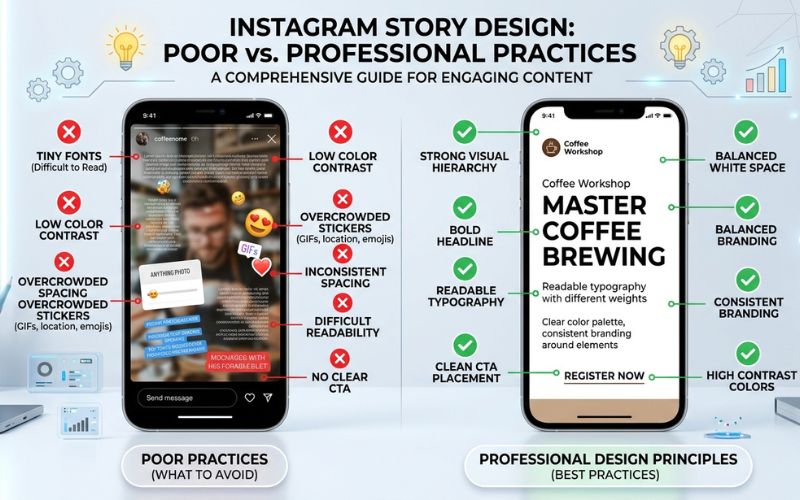
- Main Ideas First (Visual Hierarchy): Put your main title at the top in large text. Put extra details below it in smaller text.
- Easy-to-Read Colors: Use dark text on light backgrounds or light text on dark backgrounds so words stand out clearly.
- Leave Empty Space: Keep blank space around your text boxes. Crowded graphics make readers swipe away quickly.
- Put Buttons in Easy Reach: Place clickable stickers near the middle of the screen so viewers can tap them easily with their thumbs.
   POOR LAYOUT                     BETTER LAYOUT
+-------------------+           +-------------------+
| BUSY BACKGROUND   |           | CLEAN BACKGROUND  |
| Tiny text crammed |           |                   |
| together everywhere |         |   BOLD HEADLINE   |
|                   |  ------>  |   Clear visual    |
| [COVERED BUTTON]  |           |     hierarchy     |
|                   |           |                   |
| Hard to read font |           |  [ CLICK LINK ]   |
+-------------------+           +-------------------+
How to Track How Well Your Templates Work
Use Instagram Insights or Meta Business Suite to see how your template designs perform over time.
Track these key numbers on your Creator or Business dashboard:
- Reach and Impressions: Shows how many total accounts saw your story graphic.
- Tap Forward: Shows if viewers skipped your story because it was boring or hard to read.
- Tap Back: Shows that viewers re-watched your story to read the text again or view the picture closely.
- Story Navigation: Tracks how people move through your full set of story posts.
- Link Click Rate (CTR): Measures the percentage of viewers who tapped your link stickers.
- Story Completion Rate: The percentage of people who watched your story all the way to the very end.
Common Mistakes to Avoid
Check this quick list to fix design mistakes before posting:
- [ ] Too Much Text: Keep text blocks short and simple.
- [ ] Tiny Fonts: Text must be large enough to read easily on small phone screens.
- [ ] Weak Directions: Tell viewers exactly what action to take next (like “Tap Link Below”).
- [ ] Hard-to-Read Colors: Avoid putting light text on light backgrounds.
- [ ] Mixing Up Colors: Stick to your chosen group of colors across your posts.
- [ ] Blurry Images: Always save your designs at 1080 × 1920 pixels.
Fixing Common Instagram Story Template Problems
If your template files look blurry or app features fail to work, use this quick fix table:
| Problem | Likely Cause | Quick Solution |
| Add Yours Sticker Missing | Outdated app software or account settings | Update Instagram in your phone app store, or check your account settings. |
| Blurry Picture Uploads | Data saver setting is turned on | Open Instagram Settings, go to Media Quality, and turn on Upload at Highest Quality. |
| Graphics Cut Off at Edges | Wrong canvas size | Set graphics to 1080 × 1920 pixels (9:16 aspect ratio). |
| Sticker Links Won’t Click | Sticker placed outside the safe area | Move interactive link widgets into the middle screen space. |
Built-in Instagram Templates vs. Design Apps
Here is how Instagram’s built-in tools compare to outside design apps like Canva or Adobe Express:
| Feature | Built-in Instagram App | Canva / Adobe Express |
| Setup Speed | Instant | Takes a few minutes |
| Customization | Limited fonts and colors | Complete control over every part |
| Brand Management | Simple built-in tools | Full Brand Kits with saved brand files |
| Saving Files | Saved only in app archive | Downloadable main project files |
| Best Used For | Quick personal posts | Professional businesses and creators |
Best Ways to Manage Your Brand Files
Organize your master template files clearly so your work runs smoothly.
Folder System & Naming Files
Group your design templates into cloud storage folders like Google Drive or Dropbox. Name files clearly so team members can find them fast:
STORY_Announcement_v1.pngSTORY_ProductReview_v1.png
Keep a Reusable Design Folder
Keep clear PNG versions of your logos, custom icons, and brand stickers in one main folder. Update your template backgrounds every few months to keep your page looking fresh while keeping your signature look.
Final Thoughts
Building custom Instagram Story templates makes creating posts simple and stress-free. Instead of starting from scratch every time you post, you can count on a matching set of branded layouts.
Pick a design tool, choose your core colors and fonts, and create three basic layouts today. Once your templates are ready, you can focus on building your brand and connecting with your followers!
Frequently Asked Questions
What are Instagram Story templates?
Instagram Story templates are tall design layouts sized at 1080 × 1920 pixels. They allow you to swap text and photos into a ready-made graphic layout.
Are Instagram Story templates free to use?
Yes. You can create templates for free using Instagram’s native sticker options or free design plans on Canva and Adobe Express.
How do Add Yours templates work on Instagram?
You add an interactive “Add Yours” sticker to your story and lock your text or picture pieces onto the background layout. Viewers can tap the sticker to post their own photo inside your framework.
Why can’t I see the Add Yours feature on my account?
Make sure your Instagram app is updated to the newest version. If the feature is still missing, check your region or account settings in the Instagram Help Center.
How many Story templates should I build?
Start with 3 to 5 basic layouts. Build one template for text updates, one for photo highlights, one for customer reviews, and one for question polls.
Can I animate my Instagram Story templates?
Yes. Design software like Canva lets you add animated text and moving pieces. Save those files as MP4 video files before uploading them to Instagram.
You May Also Like:
Instagram Story Sizes and Image Rules Simple Guide
How to Share Someone Else’s Post to Your Instagram Story
Disclaimer:
This article is for informational and educational purposes only. Some images may be AI-generated for illustration. All trademarks, logos, product names, and copyrights belong to their respective owners. While we aim to keep the information accurate and updated, please verify details with official sources before making decisions.

Eleanor Karen is an administrator at PVStory.co.uk who writes about digital tools, social media trends, and online resources. She shares helpful insights on Instagram Story Viewer tools and other web-based solutions, helping readers stay informed and make the most of their online experience.