

Want to make your Instagram Stories look clean and professional? Changing the background color of your post is one of the fastest ways to stand out on the platform. Whether you want to share a simple text update, post a picture without messy borders, or reshare a post from your feed, picking the right canvas color makes a huge difference.
In this guide, you will learn every simple trick to switch your Story backdrop. We will cover quick solid fills, custom brand shades, transparent tints, and built-in gradients.
Editor’s Note on Accuracy: The steps in this guide were verified on recent versions of the Instagram app for both iOS and Android. Interface layout can change slightly as Meta updates the app, but these core steps remain the same across most devices.
Quick Answer
To change your instagram story background color in seconds:
- Open Instagram and swipe right to start a Story.
- Take a photo or select an image from your device gallery.
- Tap the three dots icon at the top right and pick Draw.
- Choose your favorite color from the bottom menu slider.
- Tap and hold your finger anywhere on the screen for about a second until the whole color fills the canvas.
This simple trick works on both iPhone and Android devices. It lets you create solid backdrops, soft tints, or custom brand shades behind your posts.
Different Ways to Change an Instagram Story Background Color
Instagram gives you several ways to adjust your Story canvas. The best option depends on the kind of content you want to share.
| Situation | Best Method | Difficulty | Best For |
|---|---|---|---|
| Blank Story | Create Mode | Easy | Text posts, polls, and quick updates |
| Photo Story | Draw Tool + Photo Sticker | Easy | Colored canvas behind a main photo |
| Shared Feed Post or Reel | Draw Tool | Easy | Reshared feed posts and video clips |
| Custom Brand Color | Eyedropper Tool | Medium | Businesses, creators, and unified feeds |
| Gradient Canvas | Built-in Gradient | Easy | Fun, colorful background designs |
Change Background Color on a Blank Instagram Story
If you want to post text, stickers, or questions without a photo, starting with a plain background is the best choice.
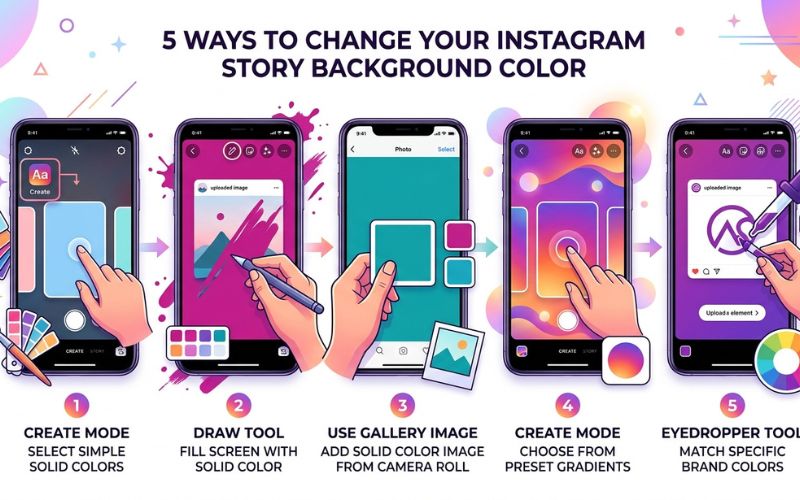
Method 1: Using Create Mode
- Open the Story editor by swiping right on your feed.
- Swipe to Create mode at the bottom of the screen (the Aa icon).
- Tap the small colored circle in the bottom right corner to cycle through default color options.
- Type your message and publish your post.
Method 2: Using the Draw Tool
- Take a quick photo of anything in the Story camera.
- Tap the three dots icon at the top right corner and choose Draw.
- Select the Pen icon at the top menu.
- Pick any shade from the bottom color palette.
- Fill the screen with your chosen color by pressing the screen for about a second.
Change Background Color Without Covering Your Photo
When you use the color fill trick over a fresh picture, Instagram covers your entire photo layer. Your image seems to disappear because the app fills the whole top canvas layer with paint.
You can fix this issue easily by adding your picture back over the fresh background.
Step-by-Step Method
- Take or select a photo in the Story camera.
- Open the Draw tool, pick a color, and fill the screen with your chosen color.
- Tap the Checkmark to save your new background.
- Tap the Sticker icon (the smiling square) at the top menu bar.
- Tap the Photo Sticker option (it shows a small preview of your camera roll).
- Pick your original picture again to overlay it on top of your backdrop.
- Pinch the screen to move, turn, or resize your photo image.
Change Background Color When Sharing a Post or Reel
Resharing feed content and video Reels to your Story is great for engagement. However, the app picks an automatic shade that might look plain or clash with your post.
Customizing Shared Feed Posts and Reels
- Tap the Paper Airplane share button below any feed post or Reel clip.
- Select Add to story.
- Open the Draw tool from the top menu.
- Pick a color from the bottom slider or use the eyedropper to grab a shade directly from the post.
- Tap an empty space on the screen next to the post to fill the screen with your chosen color.
- Pinch and drag your shared post or Reel to center it.
Note on Privacy Settings: Some private profiles turn off content resharing. If an account has strict privacy settings, you cannot adjust or reshare their post.
How to Choose a Custom Instagram Story Background Color
You do not have to use the basic color circles at the bottom of the screen. You can select exact custom shades or match your business branding.
Using the Color Palette and Eyedropper
Open the Draw tool to access your full color palette options:
- The Color Wheel: Tap and hold any default color circle at the bottom. A full color wheel will pop up. Drag your finger across the palette to pick any custom hue. (Note: Instagram does not allow direct HEX or RGB code typing, so using the color wheel is the best way to find precise shades).
- The Eyedropper Tool: Tap the Eyedropper icon on the far left. Drag the magnifying glass over any part of your photo to grab an exact matching shade. Fill the screen with your chosen color to apply it.
Matching Brand Colors in Under 30 Seconds
- Add an image of your brand logo using the Photo Sticker.
- Select the Eyedropper inside the Draw tool and place it right over your logo.
- Fill the screen with your chosen color to set your backdrop.
- Drag the extra logo sticker to the top of the screen to delete it.
Pen vs Highlighter vs Neon: Which Tool Should You Use?
Instagram gives you several drawing tool options. Each pen creates a different background style on your canvas layer.
| Tool | Result | Opacity | Best Use |
|---|---|---|---|
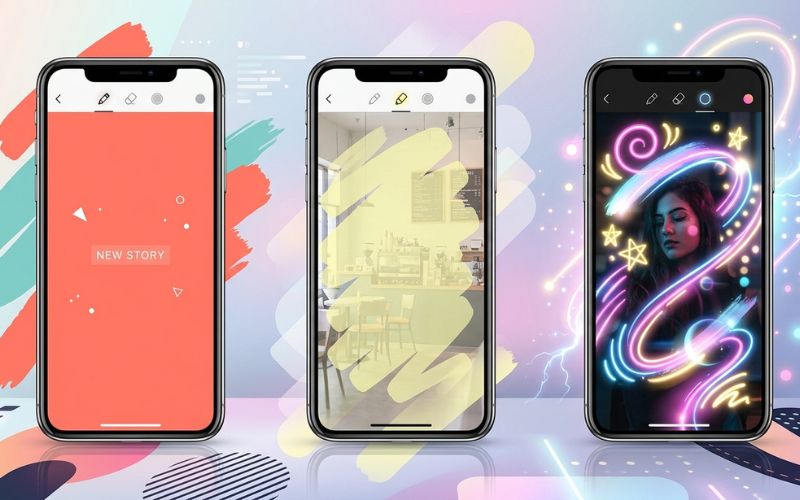
| Pen | Solid opaque color | 100% Solid | Solid color backgrounds behind text |
| Highlighter | Soft tint overlay | Semi-Transparent | Color tints over photos |
| Neon | Glowing stroke | Bright / Glowing | Drawing glowing lines, borders, and accents |
| Eraser | Clears top layer | 0% (Clears color) | Erasing paint to reveal photos beneath |
- Use the Pen when you want a solid, non-see-through base layer.
- Use the Highlighter when you want your main picture to show through a tinted screen overlay.
- Use the Eraser after filling the screen to create creative peek-a-boo image effects.
Add Gradient Backgrounds
If you want something more visual than a solid color base, Instagram has built-in gradients.
Built-in Gradient Backgrounds
Swipe to Create mode in your Story camera. Tap the small color circle at the bottom right to cycle through two-tone gradient backdrops. These options blend soft pastel shades together automatically.
Create Aesthetic Story Backgrounds with Multiple Photos
You can build attractive mood boards and scrapbook layouts by combining custom background colors with multiple image layers.
- Fill the screen with your chosen color using a soft shade like beige, sage green, or gray.
- Tap the Sticker icon and choose the Photo Sticker.
- Select your first image and place it on your canvas layer.
- Repeat this step to add two, three, or four different photos to your screen.
- Tap each image sticker once to change its shape into a circle, star, or square with soft white borders.
- Arrange your images at slight angles to create a clean grid or scrapbook layout.
Best Background Colors, Readability, and Design Tips
Choosing strong colors helps your followers read your text quickly. Poor color contrast makes people tap past your content.
High Contrast Readability Guide
Always pick text colors that pop against your background. Follow contrast guidelines to keep text easy to read for all viewers.
| Background Canvas | Best Text Color | Contrast Level |
|---|---|---|
| White | Black or dark navy | Very High |
| Black | White or bright yellow | Very High |
| Blue | White | High |
| Yellow | Black or dark brown | High |
| Pink | White or dark purple | High |
| Green | White | High |
Essential Rules for Clean Story Layouts
- Keep Contrast High: Never put light pink text over a white background or dark gray text over black.
- Limit Your Fonts: Use one or two font types per post to keep your layout organized.
- Leave Breathing Room: Keep text and stickers inside the middle of the screen so your profile name does not block them.
- Match Profile Highlights: Use your primary brand colors for your background posts. This helps your saved Story Highlights look neat on your profile page.
- Save Reusable Templates: Create a plain colored screen with your branding shapes, then tap the three dots menu to save it to your phone camera roll for future use.
Common Mistakes to Avoid
- Avoid tapping the screen once instead of holding down your finger for about a second.
- Avoid using the Highlighter pen when you want a solid, non-transparent background.
- Avoid trying to edit background colors after your post is already published.
- Avoid using low-contrast text that blends into your background picture.
Instagram Story Background Color Not Working? Try These Fixes
If your background color fill is failing, use these quick troubleshooting steps to clear up common app glitches.
Troubleshooting Checklist
- Re-save Your Image File: If your screen stays black, try saving your photo again as a JPG or PNG file in your phone gallery and upload it once more.
- Clear Interactive Elements: Long-pressing will not work if your finger touches a poll sticker, link tag, or location box. Hold down on an empty area of the screen instead.
- Force Close and Clear Cache: If the Draw tool freezes, close Instagram completely. Go to your phone settings to clear your app cache, then reopen the app.
- Check App Permissions: Make sure Instagram has full camera and storage access in your device settings.
- Visit the Official Help Desk: If tools are completely missing, check the official Instagram Help Center to see if the platform is facing a widespread outage.
| Problem | Cause | Quick Fix |
|---|---|---|
| Background stays black | Display glitch or image issue | Re-save image as JPG/PNG and re-upload |
| Screen fill does not work | Finger tapped a sticker or tag | Press an empty area of the canvas |
| Draw tool is missing | App menu moved in update | Tap the three dots icon in top right |
| App freezes on fill | App memory cache is full | Force stop the app and clear cache |
Frequently Asked Questions
How do I change the background color of an Instagram Story?
Open the Story camera and select an image. Tap the three dots icon, pick Draw, choose your color, and hold your finger on the screen for about a second to apply it.
Can I use a custom color instead of Instagram’s presets?
Yes. Open the Draw tool and hold down on any color circle to open the full color wheel. You can also use the Eyedropper tool to copy any shade from your picture.
Why does my background stay black?
Your background usually stays black due to an app glitch or a display issue. Try re-saving your picture as a JPG or PNG file and re-upload it.
Why did my photo disappear after changing the background?
The Draw tool places color over your top photo layer. Tap the Sticker button and pick the Photo Sticker to overlay your image back on top of your background.
Does this work on Android and iPhone?
Yes. The Draw tool and Create mode steps are consistent across both iOS and Android devices.
How do I change the background when sharing a post?
Reshare the post to your Story, open the Draw tool, choose a color, and tap any open area next to the post to update the background color.
Can I add multiple photos with a colored background?
Yes. Set your main background color first using the Draw tool. Then use the Photo Sticker repeatedly to layer multiple images over your canvas.
What is the difference between Pen and Highlighter?
The Pen tool creates a 100% solid color background. The Highlighter tool creates a see-through tinted overlay that shows your underlying photo.
Can I use gradients on Instagram Stories?
Yes. Swipe over to Create mode in your Story camera and tap the small color circle in the bottom right corner to cycle through built-in gradient options.
You May Also Like:
How to Add Links to Instagram Stories
Instagram Story Fonts: How to Make Your Stories Stand Out
Disclaimer:
This article is for informational and educational purposes only. We try to keep the information accurate, but Instagram may change its features at any time. Some images in this article may be AI-generated for illustration only. All trademarks, logos, and copyrights belong to their respective owners.

Eleanor Karen is an administrator at PVStory.co.uk who writes about digital tools, social media trends, and online resources. She shares helpful insights on Instagram Story Viewer tools and other web-based solutions, helping readers stay informed and make the most of their online experience.