
Note: Menu names and features might look a bit different based on your phone, country, or app version. Check Meta’s help pages for the newest updates.
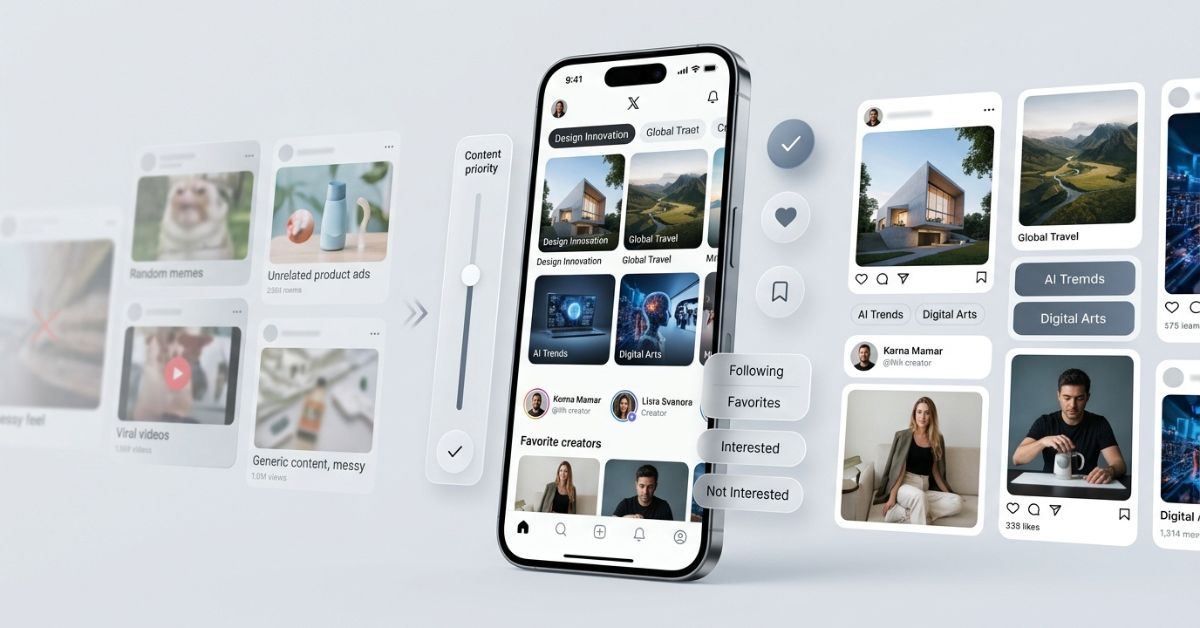
Customize Instagram feed means choosing what you see when you open the app. You can see more posts from your friends, follow your favorite topics, and reduce content you do not want.
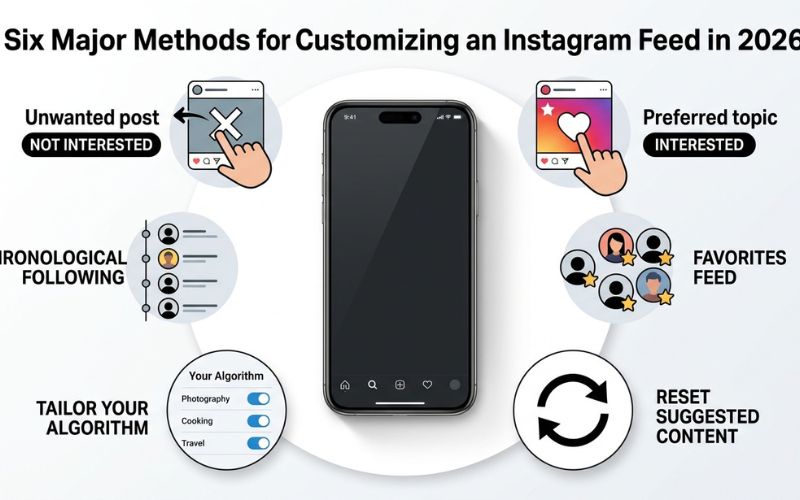
If your main feed feels messy, these six tools can help you customize Instagram feed content:
- Not Interested: Hides posts you do not like.
- Interested: Tells Instagram what you want to see more of.
- Following: Shows posts only from people you follow, starting with the newest ones.
- Favorites: Puts your favorite accounts at the top of your feed.
- Your Algorithm: Lets you review and choose your favorite topics.
- Reset Suggested Content: Clears recommendation history so you can start fresh.
How to Fix Your Instagram Feed in 2026
Taking control of your page is simple. Instagram gives you settings to change what you see every day. Here is how to use every main tool, step by step.
Use “Not Interested” to Hide Posts You Do Not Want
When you tap Not Interested on a post, Instagram hides that post right away. It also stops showing you similar posts on your main page, Reels, or Explore page.
Tapping it once helps, but doing it often works best. Instagram learns your habits over time. If you tap Not Interested every time a topic you dislike pops up, the app learns to stop showing it to you.
Mark Posts as “Interested” When You See It
You can also tell Instagram what you actually like. On suggested posts, look for the option to tap Interested.
Tapping this tells the app that you like a topic. For example, if you see a video about cooking, tap Interested. Instagram will then show you similar recipes and food pages.
Use Following and Favorites for More Control
Your main Home page mixes posts from friends with posts the app thinks you like. If you want a simpler page without random suggestions, switch to Following or Favorites.
- Following View: This page shows posts only from people you follow. Posts appear in order by time, so the newest posts stay at the top.
- Favorites View: You can pick up to 50 top accounts, like close friends or favorite creators. This page puts their posts first so you never miss them.
Here is how these three views compare:
| Feed Type | What You See | Order of Posts | Has Suggested Posts? |
| Home Feed | Followed pages and suggested posts | Sorted by what the app thinks you like | Yes |
| Following Feed | Only pages you follow | Time order (Newest first) | No |
| Favorites Feed | Your top 50 chosen accounts | Time order (Newest first) | No |
Use “Your Algorithm” to Control Suggested Posts
Your Algorithm is a setting that lets you see the main topics Instagram thinks you like. Instead of guessing why you see certain posts, you can look at your topic list directly.
Inside this menu, you can check or uncheck topics to change your likes yourself. If Instagram lists a topic you dislike, you can remove it with one tap. This changes what you see in suggested posts, Reels, and the Explore page.
To see if you have this feature:
- Go to your Profile and tap the Menu (three lines).
- Tap Content Preferences.
- Pick Your Algorithm or Topic Preferences if you see it.
(Note: You can also sometimes open Your Algorithm right from your main feed menu or by pulling down on your main page.)
How to Reset Your Instagram Suggestions
Resetting your suggested content wipes out your past watch history. It does not unfollow your friends or delete your account. It just clears the list of topics Instagram thought you liked.
Here is how to reset your suggested content:
- Open Instagram and go to your Profile.
- Tap the Menu icon in the top right corner.
- Tap Content Preferences.
- Tap Reset Suggested Content.
- Read the note on the screen and tap Reset Suggested Content again to confirm.
What Happens After You Reset Your Suggestions?
Right after a reset, your feed will feel plain. Instagram no longer knows what you like, so it shows broad, popular posts instead.
Do not worry if you see posts you do not know at first. You just need to teach the app what you like again. Also, resetting does not block bad posts forever. If you tap on unwanted posts later, Instagram will start showing them to you again.
How to Teach Instagram What You Like After a Reset
Teaching the app takes a little work, especially early on. Here is an easy plan to rebuild your page:
- Follow topic pages: Search for and follow 5 to 10 creators who post things you love.
- Use the buttons: Tap Interested on posts you like, and tap Not Interested on posts you dislike.
- Interact with good posts: Like, save, and share posts that you find helpful or fun. Leave comments on posts from real friends.
- Swipe away from bad posts: If a video is boring or annoying, swipe away right away.
How to Control Instagram Reels, Explore, and Suggested Posts
Fixing your recommendations works across the whole app, not just the main page.
Show Fewer Unwanted Reels
Reels look closely at how long you watch. If you watch a full Reel, Instagram thinks you love that topic.
To fix your Reels page, tap the three dots on a Reel you dislike and pick Not Interested. Swipe away fast when a bad topic plays, and do not open the comment box on videos you dislike.
Fix Your Explore Page
The Explore page shows topics based on what you search for and watch. If you search for a topic, Explore shows you more of it.
To clean up your Explore grid, open the page and tap a post you do not like. Tap the three dots on that post and pick Not Interested. Do this for a few bad posts, then pull down on the Explore page to refresh it.
See Fewer Suggested Posts
Suggested posts show up on your main Home page between posts from accounts you follow.
You cannot turn off suggested posts forever on the main Home page. But you can hide them for a while. Tap the X above a suggested post, then pick Snooze all suggested posts in feed for 30 days. This hides suggested posts from your main page for a whole month.
Quick Help Guide:
- Problem: “My feed is full of random workout videos.” -> Fix: Tap Not Interested.
- Problem: “I only want to see posts from my real friends.” -> Fix: Switch to the Following feed.
- Problem: “My suggestions are totally wrong.” -> Fix: Use Reset Suggested Content.
How Instagram Figures Out What You Want to See
Instagram uses automatic hints to pick posts for you. The app tracks simple actions to guess what you enjoy.
According to Meta, key hints include:
- Saves and Shares: Strong signs that show a post was helpful to you.
- Comments and Likes: Direct signs that show you like interacting with a post.
- Watch Time: Staying on a post or Reel tells the app you are paying attention.
- Direct Choices: Tapping buttons like Not Interested or Interested gives clear instructions to the app.
[Your Actions] ---> [Instagram Hints] ---> [Better Suggestions]
(Likes, Saves,      (App rates             (Custom feed built
 Watch Time)         your interest)         just for you)
Instagram Controls Comparison
Use this simple chart to pick the right tool for your feed problem:
| Tool | Best For | What It Does | When to Use It |
| Not Interested | Removing one bad topic | Shows fewer similar posts | A post or topic pops up that you dislike |
| Interested | Showing topics you love | Tells the app to show more of this | You want to see more of a topic |
| Following | Seeing people you follow | Shows followed accounts in order | You want less random noise |
| Favorites | Important accounts | Puts chosen accounts first | You do not want to miss key accounts |
| Your Algorithm | Full topic control | Changes your main interest topics | You want to pick your topics yourself |
| Reset Suggested Content | Starting fresh | Clears all past suggestions | Your suggested posts are totally wrong |
How to Fix Instagram Ads and Sensitive Posts
Fixing your page also means managing ads and sensitive posts. These controls use different settings than normal post recommendations.
Pick Your Ad Topics
Instagram picks ads based on what you do in the app, but you can block certain ad topics.
- Go to your Profile and open the Menu.
- Tap Accounts Center, then pick Ad Preferences.
- Tap Ad Topics to choose topics you want to see less, like gambling or alcohol.
Changing these options changes which ads you see, but it will not lower the total number of ads on your page.
Filter Sensitive Content
Instagram automatically hides posts that might be graphic or upsetting. You can change this filter based on what you feel comfortable seeing.
Under Content Preferences, pick Sensitive Content Control. Choose More, Standard, or Less. Picking Less hides more sensitive posts across Explore, Reels, and suggested feed posts.
A 5-Minute Instagram Feed Cleanup
Follow this quick checklist to clean up your page in five minutes:
- [ ] Open Content Preferences in your settings.
- [ ] Look at Your Algorithm topics and uncheck things you dislike.
- [ ] Tap Not Interested on three posts you do not like.
- [ ] Switch to Following or Favorites for a cleaner view.
- [ ] Snooze suggested posts for 30 days if you want zero recommendations on your main page.
- [ ] Like, save, or comment on three posts from creators you love.
Easy Feed Tips for Creators
If you make content, knowing how the feed works helps you reach the right people. Because people can hide unwanted topics easily, posting focused content is super important.
Posting within one clear topic helps Instagram label your page correctly. When your target audience marks your posts as Interested, more people will naturally see your work.
Creators should focus on real engagement. Try to make posts that make people save, share, and comment, instead of just chasing short trends.
How to Fix Common Instagram Feed Problems
Here is how to solve simple problems when changing your settings.
I Can’t Find “Your Algorithm”
If you cannot find Your Algorithm, the feature might still be rolling out to your region or app. Update Instagram to the newest version in your app store, log out, and log back in. Check under Settings and Activity > Content Preferences, or look for it directly in your Home feed menu.
My Feed Got Worse After Resetting
A reset deletes your past history, leaving Instagram with no data about what you like. To fix this, follow the retraining steps: follow good accounts, use the feedback buttons, and interact only with posts you like.
Instagram Keeps Showing Posts I Don’t Like
If bad topics keep popping up, do not stop to read the comments on them. Use the Not Interested button every time, and check your following list to make sure you are not following pages that post those things.
I Don’t See Posts From People I Follow
The main Home page mixes friend posts with suggested content. To see only people you follow, tap the Instagram logo at the top left and pick Following. You can also add top friends to your Favorites list.
Mistakes to Avoid When Fixing Your Feed
Avoid these common mistakes to keep your page clean:
- Resetting without retraining: Resetting clears your history, but you must teach the app what you like afterward.
- Watching posts you hate: Staying on posts you dislike tells the app you are interested in them.
- Expecting instant changes: Teaching the app takes time and consistent action.
- Confusing ads with suggestions: Ad settings and post suggestions are changed in two different places.
How Long Does It Take for Feed Changes to Work?
Fixing your feed is a mix of instant fixes and slow learning.
| Feature | How Fast It Works | What to Expect |
| Switching to Following/Favorites | Right away | Instantly shows only accounts you follow |
| Snoozing Suggested Posts | Right away | Hides suggested posts for 30 days |
| Not Interested / Interested Buttons | Slow change over time | Slowly reduces bad topics |
| Your Algorithm Settings | Slow change over time | Updates your main topic preferences |
| Reset Suggested Content | Takes time to retrain | Clears old history; takes time to learn new tastes |
Switching views works right away, while teaching the app takes time as you like and save new posts.

Final Takeaway: Build the Instagram Feed You Want
Fixing your Instagram feed comes down to using the right tool for the job. Use Following or Favorites when you want a clean page showing only accounts you trust. Use Not Interested, Your Algorithm, or Reset Suggested Content when you want to change or restart your suggestions.
Frequently Asked Questions About Customizing Instagram Feed
How do I change my Instagram feed in 2026?
To change your feed, use the Following or Favorites views. You can also edit Your Algorithm topics and tap Not Interested on bad posts.
How do I reset my Instagram algorithm?
Go to your Profile, tap the Menu, pick Content Preferences, and tap Reset Suggested Content. Confirm your choice to clear your old watch history.
What is Instagram’s Your Algorithm feature?
Your Algorithm is a setting in Content Preferences that lists topics Instagram thinks you like. You can check or uncheck topics to change your suggestions yourself.
How do I see only posts from people I follow?
Tap the Instagram logo in the top left corner of your screen and pick Following. This shows posts from accounts you follow in order by time, without suggested posts.
How do I use Favorites on Instagram?
Tap the Instagram logo at the top left and pick Favorites. Add up to 50 top accounts to see their posts first.
How do I stop seeing suggested posts on Instagram?
Tap the X above a suggested post, then pick Snooze all suggested posts in feed for 30 days. You can also switch to the Following feed.
How do I make Instagram show me more of what I like?
Mark posts as Interested, save content you enjoy, and interact with accounts in topics you love.
Why is Instagram showing me Reels I don’t like?
Watching a Reel all the way through tells the app you like it. Swipe away fast from bad videos and tap Not Interested.
What happens when I reset suggested content?
Resetting clears your past history. Your page will temporarily show normal popular posts until you teach the app what you like again.
Why can’t I find Instagram’s Your Algorithm feature?
The feature might still be rolling out, or your app needs an update. Update Instagram in your app store and check Content Preferences or your Home feed menu.
How long does it take Instagram to learn what I like?
Changing feed views works right away. Teaching the app new topics takes time as you view, like, and save posts.
Can I completely remove suggested posts or ads from Instagram?
You cannot remove ads or suggested posts forever on the main Home feed. But you can snooze suggested posts for 30 days or use the Following feed.
You May Also Like:
SparkPressFusion com Explained: Features, Uses, Safety & 2026 Review
InsiderBoss com Review: Guest Posts, SEO Value, Pricing & Safety in 2026
Disclaimer:
This article is for informational and educational purposes only. Instagram features, settings, and menu names may change, and results can vary by account, region, or app version. Please check official sources for current details. Some images may be AI-generated for illustrative purposes. All copyrights and trademarks belong to their respective owners.

Eleanor Karen is an administrator at PVStory.co.uk who writes about digital tools, social media trends, and online resources. She shares helpful insights on Instagram Story Viewer tools and other web-based solutions, helping readers stay informed and make the most of their online experience.