
Quick Answer
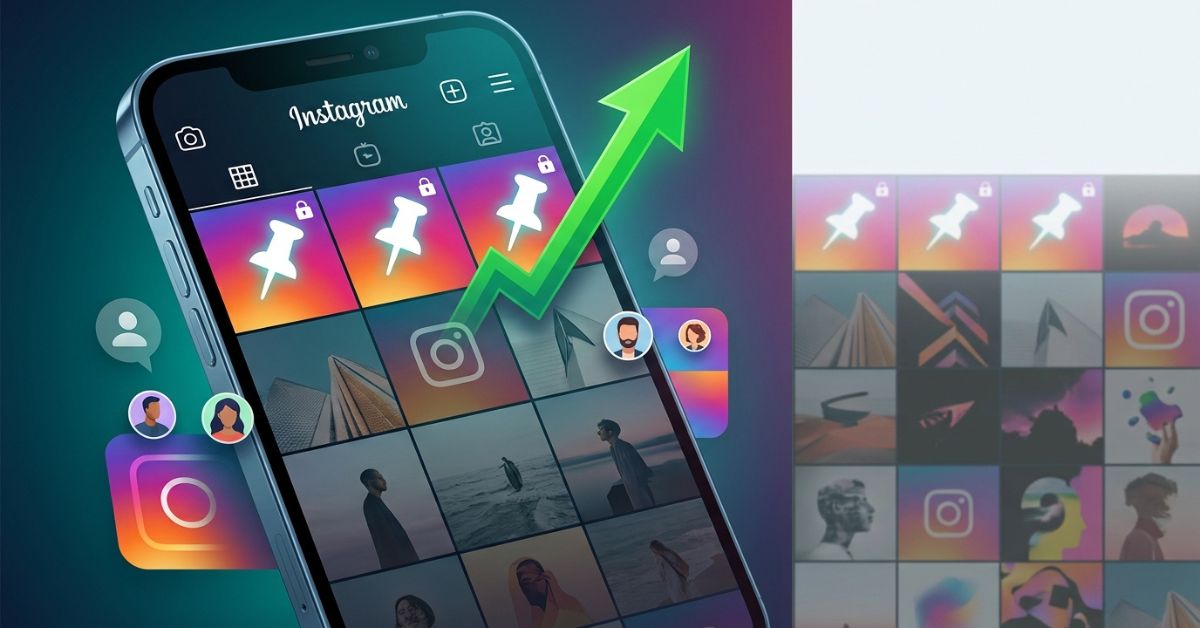
Pinned posts stay fixed at the top of your Instagram profile grid. To pin posts on Instagram, open your post on the mobile app, tap the three dots in the top corner, and select Pin to your profile.
Key Takeaways
- Position: Pinned posts stay locked in the top row of your profile grid.
- Supported Formats: You can pin photos, videos, carousels, and Reels.
- Flexibility: You can unpin or swap posts out whenever you want.
- Stories Excluded: You cannot pin 24-hour Stories to your grid. Save them to Story Highlights instead.
At a Glance Overview
| Question | Answer |
| Maximum Pins Allowed? | Up to 3 posts on grid (plus 3 in Reels tab) |
| Can You Pin Reels? | Yes |
| Can You Pin Photos & Carousels? | Yes |
| Can You Pin Stories? | No (Use Story Highlights) |
| Does Pinning Boost Feed Reach? | No |
What Does Pinning a Post on Instagram Do?
Pinning a post locks it to the top row of your Instagram profile grid. When you upload new content, regular posts move down your page. A pinned post stays right at the top.
According to official guidance from the Instagram Help Center, you can feature important content right where profile visitors look first. Think of your profile as a store front window. Pinning lets you put your best items right in front.
What Content Can You Pin?
You can pin up to three items from your published posts to your main profile grid. You can also pin up to three additional Reels separately in your Reels tab. Supported formats include:
- Single photos
- Videos
- Carousel posts (posts with multiple photos or videos)
- Instagram Reels
You cannot pin Instagram Stories directly to your grid because Stories disappear after 24 hours. To save Stories to your profile, add them to Story Highlights under your bio.
How to Pin Posts on Instagram (Step-by-Step)
Follow these simple steps on your iPhone or Android phone to feature your best content:
- Open Your Instagram Profile: Tap your profile picture in the bottom right corner of the app.
- Select a Post: Scroll through your grid and tap the photo, carousel, or Reel you want to feature.
- Open the Menu: Tap the three dots (…) in the top right corner of the post.
- Pin the Post: Tap Pin to your profile from the menu options.
- Verify the Icon: Return to your main profile page. Look for a small white pushpin icon in the top right corner of the post thumbnail.
How to Unpin or Replace a Pinned Instagram Post
To unpin a post, go to your profile and tap the pinned content. Tap the three dots (…) in the top right corner and select Unpin from profile. The post will return to its original spot based on the date you posted it.
If all three pin slots on your grid are full, you can still select a new post to pin. Instagram will show a pop-up message asking you to choose which existing pinned post you want to replace. Select the post you want to remove to swap it with the new one.
How to Choose the Right Posts to Pin
Instead of pinning your most popular post, pin content that introduces your brand to new visitors. Pick posts that answer three questions: Who are you? How do you help? What should the visitor do next?
The Simple 3-Pin Formula
- Pin 1 (Who You Are): Share an introduction post or welcome Reel that explains your main topic.
- Pin 2 (How You Help): Feature your top educational tip, product showcase, or key service.
- Pin 3 (What to Do Next): Share social proof like reviews, client results, or a clear call to action.
Examples for Different Account Types
| Account Type | First Pin | Second Pin | Third Pin |
| Creator | Welcome Reel with personal story | Best tutorial or tip | Popular viral content |
| E-Commerce Store | Best-selling product showcase | Size guide or FAQ | Customer unboxing reviews |
| Local Restaurant | Menu and location hours | Virtual video tour | Popular dish photos |
| Coach or Expert | Client success story | Free download guide | Detailed service breakdown |
| Photographer | Portfolio highlight video | Pricing process breakdown | Favorite client shoot |
Using Instagram Insights to Select Pinned Posts
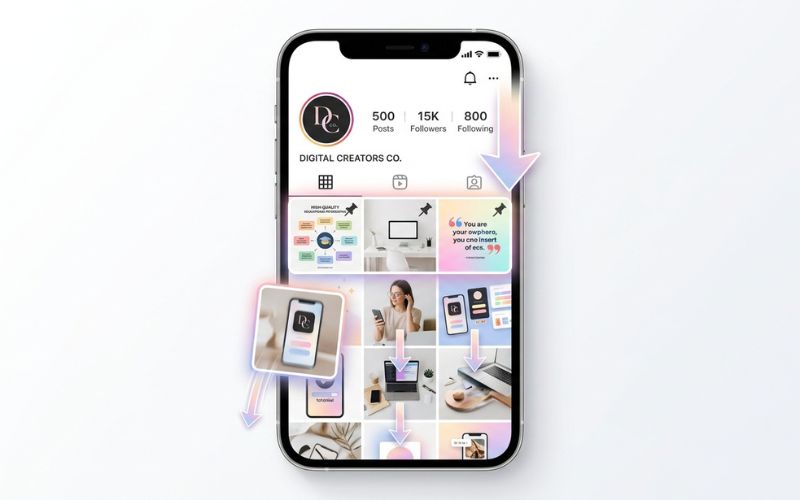
Open your Professional Dashboard or switch to a Creator Account to view Instagram Insights. Check these specific metrics before choosing your pins:
- Saves: High saves mean people found your post very useful.
- Shares: High shares show that people trusted your post enough to send it to friends.
- Profile Visits: This metric shows which posts convince people to tap on your profile name.
To check these numbers, tap View Insights under any of your published posts. Select posts with high saves and profile visits for your top row.
Should You Pin a Reel, Carousel, or Photo?
Each post type serves a different purpose on your profile grid:
| Content Type | Best For | Main Advantage | Recommended Use |
| Reel | Profile Engagement | Video shows your personality quickly | Pin a welcome Reel because video builds trust faster |
| Carousel | Educating Readers | Keeps visitors on your page longer | Pin a multi-slide post to share detailed guides or tips |
| Photo | Visual Branding | Sets a clean visual style | Pin a crisp photo to highlight a single message |
How Pinned Posts Help Grow Your Instagram Profile
Pinning content helps turn profile visitors into new followers and customers. While pinning does not boost your reach in the main feed, it improves your profile conversion rate. This metric measures the percentage of profile visitors who hit follow or click your links.
Visitor Lands on Profile
       │
       ▼
Views Pinned Posts
       │
       ▼
Builds Trust
       │
       ▼
Clicks Bio Link or Follows
Here is why this strategy works:
- Strong First Impression: A local photographer who pins their top work instantly looks like an expert.
- More Bio Link Clicks: A coach who pins a post mentioning a free guide gets more website clicks.
- Higher DM Messages: A business that pins answers to common questions gets better sales messages.
Myth vs. Fact: Instagram Pinning
Myth: Pinning an old post sends it back to your followers’ home feeds.
Fact: Pinning only changes your profile grid layout. It does not re-share the post to the feed.
Myth: You must pin your most-liked posts.
Fact: Strategic posts that explain your business work much better than posts with simple high like counts.
Optimization Checklist & Best Practices
Use this checklist to review your top row every 30 to 60 days:
- [ ] Clear Goal: Does each post serve a specific purpose?
- [ ] Clean Cover Images: Are your post thumbnails easy to read on small mobile screens?
- [ ] Call to Action: Does your caption tell readers to visit your bio link or send a DM?
- [ ] Visual Variety: Do your three pinned posts look distinct from each other?
Common Mistakes to Avoid
| What to Avoid (Don’t) | What to Do Instead (Do) |
| Pinning only viral posts: High views do not always bring new customers. | Pin helpful content: Feature posts that explain your offer clearly. |
| Leaving up expired deals: Old sales posts confuse new profile visitors. | Remove old promos: Swap out sales posts as soon as an offer ends. |
| Pinning three similar posts: Three identical photos waste your top space. | Mix your post formats: Combine a Reel, a carousel, and a photo. |
| Ignoring the pin order: Instagram places the newest pin on the top left. | Pin in reverse order: Pin your third post first so your main post sits on the far left. |
Fix App Issues & Missing Pin Options
If you cannot pin posts on your account, use this simple troubleshooting path:
Cannot Pin a Post?
       │
       ├─► Trying to pin a Story? ─────────► Only regular posts/Reels can be pinned
       │
       ├─► Feature Missing in Menu? ───────► Update app in App Store or Google Play
       │
       └─► Grid Not Refreshing? ───────────► Clear app cache and restart phone
1. Check Content Compatibility
Make sure you are selecting a regular grid photo, carousel, or Reel. You cannot pin Stories directly to your grid. If a Reel does not show the pin option, make sure it is added to your main profile grid.
2. Update Instagram & Clear Cache
The pin feature requires the mobile app. Update Instagram to the newest version in the App Store or Google Play Store. If the app still glitches, clear the app cache in your phone settings or restart your phone.

Final Thoughts
Strategic pinning gives you complete control over your Instagram profile grid. Take ten minutes today to review your top row:
- Audit your top row: Remove any outdated sales posts or duplicates.
- Apply the 3-pin formula: Pick an intro post, a helpful tip, and a key offer.
- Track your results: Use Instagram Insights to see if your profile visits and link clicks improve.
Frequently Asked Questions
What does pinning a post on Instagram do?
Pinning locks up to three posts or Reels to the top row of your profile grid. They stay at the top even when you share new content.
Can people see when you pin a post?
Instagram does not send notifications when you pin content. Profile visitors will simply see a small pushpin icon on those posts.
Can you rearrange your pinned posts?
Yes, but you must pin them in reverse order. Instagram puts your newest pin in the top-left spot. Unpin all posts and pin your desired right-hand post first.
How often should you change your pinned posts?
Review your pinned posts every 30 to 60 days. Update them whenever you launch a new offer, run a sale, or change your account goals.
You May Also Like:
Instagram Broadcast Channels: Complete Guide
How Instagram Notes Work and Why People Use Them
Disclaimer:
This article is for informational and educational purposes only. We aim to provide accurate and updated information, but we cannot guarantee complete accuracy or results. Some images may be AI-generated for illustration only. All trademarks, logos, and copyrights belong to their respective owners.

Eleanor Karen is an administrator at PVStory.co.uk who writes about digital tools, social media trends, and online resources. She shares helpful insights on Instagram Story Viewer tools and other web-based solutions, helping readers stay informed and make the most of their online experience.