
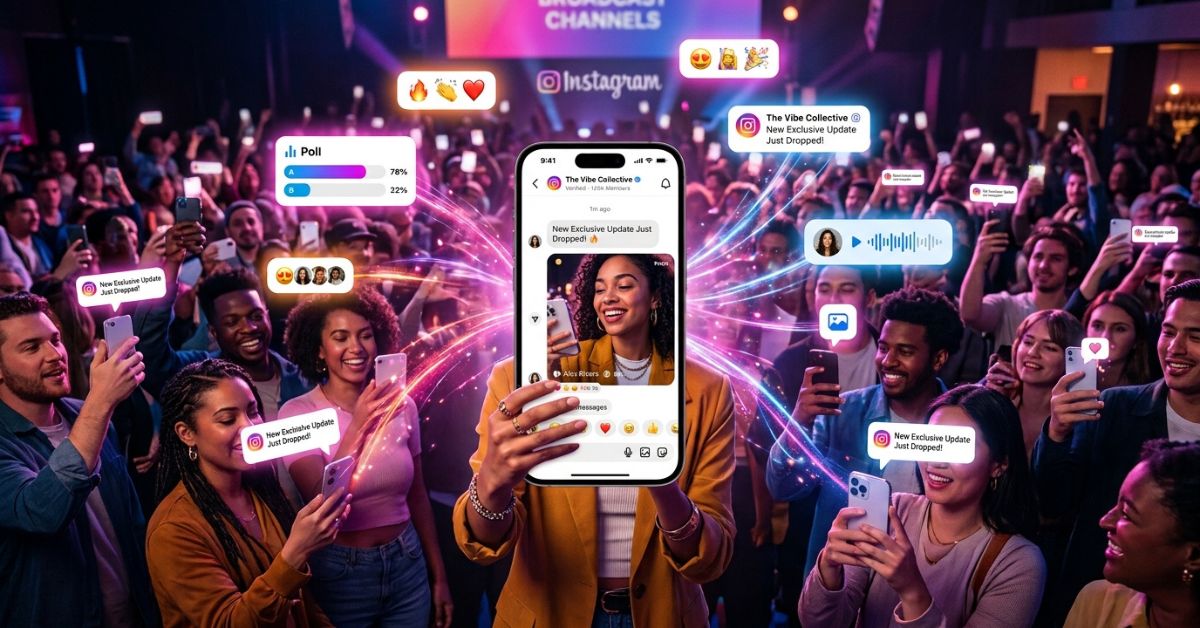
Have you ever wanted to send a message to all your Instagram followers at once? That is exactly what instagram broadcast channels let you do.
Instead of posting a photo and hoping the app shows it to people, you can send updates right into your followers’ direct message inboxes. It feels personal, direct, and fast.
In this guide, you will learn everything you need to know about Instagram broadcast channels, how they work, and how to use them to grow your audience.
What Are Instagram Broadcast Channels?
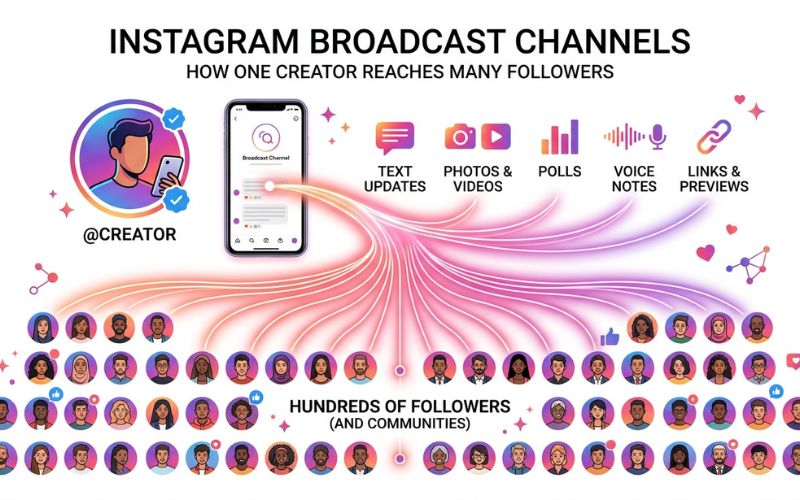
Instagram Broadcast Channels are public chat groups where creators send updates directly to their followers. The channel shows up as a chat inside your Direct Messages inbox after you join.
Think of it like a public group chat, but with one big difference: only the creator can send messages. Followers cannot send text replies, but they can react with emojis and vote in polls.
How One-to-Many Messaging Works
In a regular group chat, everyone talks at the same time. It can get messy very fast.
A broadcast channel uses a “one-to-many” model:
- One sender: The creator or chosen admin posts the updates.
- Many receivers: Thousands or millions of followers read the updates at the same time.
Instagram introduced Broadcast Channels on its official blog in February 2023 to help public accounts build a closer community. You can also find learning guides on the Instagram Creator Hub. It gives you a direct way to talk to your biggest fans without competing with all the posts on the main feed.
[ CREATOR / ADMIN ]
        │
        ├───► (Text, Photos, Voice Notes, Polls)
        │
        ▼
[ FOLLOWERS INBOX ] ──► (Can React with Emojis & Vote in Polls)
Instagram Broadcast Channels at a Glance
Here is a quick overview of how broadcast channels work on Instagram:
| Feature | Details |
| Available For | Public Creator and Business accounts |
| Cost | 100% Free |
| Who Can Create | Accounts that qualify |
| Who Can Join | Any follower on Instagram |
| Replies Allowed | Emojis and poll votes only (no text messages) |
| Polls & Questions | Yes |
| Voice Notes & Media | Yes (Photos, short videos, and audio clips) |
| Notifications | All followers get the first invite; only members get new updates |
| Multiple Channels | Yes, creators can make more than one channel |
| Paid Channel Option | Yes (for creators with Instagram Subscriptions or Meta Verified) |
Who Can Create an Instagram Broadcast Channel?
To start an Instagram broadcast channel, you must have a public professional account. Instagram sets these rules to keep the app safe and organized.
Account Rules
- Creators & Businesses: You must use a free Creator or Business account (a Professional account). Personal profiles cannot make channels.
- Public Profile: Your account must be public. Private accounts cannot use this feature.
- Age Rules: Account owners must meet Instagram’s minimum age rules and follow local laws.
If you have a personal account, you can switch to a Professional account in your Instagram settings. Keep in mind that features can change depending on your account, country, and app version.
How to Create an Instagram Broadcast Channel
Setting up your first channel takes less than two minutes on the Instagram phone app.
Step 1: Create Your First Channel
- Open the Instagram app on your phone.
- Tap the Direct Message (DM) icon in the top right corner.
- Tap the New Message icon (the pencil or plus symbol) in the top right corner.
- Tap Create broadcast channel.
Step 2: Set Up Channel Details
- Type a clear Channel Name that fits your brand.
- Select your Audience (usually “All followers”).
- Channels stay open until you choose to end or delete them.
- The link to your channel is added to your profile automatically when you make the channel.
Step 3: Send Your First Message
When you send your very first update, your followers will get a pop-up notice inviting them to join your new channel.
Example Setup:
- Channel Name: Tech Tips Daily
- First Message: “Welcome to Tech Tips Daily! I will share easy phone tricks, app sales, and tech news here every morning.”
How Followers Join an Instagram Broadcast Channel
Followers can join your channel in a few simple ways. When they tap a channel link, Instagram opens a screen with a big Join Broadcast Channel button at the bottom.
Here is how followers find your channel:
- Invite Notice: Followers get a message in their inbox when you post your first update.
- Profile Link: A channel link shows up right under your bio on your Instagram profile.
- Shared Link: You can post your special channel link in Stories, DMs, or on other websites.
Leaving and Rejoining
Members can leave or mute channels at any time, or turn off channel updates completely. They can rejoin whenever they want by using the link on your profile page.
What Can You Post in Instagram Broadcast Channels?
Broadcast channels let you share many types of posts. Mixing different types of posts keeps your channel fun and interesting.
Here is a quick list of supported post types:
| Post Type | Allowed? | Best Way to Use It |
| Text Updates | Yes | Daily tips, quick thoughts, and news |
| Images & Photos | Yes | Sneak peeks of products and behind-the-scenes photos |
| Short Videos | Yes | Quick video messages, short lessons, and event clips |
| Voice Notes | Yes | Short audio messages (30 to 60 seconds long) |
| Polls | Yes | Quick questions where followers tap to vote |
| Questions | Yes | Gathering ideas and feedback from followers |
| Links | Yes | Sending people to your website or blog |
Instagram Broadcast Channels vs Posts, Stories, Reels, and DMs
Instagram gives you many tools for sharing content. Choosing the right tool depends on what you want to achieve with your reach, interactions, and fan loyalty.
| Feature | Broadcast Channel | Story | Post | Reel | Direct Message (DM) |
| Who Sees It | Joined members | Active followers | Followers & Feed | Anyone on the app | One person or small group |
| Interactions | Emojis & Polls | Replies & Stickers | Comments & Likes | Comments & Likes | Full text chat |
| Alerts | Phone alerts (members only) | None | None | None | Direct DM inbox |
| How Long It Stays | Permanent | 24 Hours | Permanent | Permanent | Permanent |
| Best Used For | VIP updates | Daily life | Main highlights | Reaching new people | 1-on-1 customer help |
Instagram Broadcast Channels vs Telegram Channels vs WhatsApp Broadcasts
Sending updates to groups is popular across many apps. Here is how Instagram compares to Telegram and WhatsApp.
| Feature | Instagram Broadcast | Telegram Channels | WhatsApp Broadcasts |
| Audience | Your Instagram followers | Public Telegram users | Saved phone contacts |
| Discovery | Easy (profile link) | Search or link | Hard (needs phone numbers) |
| Privacy | Phone number hidden | Phone number hidden | Phone number visible |
| Best For | Visual brands & creators | Long posts & large files | Local customer service |
Good and Bad Points of Each App
- Instagram Broadcast Channels: Best for visual creators who already have Instagram followers. However, followers cannot type text replies.
- Telegram Channels: Great for sharing big files, long articles, and high-quality photos. However, getting new followers on Telegram is harder.
- WhatsApp Broadcasts: Great for local shops that talk to customers one-on-one. However, you must save customer phone numbers first.
Best Ways to Use Instagram Broadcast Channels
Different accounts use broadcast channels to reach different goals.
1. Creators & Influencers
Creators use channels to build friendly relationships. Share voice notes, run polls about future videos, or post plain photos from your daily life.
2. Online Stores & Businesses
Online shops use channels to boost sales. Share special discount codes, announce restocked items, or give members early access to buy new products.
3. Teachers & Coaches
Teachers share short daily lessons. Send a 30-second audio tip every morning, followed by a poll to test what your members learned.
4. Local Shops
Local shops share quick real-world updates. A local bakery can post a morning photo of warm bread to bring in nearby buyers.
What Should You Post? (Ideas by Topic)
Here are helpful post ideas for different types of accounts:
| Industry | Post Ideas |
| Fitness | • Daily workout ideas • Healthy meal photos • Motivational voice notes • Exercise tips • Poll: “What are you training today?” |
| Fashion | • Outfit photos of the day • Sale links • Poll: “Which outfit should I wear?” • Sneak peeks of new clothes • Quick dressing tips |
| Travel | • Packing lists • Trip news • Simple travel photos • Cheap flight links • Poll: “Where should I go next?” |
| Learning | • Daily vocabulary words • Book tips • Links to study guides • Short quiz polls • Voice notes explaining hard topics |
| Food | • Recipe lists • Kitchen tool recommendations • Cooking videos • Weekly meal prep tips • Poll: “Sweet or savory?” |
| Tech | • Phone update warnings • Useful app ideas • Tech deal links • Device setup tips • Poll: “iOS or Android?” |
| Beauty | • Product ingredient guides • Daily skincare steps • Early product links • Makeup sample photos • Skincare facts in voice notes |
| Real Estate | • Photos of new homes for sale • Open house reminders • Home loan tips • Local neighborhood news • Poll: “Modern or classic house design?” |
| Money | • Daily stock market news • Money-saving tips • Easy finance definitions • Link tools and calculators • Poll: “Do you save money weekly or monthly?” |
Best Practices for Instagram Broadcast Channels
Follow these rules to keep your members interested and active.
1. How Often to Post
Post 2 to 4 times a week. Because every message sends a phone alert, posting too much makes people mute your channel or leave. Try to post during normal daytime hours for most of your audience.
2. Writing Clear Updates
Keep text messages short and easy to read. Use bullet points and bold titles. Always end your post with a clear instruction, like “Vote in the poll below” or “Tap the link to learn more.”
3. Quick Do’s and Don’ts
| Do’s | Don’ts |
| Do share special posts members cannot see on your main feed. | Don’t flood members with many messages every day. |
| Do use polls weekly to keep people clicking. | Don’t repost every single feed post or Reel into the channel. |
| Do keep voice messages under 60 seconds. | Don’t post huge walls of plain text. |
How to Grow Your Instagram Broadcast Channel Members
Followers will not join your channel on their own. You need to tell them about it across all your posts.
Proven Ways to Grow
- Story Posts: Share Stories showing a sneak peek of your channel. Add a Channel Link sticker so people can join with one tap.
- Bio Links: Place your channel invite link in your profile bio.
- Reel Endings: At the end of popular Reels, tell viewers: “Join my broadcast channel for the link.”
- Pinned Posts: Make a post explaining why people should join your channel and pin it to the top of your profile grid.
- Live Streams & Other Sites: Talk about your channel during Instagram Live videos, in email letters, or on other social media apps.
- QR Codes: Print a channel QR code on product boxes, business cards, or event flyers.
Example Promotion Messages
Creator Example: “Want my full camera gear list? I just shared the links inside my Broadcast Channel! Tap the link in my bio to join and check it out.”
Brand Example: “Our sale starts tomorrow, but channel members get to shop two hours early! Tap the sticker on this Story to join the VIP list.”
How Successful Creators and Brands Use Broadcast Channels
Here are practical examples showing how different accounts use channels:
- Online Clothing Stores: Use channels to share fast sale codes and restock warnings. Sending alerts straight to DMs brings fast spikes in sales.
- Movie & TV Accounts: Share exclusive trailers, hidden release dates, and voice notes from actors. This builds excitement before new shows launch.
- News & Media Pages: Share behind-the-scenes audio clips and daily interactive polls to keep readers interested.
How to Measure Success
Checking your performance numbers helps you learn what posts your audience likes best.
Main Metrics in Instagram Insights
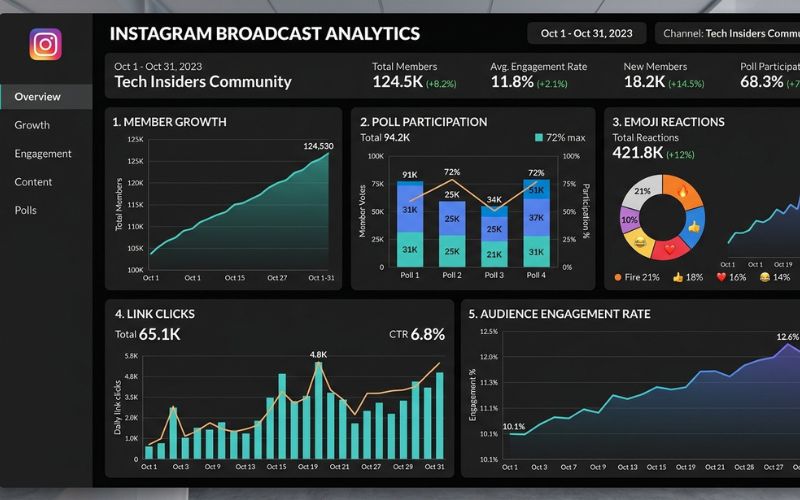
Open your Professional Dashboard or Meta Business Suite to check these numbers:
- Member Growth: The total number of new members joining every week.
- Reactions: The total number of emoji reactions on your posts.
- Poll Votes: The percentage of members who vote in your polls.
- Link Clicks: The number of members who tap your web links.
[ TOTAL MEMBERS ] ──► [ POLL VOTES & REACTIONS ] ──► [ WEBSITE LINK CLICKS ]
 (Audience Size)            (Engagement Rate)            (Traffic & Sales)
Knowing What Works
Focus on poll votes and link taps instead of just looking at your total member count. High member participation in polls and frequent link taps show that your audience is active and enjoys your updates.
Common Mistakes to Avoid
Avoid these common beginner mistakes to keep your channel healthy:
| Mistake | Why It Harms Growth | Better Way |
| Spamming | Sending too many messages makes people leave. | Post 2 to 4 helpful updates a week. |
| No Clear Topic | Random posts confuse your audience. | Keep content focused on your main brand topic. |
| Skipping Polls | Text-only channels get boring after a while. | Add an interactive poll at least once a week. |
| No Promotion | Hoping people find the channel on their own. | Share your channel often on Stories and Reels. |
Instagram Broadcast Channel Not Showing? (Troubleshooting Guide)
If you cannot make or find a broadcast channel, follow these easy steps to fix it.
1. Fix Account Type Issues
Make sure your account is set to a public Creator or Business profile. Go to Instagram Settings, tap Account type and tools, and switch to a free Professional account. Private profiles cannot use this feature.
2. Update Your App
Open the Apple App Store or Google Play Store and update Instagram to the newest version. Clear your app storage memory or restart your phone if menu options do not load.
3. Check App Availability
New features roll out slowly. Check the Instagram Help Center or Meta Newsroom to see if broadcast channels are working in your country. Account managers assigned through Meta Business Suite must also have full control permissions to make channels.
Quick Checklist
- [ ] Account is set to Public
- [ ] Account is switched to a Creator or Business profile
- [ ] Instagram app is updated to the newest version
- [ ] Account follows Meta Community Guidelines
- [ ] Notifications are turned on in your phone settings
Frequently Asked Questions
What is an Instagram Broadcast Channel?
An Instagram Broadcast Channel is a public messaging tool inside Instagram DMs that lets public accounts send updates straight to followers.
Is an Instagram Broadcast Channel free?
Yes, making and joining broadcast channels is 100% free.
Can anyone create a broadcast channel?
Any user with a public Creator or Business account can make a channel, as long as the feature is available in their country.
Can followers reply to broadcast channel messages?
Followers cannot type text replies. They can only react with emojis and vote in polls.
Can I create multiple broadcast channels?
Yes, creators can set up multiple channels for different topics or projects.
Can I delete a broadcast channel?
Yes, the channel owner can end or delete a channel at any time in the channel settings menu.
Can business accounts use broadcast channels?
Yes, business accounts use channels to share new items, discount codes, and company news.
How do I get more channel members?
Promote your channel link on Instagram Stories, add link stickers, and share special content that you do not post on your main page.
How often should I post in a broadcast channel?
Post regularly 2 to 4 times a week to keep interest high without annoying your members.
Can I make a subscriber-only broadcast channel?
Yes, creators with Instagram Subscriptions or Meta Verified can make private channels for paying subscribers.
Do broadcast channels help my account reach?
Yes, messages send push notifications straight to DM inboxes, which usually leads to higher views than regular feed posts.
Can I schedule posts in an Instagram Broadcast Channel?
No, Instagram does not currently let you schedule posts inside broadcast channels.
Can I remove members from my channel?
Yes, channel owners can remove or block members from their channel.
Are Instagram Broadcast Channels private?
No, normal broadcast channels are public. Any Instagram user can find and join them from your profile link.
What happens if I leave a broadcast channel?
If you leave a channel, it disappears from your DM list. You can join again whenever you want by tapping the channel link on the creator’s profile page.
You May Also Like:
How Instagram Notes Work and Why People Use Them
Common Instagram Privacy Settings You Should Turn On
Disclaimer:
This article is for informational and educational purposes only. We try to keep the information accurate, but features may change over time. Some images in this article may be AI-generated for illustration only. All copyrights, trademarks, product names, and logos belong to their respective owners.

Eleanor Karen is an administrator at PVStory.co.uk who writes about digital tools, social media trends, and online resources. She shares helpful insights on Instagram Story Viewer tools and other web-based solutions, helping readers stay informed and make the most of their online experience.