
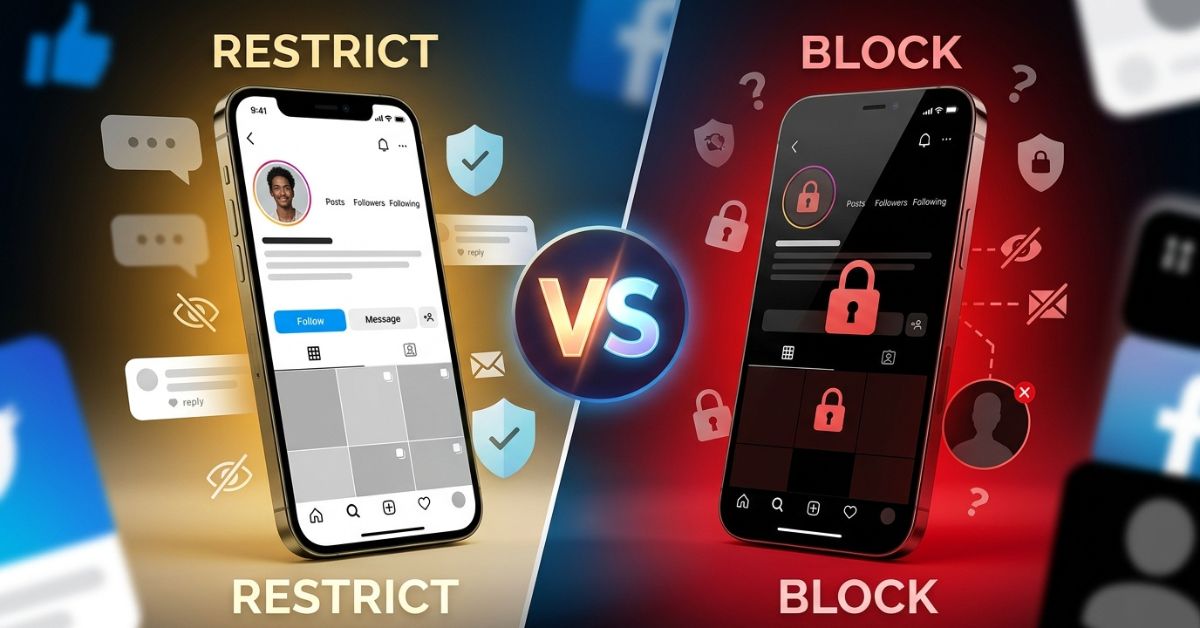
Keeping your account private on social media can feel hard when someone causes trouble or posts too often. If you’re wondering about restrict vs block Instagram, it’s important to understand how each privacy feature works. Instagram gives you three main tools to manage unwanted interactions: Restrict, Block, and Mute. Each option offers a different level of privacy, control, and distance.
Note on Safety: These features match the official rules from the Meta Help Center and the Instagram Safety Center.
Quick Answer: Restrict vs Block vs Mute at a Glance
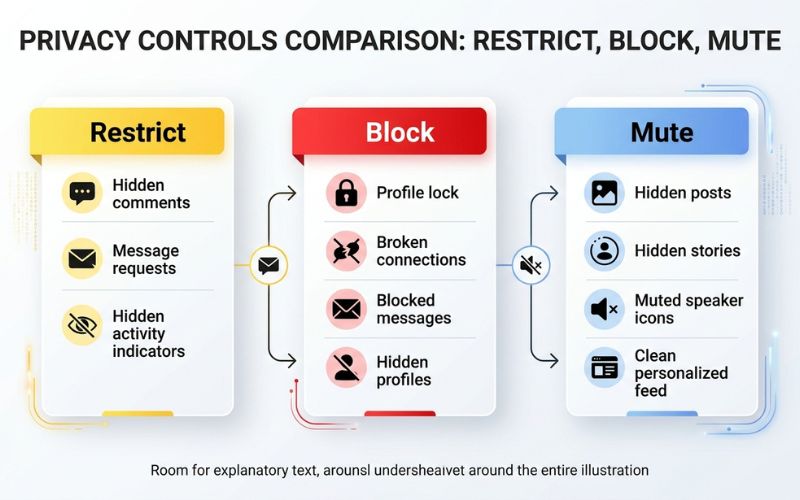
Pick your setting based on how much distance you need from another account. Restrict limits how someone talks to you without letting them know. Block takes away their access to your page completely. Mute hides their posts from your main screen while keeping you connected as friends.
Here is an easy rule to help you remember the difference:
- Restrict = Quiet limits
- Block = Total separation
- Mute = Hide their posts from yourself
| Feature | Restrict | Block | Mute |
| See profile | Yes | No | Yes |
| View posts | Yes | No | Yes |
| View stories | Yes | No | Yes |
| Like posts | Yes | No | Yes |
| Comment | Hidden unless approved | No | Yes |
| DM behavior | Goes to Requests | Old chats limited | Normal |
| Tag / Mention | Blocked | Blocked | Normal |
| Activity Status | Hidden | Hidden | Normal |
| Notifications | No | No | No |
| Best for | Avoiding drama | Stopping mean behavior | A cleaner feed |
What Does Restrict Mean on Instagram?
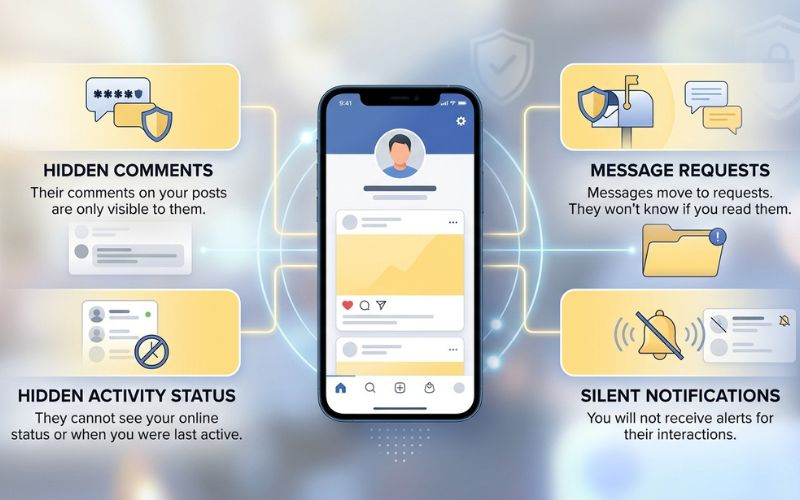
What happens when you restrict someone on Instagram? Restrict is a quiet tool made to stop bullying and unwanted contact without causing personal drama. It works like a guard behind the scenes by hiding a person’s comments and private messages.
Instagram built this safety tool for people who want soft limits. The restricted person can still see your profile, but you control what other people can see on your page.
What Changes After You Restrict Someone
When you restrict an account, Instagram changes how their messages and comments reach you:
- Hidden comments: Their new comments can only be seen by them and you.
- Comment approval: You can tap “See Comment” to show it to everyone, delete it, or leave it alone.
- Message requests: Their private messages move automatically into your Message Requests folder.
- Seen receipts and status: They cannot see when you read their messages or when you are online.
- Alerts: Instagram turns off all alerts for their likes, comments, and private messages.
Example: Imagine restricting a person from work who leaves annoying comments on your photos. They can still type comments, but nobody else sees them unless you say it is okay. That person thinks everything is normal, so you avoid an awkward talk at work.
What Happens When You Block Someone on Instagram?
What happens when you block someone? Blocking is the strongest safety tool on Instagram. It creates a total split between two accounts. It cuts off all connections and stops the user from reaching your account.
Instagram offers extra protection across accounts. When you block someone, you can also block any other existing or future accounts that same person makes.
[Tap Block] ➔ [Profile Hidden] ➔ [Messages Blocked] ➔ [Old Likes/Comments Removed]
What Changes Immediately After Blocking
When you tap the block button, Instagram changes your settings right away:
- No access: The blocked account cannot look for your profile, see your posts, or watch your stories.
- No contact: They cannot send you private messages, tag your name, or mention you in captions.
- Removed history: Instagram automatically deletes old comments and likes that person left on your posts.
- Chat limits: Your past message history stays in your inbox, but neither of you can send new messages.
Example: If a stranger online sends mean messages, blocking them cuts off all contact right away. Their old comments disappear from your page, and any new accounts they make will stay blocked too.
What Does Mute Do on Instagram?
Muting is a tool for your own screen that changes only what you see. Unlike Restrict or Block, Muting does not limit what the other person can see or do on your profile.
When you mute someone, you hide their posts from your screen without unfollowing them. You can mute their posts, stories, or message alerts.
When Mute Is Better Than Restrict or Block
Mute works best for cleaning up a messy feed rather than stopping mean behavior or safety threats. It helps you manage your screen quietly in many everyday situations:
- Friends or family: Hide daily posts from family members without causing hurt feelings by unfollowing them.
- Local stores and brands: Hide an account’s extra posts from your main screen while keeping them on your following list.
- Popular creators: Take a short break from an online creator’s daily posts during a busy week.
- Teachers or students: Keep your main screen clean while staying connected for school news.
Restrict vs Block vs Mute: Complete Feature Comparison
Picking the best setting depends on how much profile access you want to give. Here is how every main action works across all three Instagram tools.
| Account Feature or Action | Restrict | Block | Mute |
| Search visibility | Visible | Hidden | Visible |
| Profile visibility | Full profile visible | Hidden / Not found | Full profile visible |
| Posts in feed | Visible in feed | Hidden | Hidden from your feed |
| Stories in feed | Visible | Hidden | Hidden from story bar |
| Reels and Live streams | Can watch (Cannot remix) | Blocked | Can watch |
| Likes on posts | Allowed | Blocked | Allowed |
| Comments on posts | Needs approval | Blocked | Allowed |
| Direct Messages (DMs) | Goes to Requests | Blocked | Normal (or quiet) |
| Seen receipts & Status | Hidden from them | Hidden | Visible |
| Mentions and Tags | Blocked | Blocked | Allowed |
| Remix & Collab invites | Blocked | Blocked | Allowed |
| Alerts / Notifications | Turned off | None | Turned off (if chat muted) |
| Current followers | They stay following | Removed automatically | They stay following |
| New accounts protection | No | Yes | No |
| Undo option | Unrestrict anytime | Unblock anytime | Unmute anytime |
What Does the Other Person See and Do They Know?
Does the other user know if you restrict or block them? Instagram never sends a direct message or alert when you change these privacy settings. However, someone might figure it out by looking at your profile closely.
Here is how your page looks from their view:
The Restricted Person’s View
Restricting someone is very hard for them to spot because their app works normally. Their comments show up on their screen right away, so they think everyone can see them. Messages show as sent, and your online status simply looks turned off.
The Blocked Person’s View
Blocking is much easier for someone to notice after a while. Your profile name will show “User Not Found” or show an empty post screen. Your name will not show up when they search for it, and they cannot send you new messages.
| Check | Signs of Restriction | Signs of Blocking |
| Search Bar | Profile shows up normally | Profile does not show in search |
| Profile Screen | Shows all photos and bio | Profile empty or not found |
| Direct Messages | Message stays on “Sent” | Message fails to send |
| Comment Check | Comment vanishes on a second account | Comment box is missing completely |
How to Restrict, Block, or Mute Someone on Instagram
You can change these safety settings using the Instagram app on phones, or through a computer web browser.
How to Restrict Someone
- Open the person’s Instagram profile page.
- Tap the Three Dots icon in the top-right corner.
- Tap Restrict.
How to Block Someone
- Go to the profile of the account you want to block.
- Tap the Three Dots menu at the top right.
- Tap Block.
- Choose Block this account and new accounts they may create.
- Tap Block to confirm.
How to Mute Someone
- Go to the person’s profile page.
- Tap the Following button under their bio.
- Tap Mute from the pop-up list.
- Turn on the switches for Posts or Stories.
Which Should You Use? (Real-Life Decision Guide)
Use this helpful guide to pick the right choice for your situation.
| Situation | Best Choice | Why Choose This |
| Ex-partner | Restrict or Block | Restrict to avoid drama, or Block for total distance. |
| Online Troll | Block | Stops annoying comments on public posts. |
| Spam Account | Block | Cleans up fake account activity from your page. |
| Coworker or Relative | Restrict | Protects your space without causing personal conflict. |
| Friend posting too much | Mute | Cleans your screen without hurting feelings. |
| Harasser or Bully | Block + Report | Stops all contact and alerts Instagram workers. |
| Client or Customer | Restrict | Sets clear rules on public work accounts. |
Restrict vs Report: What is the Difference?
| Action | What It Does | Who Gets Alerted |
| Restrict | Hides comments and moves messages to requests | Nobody |
| Report | Sends content to Instagram to check against Community Rules | Instagram review team |
Common Mistakes People Make
Avoid these common mistakes to keep your account safe and comfortable:
- Thinking Restrict makes your account private: Restricting an account does not hide your public posts from that person.
- Thinking Mute stops them from messaging: Muted users can still comment on your photos and send messages to your main inbox.
- Confusing Close Friends with Restrict: Adding someone to Close Friends gives them extra access to private stories instead of limiting them.
- Thinking a Private Account replaces Block: A private account stops new people from seeing your posts, but current followers can still see your content until you block them.
- Forgetting extra account blocking: Always pick the option to block future accounts when stopping mean people who keep bothering you.
Can You Tell If Someone Restricted or Blocked You?
Instagram on purpose makes it impossible to know for sure if someone restricted you. They do this to protect user safety and stop angry arguments.
If you think someone blocked you, check these signs:
- Search for their exact name using a web browser.
- If the profile appears online but cannot be found inside your app, they blocked your account.
- If you cannot tag their name in captions or send private messages, your account is likely blocked.
Final Verdict
- Use Restrict if you want quiet boundaries and easy control without letting the other person know.
- Use Block if you need total separation and protection from ongoing mean behavior.
- Use Mute if you want a cleaner main screen without changing how the other person talks to you.
Frequently Asked Questions
What happens when you restrict someone on Instagram?
Their new comments can only be seen by them unless you approve them. Their private messages move to your Message Requests folder, and they cannot see when you go online.
Can restricted users see my stories or save my posts?
Restricted users can watch public stories and save posts to their saved folders.
Do restricted comments appear to everyone?
No. Comments from a restricted user stay hidden from other followers until you tap “Approve.”
What happens if I block someone on Instagram?
They lose all access to your profile, posts, stories, and messages. They cannot find your handle in search or send you new messages.
Do old comments disappear after blocking?
Yes. When you block an account, Instagram removes old comments and likes that user left on your photos.
What’s the difference between mute and restrict?
Mute hides another user’s posts from your screen. Restrict limits how that person can talk to or comment on your profile.
Can someone screenshot my posts after being restricted?
Yes. Restricting an account does not stop phone screenshots or screen recordings.
Can I undo Restrict, Block, or Mute later?
Yes. You can change these settings back anytime by visiting the user’s profile or checking your Instagram Privacy Settings menu.
You May Also Like:
How to Pin Posts on Instagram Profiles
Instagram Close Friends (2026 Guide): How It Works, Privacy Rules, Stories, Reels & Business Tips
Disclaimer:
This article is for informational and educational purposes only. We do our best to keep the information accurate, but Instagram features may change over time. Some images in this article may be AI-generated for illustration only. All trademarks, logos, and copyrights belong to their respective owners.

Eleanor Karen is an administrator at PVStory.co.uk who writes about digital tools, social media trends, and online resources. She shares helpful insights on Instagram Story Viewer tools and other web-based solutions, helping readers stay informed and make the most of their online experience.