
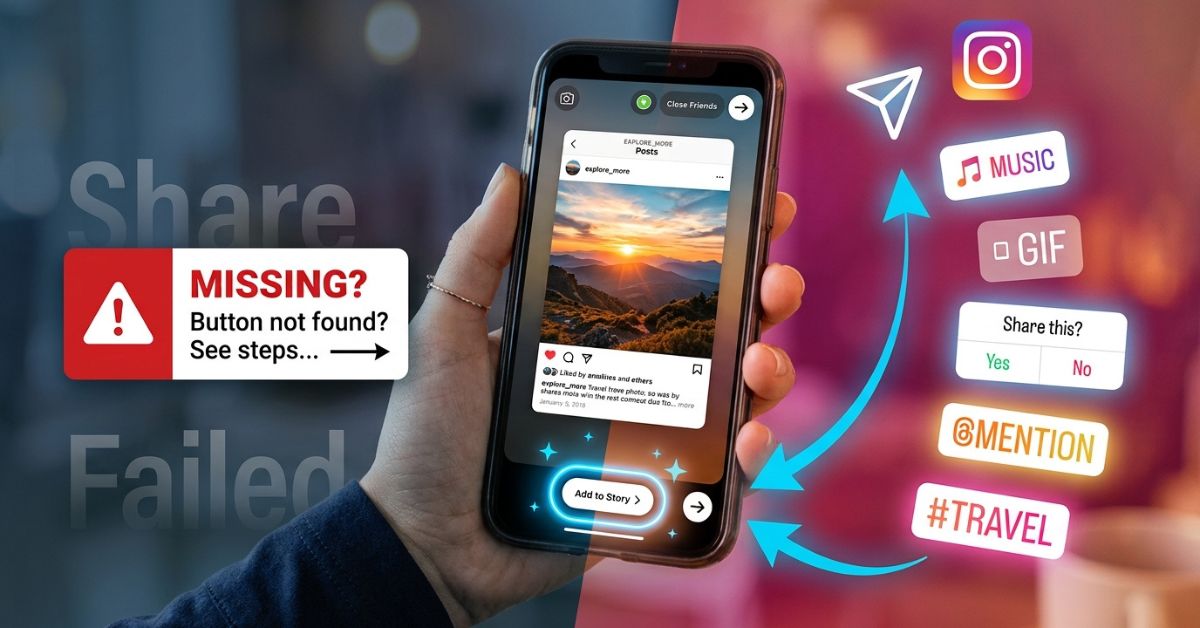
Found a great post on Instagram that you want to share with your friends? If you’re wondering how to share post to Instagram, the app lets you share eligible public posts to your Story with just a few taps. However, not every post can be reshared due to privacy rules.
These steps follow Instagram’s official guidance for iOS and Android in July 2026. This guide covers how to share post to Instagram Stories or Direct Messages, why the share button might be missing, and how to change your account settings. It also explains third-party repost apps, cross-posting options, and copyright rules. Note that menu names may vary slightly depending on your phone model.
Quick Answer: How to Share Someone Else’s Instagram Post to Your Story
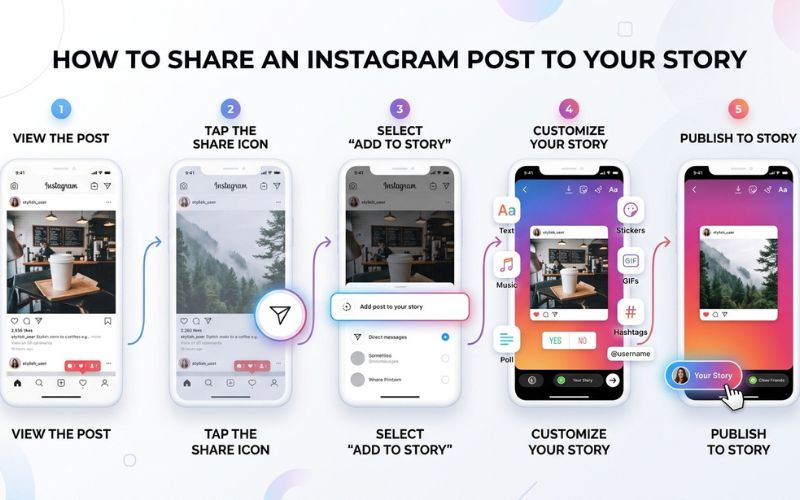
To share an Instagram post to your Story, tap the paper airplane icon below the post and select Add to Story. Customize your screen with text or stickers, then tap Your Story to publish it.
Follow these fast steps:
- Open Instagram and go to the post you want to share.
- Tap the paper airplane icon below the post.
- Tap Add to Story at the bottom.
- Customize your Story with text, stickers, or music.
- Tap Your Story or Close Friends to publish.
Can You Share Any Instagram Post to Your Story?
You can share most public posts on Instagram, but privacy settings control what is allowed. You can freely share posts from public accounts if the owner enables Story resharing. You cannot share posts from private accounts to a public Story.
These rules apply across all account types, including personal, creator, and business profiles. The original owner controls whether their content can be shared.
| Post Type | Can Share to Story? | Notes |
| Public account | Yes | Works if the creator enables sharing in settings. |
| Private account | No | Content is visible only to approved followers. |
| Deleted post | No | The link breaks when content is removed. |
| Restricted sharing | No | The creator turned off Story sharing for that post. |
Step-by-Step: Share Someone Else’s Post to Your Instagram Story
Follow this detailed walkthrough to customize and publish someone else’s post to your profile.
Step 1 – Open the Post
Launch the Instagram app on your phone. Scroll through your feed or search for the account holding the post. Tap the post so it fills your screen.
Step 2 – Tap the Share (Paper Airplane) Icon
Tap the paper airplane icon below the image or video to open the share menu.
Step 3 – Select “Add to Story”
Tap Add to Story from the pop-up menu. This opens the editor screen.
Step 4 – Customize Your Story
You can change how the post looks on your screen before you publish:
- Resize and Move: Pinch the post with two fingers to change its size, or drag it across the screen.
- Rotate: Twist two fingers on the screen to turn the post.
- Background Color: Tap the drawing tool at the top, pick a color, and press and hold the screen.
- Stickers and GIFs: Tap the square smiley face icon at the top to add moving graphics.
- Music: Tap the music note icon to add background audio.
- Polls and Emojis: Add interactive stickers to get responses from your followers.
- Mentions and Hashtags: Type
@followed by a username to tag someone, or use#for hashtags. - Links: Use the Link sticker to attach a website web address if your account has access.
Step 5 – Publish Your Story
Look at the bottom of your screen to choose your audience:
- Your Story: Publishes the post for all your followers and profile visitors to view.
- Close Friends: Limits visibility to a private list of users you select.
How to Share an Instagram Post Through Direct Messages (DMs)
You can send a post to individual friends using Direct Messages (DMs) without posting it publicly.
- Open the post you want to share.
- Tap the paper airplane icon below the post.
- Type your friend’s name in the search bar or pick them from your list.
- Add an optional message in the text box.
- Tap Send.
Why Can’t I Share Someone Else’s Post to My Story?
If you do not see the “Add to Story” button, Instagram settings or temporary app issues are usually the cause.
The Account Is Private
Private accounts protect user content. Instagram disables the Story share button for these posts so they cannot be seen by non-followers.
Sharing to Stories Is Disabled
Public creators can turn off Story resharing in their privacy settings. When turned off, nobody can share their posts to a Story.
You’re Viewing Content That Can’t Be Shared
Certain Reels, posts with copyrighted audio, or paid promotions have restrictions that block Story resharing.
Instagram App Needs Updating
Old app versions can cause menu buttons to disappear. Check the Apple App Store or Google Play Store to update Instagram.
Account Restrictions
New accounts or accounts flagged for sending too many messages may have sharing limits put on them by Instagram.
Regional Availability
Some interactive features and music stickers are not available in every country. This can prevent sharing in select areas.
Internet Connection Issues
A slow cellular network or weak Wi-Fi connection stops Instagram from opening the editor.
Cached App Data
Corrupted temporary files can cause errors. Clear your app cache in your phone settings or reinstall the app.
Troubleshooting Checklist
If the share button is missing, run through these fast fixes:
- [ ] Restart the Instagram app.
- [ ] Check your Wi-Fi or cellular internet connection.
- [ ] Make sure the account owner is set to public.
- [ ] Update Instagram to the latest version in your app store.
How to Enable Sharing on Your Own Instagram Posts
If you want other people to share your posts to their Stories, you must turn on the feature in your settings.
- Go to your Instagram Profile.
- Tap the three lines in the top right corner to open settings.
- Select Settings and privacy.
- Tap Sharing and remixes (or go to Privacy then Story on some phone models).
- Turn on Allow sharing to stories.
If you run a Creator or Business account, open the Meta Accounts Center or main profile settings. Ensure your account is set to Public so others can reshare your content.
Can You Share Someone Else’s Post to Your Instagram Feed?
Instagram includes a native repost button that lets you share eligible public posts and Reels directly to your feed. When enabled by the creator, tapping the repost icon shares the post to a special Repost tab on your profile and sends it out to your feed.
You can also share content to your main feed grid using a Collaboration post, third-party tools, or by screenshotting the photo.
Best Instagram Repost Apps (2026)
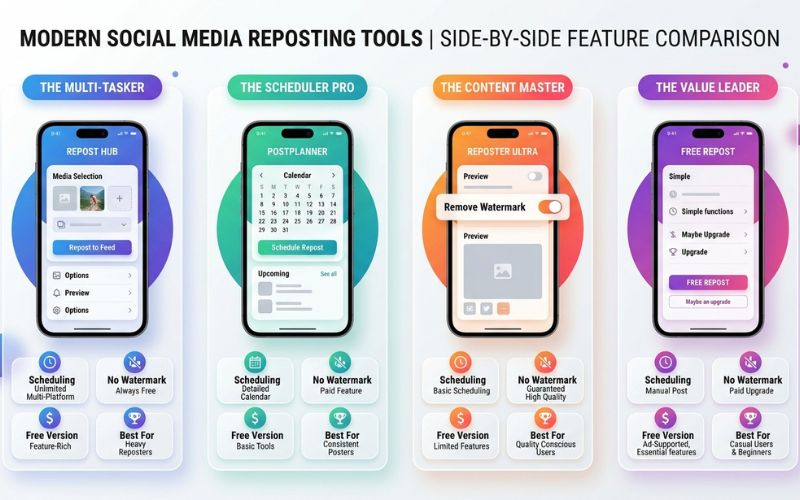
Third-party repost apps let you save photos and copy text to post on your feed. Before using external apps, review the Instagram Community Guidelines and official Instagram Help Center rules. Using unapproved apps that ask for your login details can put your account security at risk.
| App | Free Version | Watermark Added | Post Scheduling | Best For |
| Repost for Instagram | Yes | Optional | No | Quick feed reposts for beginners. |
| Later | Limited | No | Yes | Businesses planning content calendars. |
| Buffer | Limited | No | Yes | Teams managing multiple social channels. |
| Preview | Yes | No | Limited | Creators designing a visual feed grid. |
- Repost for Instagram is simple and designed solely for quick resharing.
- Later and Buffer are general social media management tools that include reposting features alongside full content scheduling.
- Preview helps you see how reshared images look alongside your existing photos before you post.
Share Instagram Posts to Facebook and Other Platforms
You can share Instagram posts to other platforms by linking your profiles in the Meta Accounts Center.
- Facebook Story: Link your accounts in settings. When you share a post to your Instagram Story, tap the Facebook icon at the bottom to post it to both apps at once.
- Facebook Feed: Tap the paper airplane icon, select Share To, and pick Facebook to post to your timeline.
- Messenger and WhatsApp: Tap the paper airplane icon and select your messaging app to send direct links.
- Copy Link: Tap the paper airplane icon and select Copy Link to paste the web link into texts or emails.
Best Practices Before Sharing Someone Else’s Content
Sharing User-Generated Content (UGC) builds community, but you must respect content ownership and copyright law. Copyright infringement occurs when you use copyrighted work without permission from the creator. Fair use rules are strict on social networks.
Follow these simple rules whenever you share content:
- Get Permission: Ask the original creator for permission before posting their photo to your main feed.
- Give Clear Attribution: Credit the original owner by placing their
@usernamenear the top of your caption. - Tag the Account: Tag the creator in the image so viewers can easily tap through to their profile.
- Keep Branding Intact: Do not crop out watermarks, logos, or artist signatures.
- Avoid Misleading Edits: Do not edit photos in ways that alter the original creator’s context or message.
- Use Collaboration Posts: Invite the owner as a co-author. The post will appear on both feed grids with shared engagement data.
Real-World Example:
A local restaurant wants to share a photo taken by a customer. The restaurant sends a direct message asking, “Can we post this to our feed?” Once approved, they publish the image and write: “Great photo by customer @username! Thanks for dining with us.”
Tips to Make Shared Instagram Stories More Engaging
Instead of posting a plain image, use these strategies to improve viewer interaction:
- Explain Why You Shared: Add a short text caption telling your audience why the post matters.
- Ask Questions: Use interactive poll stickers or emoji sliders to get viewers to tap your Story.
- Use Clean Layouts: Keep text and stickers near the center. Leave empty space around the original post so it stays easy to read.
- Use Strong Contrast: Pick text colors that stand out clearly against your background so readers with low vision can see them easily.
Common Mistakes When Sharing Instagram Posts
Avoid these frequent mistakes when sharing content:
- Leaving out proper creator credit in your caption.
- Posting blurry screenshots instead of using clear images.
- Using unverified repost apps that ask for your private login details.
- Ignoring creator requests to remove shared content.
- Sharing broken web links that do not load properly.
Final Thoughts
Sharing content on Instagram helps you connect with friends and build your audience. Native Story sharing takes only a few seconds and works for most public posts.
If you want to repost content to your main feed grid, use the native repost button, third-party tools, or Collaboration posts. Always ask for permission first and credit the creator to keep your account safe and maintain community trust.
Frequently Asked Questions
Can I share someone’s Instagram post to my Story?
Yes. You can share posts from public accounts to your Story if the creator has enabled sharing in their account settings.
Why is Add to Story missing?
The option is missing because the account is private, the owner turned off Story resharing, or your app needs an update.
Can I repost someone else’s post to my feed?
Yes. You can use Instagram’s native repost button for eligible public posts. You can also use a Collaboration post, take a screenshot, or use a third-party repost app.
Can private posts be shared?
No. Content from private accounts cannot be shared to public Stories or sent to users who do not follow that account.
Can I share Instagram posts without tagging the creator?
Instagram automatically displays the original creator’s handle on Story reshares. However, adding a text tag is best practice for extra credit.
How do I remove a shared Story?
Open your active Story, tap the three dots in the bottom corner, and tap Delete.
What happens if the original post is deleted?
If the original creator deletes their post, the shared post will automatically vanish from your Story.
Can businesses repost customer content?
Yes. Businesses frequently reshare customer posts, but they should ask for permission first to follow copyright guidelines.
Can I share Instagram posts to Facebook?
Yes. Link your accounts in the Meta Accounts Center to cross-post your Stories and feed posts to Facebook automatically.
Which repost app is best in 2026?
Repost for Instagram is ideal for quick, simple resharing. Later and Buffer are best for business account scheduling.
Can I share a carousel post to my Story?
Yes. When you share a carousel post, Instagram displays the specific photo or video slide you were viewing when you tapped the share icon.
Will the original creator know I shared their post?
Instagram automatically displays the original creator’s username on your Story. The creator may get a notification depending on their account settings, though adding a manual @mention tag ensures they see it.
You May Also Like:
Instagram Story Stickers Explained: Every Sticker You Can Use
How to Add Multiple Photos to One Instagram Story
Disclaimer:
This article is for informational and educational purposes only. Features and settings may change as Instagram updates its app. Some images in this article may be AI-generated for illustration only. All trademarks, logos, product names, and copyrights belong to their respective owners. Always follow Instagram’s official policies.

Eleanor Karen is an administrator at PVStory.co.uk who writes about digital tools, social media trends, and online resources. She shares helpful insights on Instagram Story Viewer tools and other web-based solutions, helping readers stay informed and make the most of their online experience.