
Quick Answer: What are Instagram Story stickers?
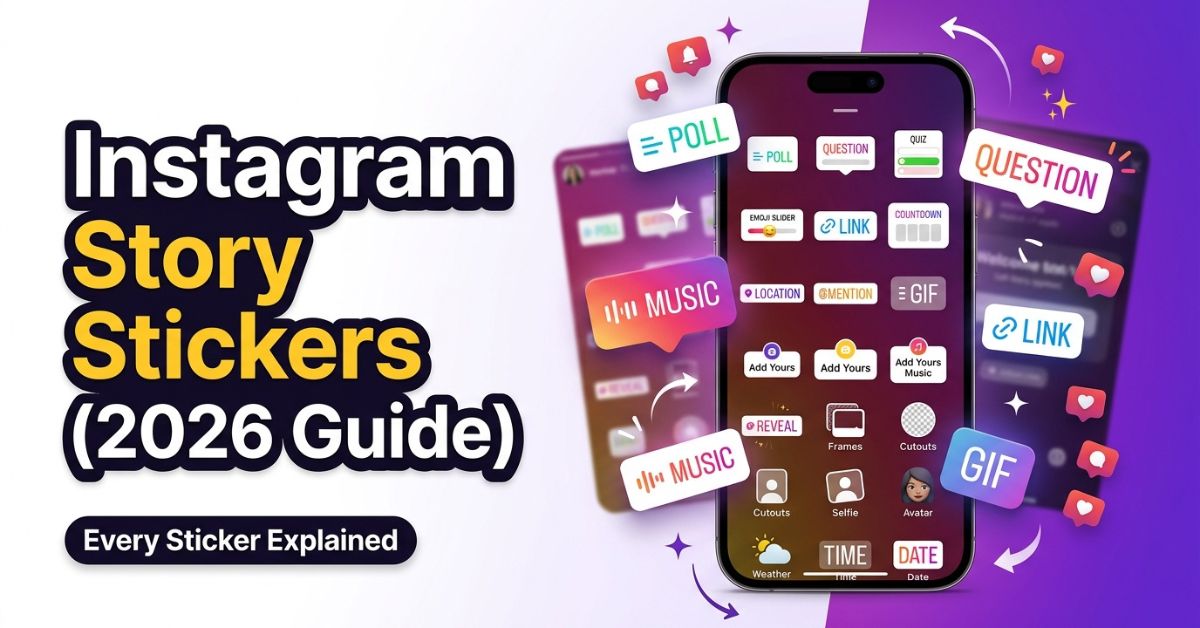
Instagram story stickers are interactive graphic tools you add to your photos or videos. People use them to ask questions, share links, play music, and start conversations. Instagram adds new stickers often to help users connect with followers. Recent additions include Reveal, Frames, Cutouts, and Add Yours Music.
Instagram Story stickers turn plain photos into interactive posts. Instead of just viewing a picture, your followers can tap buttons, vote in polls, or listen to songs.
Using stickers helps you build connections with your audience. Engagement, including interactions, can influence how Instagram distributes content, though results vary. Instagram encourages using interactive features to build engagement with your viewers. Options like Reveal give you creative ways to share moments and get more direct messages.
How to Add Stickers to an Instagram Story
Adding stickers to your posts is simple and takes just a few taps.
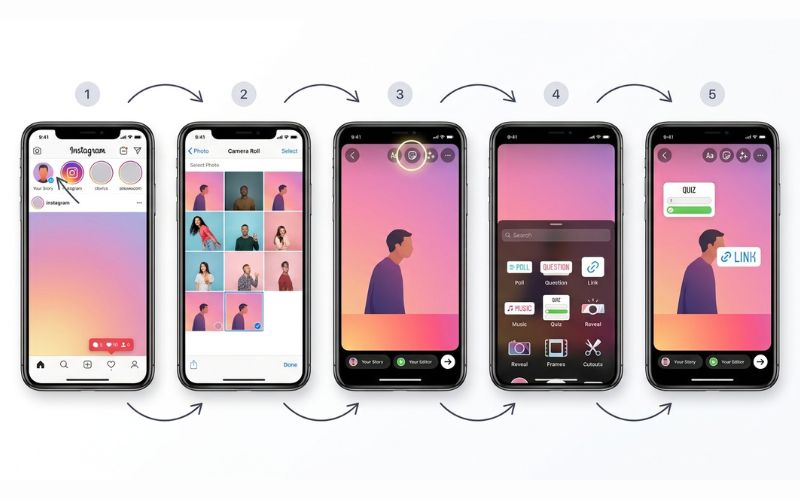
Step-by-Step Instructions
- Open Instagram: Tap the app icon on your device home screen.
- Create a Story: Swipe right from your feed or tap your profile picture in the top left corner.
- Take or Upload Content: Tap the shutter button to take a photo, hold it for video, or swipe up to pick a photo from your camera roll.
- Tap the Sticker Icon: Look for the square smiley face icon at the top of your screen.
- Choose a Sticker: Scroll through the tray and tap the sticker you want to use.
- Customize and Resize: Pinch the sticker with two fingers to make it bigger or smaller.
- Rotate and Position: Drag the sticker around the screen. Pinch and turn your fingers to turn it.
- Publish: Tap Your Story at the bottom left to share it with everyone, or select Close Friends.
iPhone & Android Notes: On iPhone devices, you can copy images from your photos app and paste them directly onto your Story as PNG graphics. On Android, sticker placement depends slightly on your screen size, but all primary features function the same way.
Every Instagram Story Sticker Explained (2026 Guide)
Here is a quick overview of the main stickers available on Instagram, including features introduced in 2024 like Reveal, Frames, Cutouts, and Add Yours Music. Feature access can vary by region or app version.
| Sticker | Purpose | Best For | Interactive? |
| Poll | Ask a question with custom choices | Fast votes | Yes |
| Question | Collect open text answers from viewers | In-depth replies | Yes |
| Quiz | Multiple choice test | Knowledge checks | Yes |
| Emoji Slider | Rate something on a sliding scale | Measuring excitement | Yes |
| Link | Share an external web address | Website taps | Yes |
| Music | Add background audio to posts | Setting a mood | Yes |
| Location | Tag a physical spot | Local discovery | Yes |
| Mention | Tag another Instagram account | Collaborations | Yes |
| Hashtag | Add a clickable search tag | Topic discovery | Yes |
| GIF | Add moving animated graphics powered by GIPHY | Visual motion | No |
| Countdown | Set a timer for an event | Timed releases | Yes |
| Add Yours | Start a shared photo prompt | Photo chains | Yes |
| Add Yours Music | Start a shared song prompt | Playlist sharing | Yes |
| Reveal | Blur content until a viewer sends a DM | Secret updates | Yes |
| Frames | Show a Polaroid style picture that reveals when shaken or tapped | Retro photos | Yes |
| Cutouts | Make custom stickers from subjects in photos | Creative edits | No (Creative tool) |
| Avatar | Display your digital mini-me | Personal reactions | No |
| Selfie | Add a mini photo or moving video of yourself | Reaction clips | No |
| Time | Show current clock time | Real-time updates | No |
| Date | Show the original photo date | Throwback posts | No |
| Weather | Show current temperature | Weather updates | No |
Poll Sticker
- What it does: Lets you ask a question with two or more customizable answer choices.
- When to use it: Use it when you want fast input from your followers.
- Best use cases: Picking product colors or simple “This or That” choices.
- Engagement impact: High. Tapping a vote takes low effort, so response rates are strong.
- Pro tip: Avoid generic “Yes/No” labels to give your post more energy.
Question Sticker
- What it does: Displays an open text box where followers can type out responses directly to you.
- When to use it: Use it when you want detailed answers, advice, or custom inquiries.
- Best use cases: Hosting an “Ask Me Anything” session or collecting customer feedback.
- Engagement impact: Sends answers straight to your private inbox as direct text messages.
- Pro tip: Share the best responses in follow-up Stories to show your community that you value their input.
Quiz Sticker
- What it does: Presents a multiple-choice question with one correct answer that lights up green when tapped.
- When to use it: Use it to test your audience’s knowledge in a fun way.
- Best use cases: Brand trivia, educational facts, or guessing game campaigns.
- Engagement impact: Prompts users to pause and test their knowledge.
- Pro tip: Use three or four choices per question to make the trivia fun but not too hard.
Emoji Slider
- What it does: Lets users drag an emoji along a sliding scale to show how much they like something.
- When to use it: Use it to measure how much your audience likes a photo or topic.
- Best use cases: Rating a new product drop, a travel view, or a food picture.
- Engagement impact: Quick visual fun that increases overall tap counts.
- Pro tip: Pick an emoji that matches the mood of your photo, like a flame for hot food.
Link Sticker
- What it does: Places a clickable button that sends viewers directly to any web link.
- When to use it: Use it whenever you want people to visit an outside site to read or buy.
- Best use cases: Blog posts, store pages, newsletter sign-ups, or event tickets.
- Engagement impact: Essential for moving users off Instagram to your main website.
- Pro tip: Customize the button text with a clear action like “Read the Full Guide” instead of showing a long web address.
Music Sticker
- What it does: Adds a licensed music track or sound effect to your photo or video Story.
- When to use it: Use it to set a mood or ride popular music trends.
- Best use cases: Morning routines, product showcases, or workout clips.
- Engagement impact: Audio helps hold attention so users watch your full Story.
- Pro tip: Choose trending songs that match the pace of your video.
Location Sticker
- What it does: Tags a specific city, landmark, or business on your post.
- When to use it: Use it whenever your story happens at a specific physical place.
- Best use cases: Restaurant visits, local store events, and travel updates.
- Engagement impact: Helps new local users find your content in geographical searches.
- Pro tip: Shrink the sticker slightly and place it near the edge so it does not hide your picture.
Mention Sticker
- What it does: Tags another user profile using their account handle.
- When to use it: Use it when featuring partners, clients, or sources.
- Best use cases: Brand partnerships, customer shoutouts, and creator collaborations.
- Engagement impact: Allows the tagged account to repost your Story to their own audience immediately.
- Pro tip: Tell the person beforehand so they are ready to repost your Story right away.
Hashtag Sticker
- What it does: Displays a clickable tag that takes viewers to a topic search page.
- When to use it: Use it to connect your post to broader topics or brand campaigns.
- Best use cases: Community challenges, industry events, and custom brand tags.
- Engagement impact: Helps group your content with similar topics across Instagram.
- Pro tip: Use one targeted hashtag per Story so your layout remains clean.
GIF Sticker
- What it does: Adds short moving graphics powered by the GIPHY library.
- When to use it: Use it to add humor, movement, or visual arrows pointing to key details.
- Best use cases: Pointing to a link sticker, adding fun reactions, or animating static images.
- Engagement impact: Eye-catching movement brings attention to key parts of your image.
- Pro tip: Search terms like “minimal,” “arrow,” or “sparkles” to find clean animations.
Countdown Sticker
- What it does: Displays a real-time clock counting down to a specific date and time.
- When to use it: Use it for upcoming events, sale launches, or live streams.
- Best use cases: Product launches, online classes, sales ending, or holiday posts.
- Engagement impact: Viewers can tap the clock to set an automatic reminder on their phone.
- Pro tip: Remind viewers to turn on notifications so they get alerted when the timer hits zero.
Add Yours Sticker
- What it does: Prompts viewers to respond with their own photo using a shared topic thread.
- When to use it: Use it to start public photo challenges across the platform.
- Best use cases: “Show your workspace,” “Latest travel photo,” or “Daily outfit.”
- Engagement impact: Starts chain reactions where other users share your prompt on their profiles.
- Pro tip: Pick simple, broad prompts that almost anyone can answer with a photo on their phone.
Add Yours Music
- What it does: Lets viewers respond by adding their own song to the story chain using Instagram’s music library.
- When to use it: Use it to share music picks and build community around shared tastes.
- Best use cases: “Song of the summer,” “Best workout track,” or “Cozy Sunday tunes.”
- Engagement impact: High response rate among music fans and niche communities.
- Pro tip: Pick relatable music topics so more people jump in to add a track.
Reveal Sticker
- What it does: Blurs out your Story content and lets you add a hint until the viewer sends you a direct message to unlock it.
- When to use it: Use it when you have secret news, hidden photos, or special codes.
- Best use cases: Discount codes, secret product previews, or personal updates.
- Engagement impact: Strong tool for starting private text chats with your audience.
- Pro tip: Write a short text line explaining what hidden content viewers will unlock.
Frames Sticker
- What it does: Places your photo inside a digital Polaroid frame that reveals when the viewer shakes their phone or taps “Shake to reveal.”
- When to use it: Use it to add a fun, retro feel to special memories.
- Best use cases: Throwback posts, friend photos, or behind-the-scenes moments.
- Engagement impact: Shaking the phone or tapping the screen creates a unique physical interaction.
- Pro tip: Write a short handwritten-style note inside the frame bottom for a real Polaroid look.
Cutouts Sticker
- What it does: Cuts out subject elements from your photos to create custom graphic stickers.
- When to use it: Use it to turn pets, products, faces, or objects into visual stamps.
- Best use cases: Custom brand graphics, fun face stickers, or product collage posts.
- Engagement impact: Makes your post unique by using custom visual elements.
- Pro tip: Pick source photos with clear background contrast so edges stay clean.
Avatar Sticker
- What it does: Uses your customized 3D digital mini-me character to show feelings.
- When to use it: Use it to express a reaction when you do not want to show your real face.
- Best use cases: Daily updates, funny reactions, or expressing moods like excitement.
- Engagement impact: Adds personal character to text posts.
- Pro tip: Keep your avatar outfits updated for the current season.
Selfie Sticker
- What it does: Takes a quick photo or looping video of your face to paste onto your Story as a reaction sticker.
- When to use it: Use it to add live personal expressions over images or shared posts.
- Best use cases: Reacting to news articles, answering fan questions, or reviewing products.
- Engagement impact: Real human faces consistently pull more visual attention from viewers.
- Pro tip: Record a short looping video reaction to give still photos extra life.
Time Sticker
- What it does: Stamps the exact current digital or analog clock time onto your post.
- When to use it: Use it to emphasize the time of day a moment happened.
- Best use cases: Early morning coffee shots, late-night study sessions, or travel schedules.
- Engagement impact: Adds real-time context to routine daily posts.
- Pro tip: Tap the sticker to switch between digital clock numbers and analog watch faces.
Date Sticker
- What it does: Displays the exact calendar date your picture was originally taken.
- When to use it: Use it when sharing older photos from your phone library.
- Best use cases: Throwback Thursday posts, anniversary memories, or life event updates.
- Engagement impact: Provides clear time context for past events.
- Pro tip: Pair this sticker with the Frames sticker to build a classic throwback look.
Weather Sticker (where available)
- What it does: Shows the live local temperature and weather icon for your area.
- When to use it: Use it when weather is central to the photo you are sharing.
- Best use cases: Beach days, snowstorms, hot workouts, or travel updates.
- Engagement impact: Highly relatable during extreme heat, cold, or sudden storms.
- Pro tip: Place the sticker where viewers can easily see the current temperature.
Instagram Story Sticker Strategy by Goal
Pick your stickers based on what you want to achieve. Using the right tool for your specific goal helps guide user behavior and improves your overall Story analytics.
| Goal | Recommended Sticker | CTA Example | Ideal Use Case Example |
| Grow Followers | Add Yours Sticker | “Share your desk setup!” | Tech creator building a community showcase |
| Increase Replies | Question Sticker | “What topic should I cover next?” | Educator planning upcoming video lessons |
| Drive Traffic | Link Sticker | “Tap to read our full guide!” | Food blogger linking to a recipe |
| Collect Opinions | Poll Sticker | “Which color do you like better?” | Fashion brand choosing new fabric shades |
| Announce Launches | Countdown Sticker | “Set a reminder for our launch!” | Fitness coach releasing a new training program |
| Share Events | Location Sticker | “Tap to check out the venue!” | Local service business hosting a workshop |
| Increase Completion | Reveal Sticker | “Send a DM to see the secret!” | Travel blogger sharing hidden flight deals |
| Test Audience Knowledge | Quiz Sticker | “Can you guess the right answer?” | Language teacher testing vocabulary skills |
| Daily Engagement | Emoji Slider | “Slide to rate today’s weather!” | Lifestyle influencer sharing a morning routine |
Best Instagram Story Sticker Ideas
Here are practical sticker ideas for different types of accounts.
Personal Accounts & Creators
- Morning Routine Check: Share your morning drink image with an Emoji Slider to ask friends how awake they feel.
- Behind-the-Scenes Reveal: Place a Reveal Sticker over a draft photo or editing screen, requiring viewers to send a DM to see early access.
- Content Topic Q&A: Post a Question Sticker asking “What should I cover next?” to gather fresh post ideas.
Small Businesses & E-commerce
- Product Preference Polls: Place two product options side-by-side with a Poll Sticker to let shoppers vote on their favorite.
- Launch Timers: Put a Countdown Sticker on a photo for a new item launch so shoppers can set automatic phone reminders.
- Direct Web Sales: Post a photo of your top item with a Link Sticker pointing directly to your store checkout page.
Local Brands & Services
- Store Foot Traffic Tag: Add your street location using the Location Sticker on daily food or retail inventory posts.
- Daily Hours Check: Use the Time Sticker on morning posts to let local shoppers know when your doors open.
Real-World Creator Example: Fitness Coach Launch
A fitness coach used the Countdown Sticker to prepare clients for a new workout program. She used a Poll Sticker asking followers to pick their biggest struggle. On launch day, she added a Link Sticker pointing directly to the sign-up page. This combined approach kept her Story completion rate high and brought in dozens of new client sign-ups.
How to Combine Stickers Without Making Stories Look Cluttered
Using stickers is fun, but adding too many can ruin your image. A crowded Story confuses people. If viewers do not know where to tap, they will swipe away.
Core Design Guidelines
- Sticker Placement: Keep key stickers in the middle of your screen. Avoid putting stickers near the top left corner where your profile icon sits. Do not place stickers at the bottom where the message bar covers content.
- White Space: Leave empty room around your main topic. Clean space makes your image look professional and easy to view.
- Color Balance: Pick sticker styles that match the colors in your background photo. Avoid mixing too many bright, clashing colors.
- Readability: High contrast matters. Place light stickers over dark backgrounds or dark stickers over light backgrounds so text is clear.
+----------------------------------+
| [Profile Icon]                   | <- Avoid top left corner
|                                  |
|        +-----------------+       |
|        |   MAIN STICKER  |       | <- Place key stickers in the middle
|        +-----------------+       |
|                                  |
| [Message Bar]                    | <- Avoid bottom edge
+----------------------------------+
Best Practices and Mistakes to Avoid
Follow these balanced guidelines to get strong responses while avoiding common mistakes.
Dos and Don’t for Story Design
- DO Limit Interactive Buttons: Use only one interactive sticker per Story frame. Adding multiple tap buttons creates confusion and leads to quick taps forward or high exit rates.
- DO Provide a Clear CTA: Always place text next to your sticker explaining why the user should tap. A sticker without clear instructions gets fewer responses.
- DO Keep Sizes Balanced: Make buttons large enough for thumbs to tap easily, but avoid covering your main photo subject.
- DO Check Insights: Review your Instagram Insights inside Creator Accounts or Business Accounts weekly. Track metric changes like tap-forward rate, back taps, story exits, and story completion to see what works.
- DON’T Hide Content: Avoid placing stickers over important text or faces in the background photo.
- DON’T Ignore Accessibility: Ensure high visual contrast so screen readers and users with low vision can view your content easily.
Instagram Story Stickers Not Showing? Here’s How to Fix It
Sometimes stickers disappear or fail to load. This issue happens for several common reasons.
Troubleshooting Checklist
- [ ] Update Instagram: Open your app store. Check if a new version of Instagram is available and install it.
- [ ] Check Region Limitations: Some features, like the Music Sticker, are restricted in certain countries due to licensing rules.
- [ ] Wait for Feature Rollouts: Meta rolls out new updates in waves. Features may take time to reach your profile.
- [ ] Test Your Internet Connection: Weak Wi-Fi or cellular signal can stop the sticker tray from loading graphics.
- [ ] Clear App Cache (Android): On Android phones, go to your phone settings and clear the Instagram cache to remove glitched files (iPhone users can offload or reinstall the app).
- [ ] Leave Beta Versions: If you use a beta testing version of the app, switch back to the standard app to fix bugs.
- [ ] Reinstall the App: Delete the Instagram app from your phone and download it again from the app store.
- [ ] Log Out and Log In: Log out of your profile, restart your phone, and log back in to refresh your account settings.
Can You Make Custom Instagram Story Stickers?
Yes, you can build custom stickers to make your Stories unique. Custom graphics help businesses show off brand assets and give creators a distinct visual style.
How to Build Custom Stickers
- Use the Native Cutout Tool: Select any photo from your camera roll inside Instagram, and the app automatically cuts out the subject into a sticker.
- Use Design Apps: Build graphics in apps like Canva. Save your artwork as transparent PNG files to your phone, then copy and paste them directly onto your Story screen.
- Upload Brand Assets to GIPHY: Create animated GIF stickers for your business and upload them to GIPHY. Once verified, anyone can search your brand name inside the GIF sticker tool.
- Respect Copyright Rules: Only use images, logos, and graphics that you own or have permission to use. Avoid using trademarked logos or copyright-protected artwork.
Frequently Asked Questions
How do I add stickers to Instagram Stories?
Create a photo or video in the Story editor. Tap the square smiley face icon at the top of your screen, select your desired sticker, drag it into place, and publish your post.
Where is the sticker icon?
The sticker icon sits in the top menu of the Story editing screen. Look for a square smiling face with a folded corner.
Which sticker gets the most engagement?
The Poll Sticker and Emoji Slider get the highest volume of quick taps because they take low effort. The Question Sticker and Reveal Sticker generate direct messages to your inbox.
What is the Add Yours sticker?
The Add Yours Sticker is a public prompt button. When you post it with a custom topic, viewers can tap it to post their own photos to a shared thread.
What is the Reveal sticker?
The Reveal Sticker blurs out your Story photo or video. Viewers must send you a direct message to unlock and view the hidden content.
Can businesses use all stickers?
Yes, business accounts generally have access to interactive stickers. However, access to certain commercial songs within the Music Sticker may be limited due to licensing rules and region.
Why are my stickers missing?
Stickers may be missing due to an outdated app, regional limitations, slow internet connection, or feature rollout delays. Update your app or clear your cache to fix the issue.
Can I create my own Story stickers?
Yes, you can build custom stickers using Instagram’s native Cutout tool or by pasting transparent PNG images from your phone camera roll.
Do stickers affect Story reach?
Engagement can influence how content is distributed, but using interactive stickers does not guarantee an increase in reach for every account.
You May Also Like:
How to Add Multiple Photos to One Instagram Story
Instagram Collections: Save and Organize Posts Like a Pro
Disclaimer:
This article is for informational and educational purposes only. Features may change as Instagram updates its platform. Some images in this article may be AI-generated for illustration only. All trademarks, logos, brand names, and copyrights belong to their respective owners. Always verify important information through official sources.

Eleanor Karen is an administrator at PVStory.co.uk who writes about digital tools, social media trends, and online resources. She shares helpful insights on Instagram Story Viewer tools and other web-based solutions, helping readers stay informed and make the most of their online experience.