
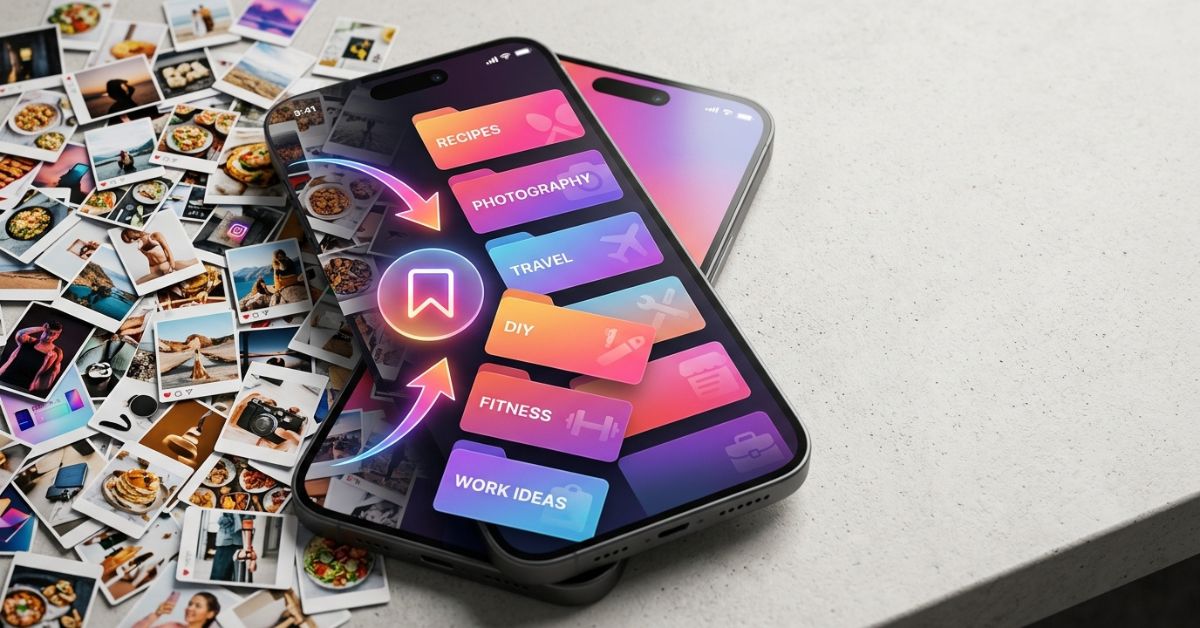
Ever save a great photo on Instagram, only to lose it forever in a sea of bookmarked posts? You are not alone. Instagram collections are custom folders inside your Saved tab that help you group posts and Reels. They keep your favorite content tidy so you can find it fast.
Quick Answer:
Instagram Collections are custom folders used to organize saved posts and Reels. Only you can see them. To open them, tap the Menu icon on your profile page and pick Saved.
What Are Instagram Collections?
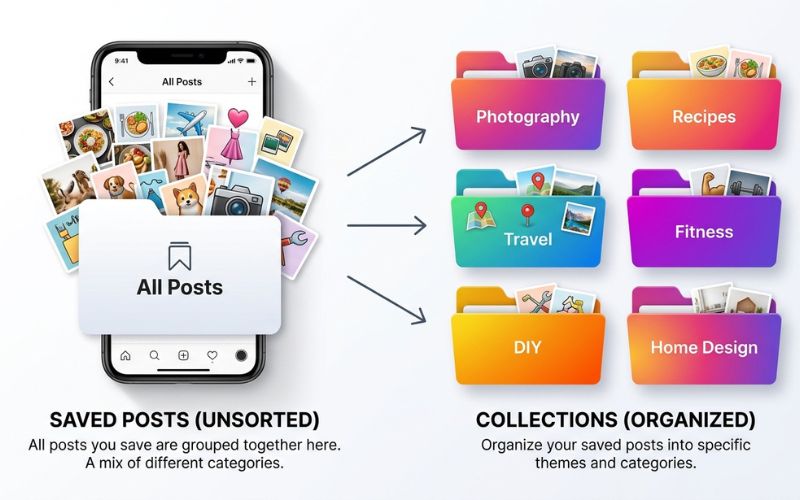
Instagram Collections are custom folders used to organize bookmarked posts and Reels. Every time you tap the Save button on a post, the item drops into a master list called All Posts. That master list is your main Saved tab.
Collections let you split that big list into neat, named folders. Think of your account like a digital binder. All Posts is the main box, while Collections are the labeled folders inside.
Here is how they differ:
- Saved Posts: The general list where every bookmarked item goes automatically.
- Collections: Named folders you build to group similar content together.
Example Collection Names:
- Photography Ideas
- DIY Projects
- Parenting Tips
- Home Design
Why Use Instagram Collections?
Saving posts is easy, but organizing them saves time later. Whether you use the Instagram mobile app to relax or run a account for work, folders keep your account clean.
Personal Users
- Recipes: Group dinner ideas, baking tips, and quick snacks.
- DIY Projects: Save home repair tips, painting ideas, and craft guides.
- Parenting: Keep track of game ideas, school tips, and kid meals.
- Fitness: Store workout routines and stretch guides.
Creators & Businesses
Instead of cluttering your account with random saves, folders give you a quick inspiration hub. You can collect visual styles, study popular posts, and save ideas to help plan future content.
| User Type | Best Collections to Create |
| Personal | Recipes, DIY Projects, Parenting |
| Creator | Photo Styles, Reel Ideas, Design Inspo |
| Business | Industry News, Customer Photos, Ad Layouts |
How to Save Posts on Instagram
Before you build collections, you need to know how to save content. It only takes a second.
- Tap the Bookmark icon below any post or Reel on your feed or the Explore page.
- By default, the item goes straight to your main All Posts folder.
- To pick a folder right away, press and hold the Bookmark icon. A pop-up menu lets you select a folder or build a new one.
How to Create Instagram Collections
You can build collections in two different ways. Pick the method that fits your workflow best.
Method 1 — Create a Collection While Saving a Post
- Press and hold the Bookmark icon under any post.
- Tap the plus (+) icon next to “New Collection.”
- Type a name for your new folder and tap Save.
Method 2 — Create a Collection from the Saved Page
- Go to your profile page and tap the three-line menu.
- Tap Saved, then tap the plus (+) icon in the top right corner.
- Type a name, tap Next, pick your saved posts, and tap Done.
Tips for Naming Collections
Clear names make your collections easy to search. Use a simple framework to name your folders logically:
- Content Topic: Group by subject (e.g., Photography, Baking).
- Content Format: Group by post type (e.g., Carousels, Reel Audio).
- Project Name: Group by goals (e.g., Kitchen Remodel, Summer Ideas).
| Good Names | Poor Names |
| Photo Ideas | Stuff |
| Italy Trip | Travel |
| Design Tips | Random |
| Workout Ideas | Save |
Where Are Instagram Collections Located?
Instagram Collections are stored inside the Saved menu on your profile page. You can access full creation and editing tools on iOS and Android phones, and view saved posts on web browsers.
Here is the quick path inside the app:
$$\text{Profile} \longrightarrow \text{Three-line menu} \longrightarrow \text{Saved} \longrightarrow \text{Collections}$$Your custom collections appear at the top of the Saved page. The general All Posts folder sits right next to them. If you use multiple accounts, switch to the correct profile first, as saved folders do not sync across accounts.
Desktop Note: You can view your saved posts on the Instagram desktop website. However, creating or editing folders works best on the mobile app.
How to Manage Instagram Collections
You can easily edit, update, or clean out your collections as your interests change.
Add More Posts
Open an existing collection, tap the three dots in the top right corner, tap Add to Collection, and pick saved posts.
Remove Saved Posts
Open the collection and tap the post you want to remove. Tap the Bookmark icon once to unsave it.
Move Posts Between Collections
Open the post inside its folder. Use the three dots menu or selection tools inside the collection to pick a new folder location.
Rename a Collection
Open the folder, tap the three dots in the top right corner, tap Edit Collection, type your new name, and tap Done.
Change the Cover Image
Open the folder, tap the three dots, tap Edit Collection, and select Change Cover. Pick any post inside that folder as the new cover image.
Delete a Collection
Open the folder, tap the three dots, tap Delete Collection, and confirm your choice.
Note: Deleting a collection folder does not delete the actual posts from Instagram. The original items remain stored safely inside your main All Posts folder.
Are Instagram Collections Private?
Yes, Instagram Collections are completely private. Only the account owner can view saved folders and bookmarked posts.
Here is how privacy works for saved items:
- Nobody can see your collections: Followers, profile visitors, and strangers cannot see your saved folders.
- Saved posts do not show on your profile: Bookmarked content stays hidden from public view.
- Original creators are not notified: Creators cannot see who saved their post. They only see a total count of saves in their account stats.
| Action | Visible to Others? |
| Save a Post | No |
| Collection Name | No |
| Collection Organization | No |
| Like a Post | Yes |
| Comment on a Post | Yes |
Best Ways to Organize Instagram Collections
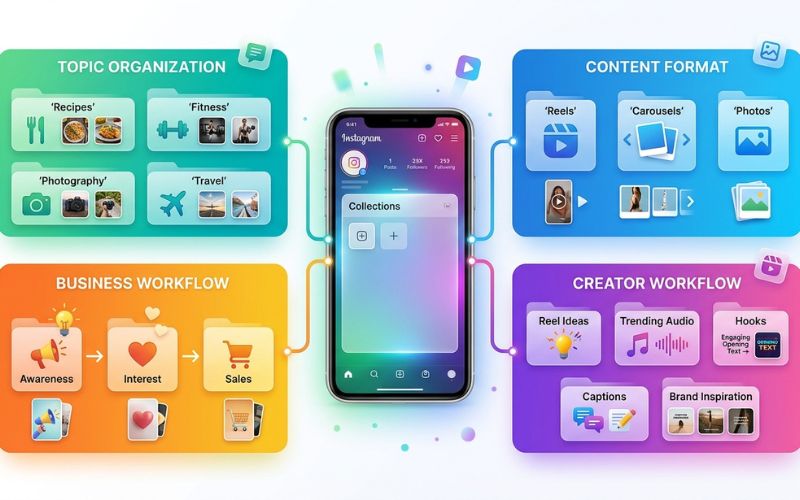
Having a clear setup makes saving posts worth your time. Without a plan, your collections can become messy fast. Here are four practical ways to group your saved posts.
Organize by Topic
Group saved posts by the main subjects you care about most:
- Education: Simple guides, quick facts, and how-to posts.
- Behind the Scenes: Workspace tours, daily routines, and setup guides.
- Design: Color ideas, art styles, and room layouts.
Organize by Content Format
Group posts by how they are made. This helps when you want to create your own content:
- Reels: Short video clips, camera tricks, and sound trends.
- Carousels: Multi-picture posts, swipe guides, and graphic layouts.
- Photos: Product shots, single portraits, and lighting ideas.
Organize by Customer Steps
If you run a business, group posts by customer interest levels:
- Awareness: Fun Reels and viral clips that reach new viewers.
- Interest: Helpful guides that teach viewers something new.
- Sales: Clear product showcases and special deal posts.
Organize by Niche
Customize your folders around your specific job or hobby:
- Photographer: Pose Ideas, Lighting Setups, Camera Gear.
- Fitness Coach: Workout Moves, Healthy Meals, Form Guides.
- Restaurant: Menu Layouts, Food Shots, Kitchen Clips.
My Five Collection Workflow:
- Video Intros: Strong opening lines that grab quick attention.
- Editing Ideas: Cool video cuts and text styles.
- Captions: Great post titles and simple storytelling setups.
- Audio Trends: Trending sounds to use in future videos.
- Sales Prompts: Simple words that ask viewers to click or comment.
How Creators and Businesses Use Instagram Collections
Professional accounts use Instagram Collections as a research hub. Here is how creators and business owners use folders to manage their work.
- Build a Content Calendar: Pull saved ideas into your weekly schedule when you run out of post topics.
- Research Competitors: Save top posts from other brands in your space. Study their video style, color choices, and comment sections.
- Save Customer Photos: Keep track of posts where customers tag your products. You can reference them later when asking to repost their content.
- Collect Brand Ideas: Save neat color schemes and font ideas from other accounts to show your design team.
- Plan Sales Campaigns: Make short-term folders for holiday sales or product launches to gather ideas months ahead of time.
$$\text{Saved Post} \longrightarrow \text{Collection} \longrightarrow \text{Content Plan} \longrightarrow \text{Draft} \longrightarrow \text{Publish}$$
Instagram Collections vs Other Organization Methods
You have many options for saving online ideas. Here is how Instagram Collections compare to other tools like Pinterest Boards, Phone Screenshots, Notion, Google Keep, and Apple Notes.
| Feature | Instagram Collections | Pinterest Boards | Phone Screenshots | Notion / Keep / Notes |
| Private | Yes | Usually | Yes | Yes |
| Easy Search | Limited | Good | Poor | Great |
| Inside Instagram | Yes | No | No | No |
| Best For | Saved Posts | Visual Boards | Quick Captures | Detailed Notes |
- Use Instagram Collections for: Quick saving while browsing the app. It keeps audio links and post details attached automatically.
- Use Pinterest Boards for: General visual ideas, home decor, and web links.
- Use Phone Screenshots for: Fast offline pictures, though they fill up your phone storage quickly.
- Use Notion, Google Keep, or Apple Notes for: Deep project planning where you need to type extra notes and set due dates.
Limitations to Keep in Mind:
- You cannot export collections to your computer or phone storage.
- If an account owner deletes their original post, it vanishes from your collection.
- Instagram may adjust app menus over time during updates.
Common Mistakes to Avoid
Avoid these basic mistakes to keep your saved page clean and useful.
- Saving everything into All Posts: If you never group your saves, you will waste time searching later.
- Using vague folder names: Names like “Cool” or “Stuff” make it hard to remember what is inside.
- Never cleaning old saves: Old trends and past events clog your saved page over time.
- Saving without a plan: Save posts with a clear goal so your folders stay helpful.
Collection Checklist
- Do ✔: Use simple, clear names for every folder.
- Do ✔: Clean out old, unused collections every few months.
- Do ✔: Save trending audio right away so you do not lose the sound name.
- Don’t ✖: Put the same post into five different folders.
- Don’t ✖: Keep event folders active long after the sale ends.
Instagram Collections Not Showing? Try These Fixes
If your saved posts or folders disappear, do not worry. Use these quick steps to fix common app issues.
Basic App Fixes
- Update Instagram: Open the Apple App Store or Google Play Store, search for Instagram, and tap Update. New features often need the latest app version.
- Restart the App or Phone: Close the app completely and reopen it. If that fails, restart your phone.
- Check Internet Connection: Switch between Wi-Fi and mobile data to make sure your signal is working.
- Log Out and Back In: Log out of your account and log back in to reload your profile data.
- Clear App Cache (Android): Go to Phone Settings > Apps > Instagram > Storage, then tap Clear Cache to remove bad temporary files.
- Reinstall the App: Delete the app and download it again. Your saved posts stay safe in your account.
Advanced Help
- Check Your Account: Make sure you are logged into the right profile. Saved folders do not share across accounts.
- Check the Official Help Page: Visit the official Instagram Help Center or Meta Help Center online to read about current app bugs.
- Report a Bug: Open Instagram, go to Profile > Menu > Settings > Help, and tap Report a Problem.
| Problem | Likely Cause | Fix |
| Collections missing | Outdated app version | Update the app |
| Saved button missing | Wrong profile active | Switch accounts |
| Posts disappeared | Creator deleted original post | Cannot be restored |
| App page glitches | Bad temporary files | Clear app cache |
Conclusion
Instagram Collections turn a cluttered list of bookmarked posts into a helpful organization system. They are private, easy to manage, and simple to set up. Whether you want to store meal ideas or plan your next social media post, a clean setup saves time. Build three or four well-named folders today to keep your favorite posts organized!
Frequently Asked Questions
What are Instagram Collections?
They are private folders inside your Instagram account used to group saved posts and Reels by topic.
How do I create a collection on Instagram?
Press and hold the bookmark icon under any post, then tap the plus (+) icon. You can also make one inside your Saved page.
Where are Instagram Collections located?
Tap the top-right menu on your profile page and choose Saved.
Can people see my Instagram Collections?
No. Your collections and saved posts are completely private. Only you can view them.
How do I rename a collection?
Open the folder, tap the three dots in the top right, select Edit Collection, and type a new name.
How do I delete a collection?
Open the folder, tap the three dots, select Delete Collection, and confirm.
Can I move posts between collections?
Yes. Open the saved post, tap the bookmark icon or three dots, and select a new folder.
What happens if the original Instagram post is deleted?
If the original poster deletes their content, it automatically vanishes from your saved folder.
Is there a limit to Instagram Collections?
Instagram has not shared an official limit, so you can build as many collection folders as you need for normal use.
Can I export my saved collections?
No. Instagram does not offer an export tool to download saved folders to your computer.
Why are my Instagram Collections missing?
This usually happens due to an outdated app, weak internet connection, or a temporary app glitch.
Can I save Reels into Collections?
Yes. You can save regular photos, carousel posts, and Reels into any folder.
Are Collections available on iPhone and Android?
Yes. The feature works the same way on both iPhone and Android phones.
Do business accounts have different Collections?
No. Business, creator, and personal accounts use the exact same saved collection features.
You May Also Like:
How to Remove Fake Followers From Instagram
Why Instagram Suspends Accounts and How to Appeal
Disclaimer:
This article is for informational and educational purposes only. It is not official advice from Instagram or Meta. Some images in this article may be AI-generated for illustration only. All trademarks, logos, brand names, and copyrights belong to their respective owners. Always check official Instagram resources for the latest updates.

Eleanor Karen is an administrator at PVStory.co.uk who writes about digital tools, social media trends, and online resources. She shares helpful insights on Instagram Story Viewer tools and other web-based solutions, helping readers stay informed and make the most of their online experience.