

You tap to post your Instagram Story, but a red exclamation mark pops up. Or maybe your screen turns black and the app freezes.
Instagram Story errors happen to almost everyone. They occur when something breaks between your phone, your internet connection, and Meta’s servers.
Whether your Story fails to upload, stops loading, or disappears completely, you can fix most issues in under two minutes. This step-by-step guide helps you fix current Story errors and stop them from happening again.
Quick Answer: How to Fix Instagram Story Errors Fast
To fix instagram story errors right away, run through this fast four-step test:
- Check connection: Switch from Wi-Fi to cellular data, or toggle Airplane Mode on and off.
- Force close: Swipe the Instagram app off your screen and open it again.
- Restart phone: Turn your phone off for 30 seconds and turn it back on.
- Check servers: If the app still fails, Meta’s servers may be down.
Quick Fix Matrix
| Fix Type | Action | Estimated Time | What It Solves |
| Quick Action | Toggle Wi-Fi / Data | 10 seconds | Connection drops, stuck uploads |
| App Reset | Force Stop App | 20 seconds | Frozen screens, missing stickers |
| Full Refresh | Update / Reinstall | 2 minutes | Persistent app crashes, code bugs |
Pro Tip: If Meta’s servers are down, your phone settings are not the problem. Check third-party outage trackers like Downdetector or IsDown.app, or visit the officialInstagram Help Center. Most minor Instagram outages resolve within 30 to 60 minutes, though major outages can take several hours. Wait for Meta to fix their servers.
Diagnostic Flowchart: What Error Do You See?
Follow this simple flow to find the right fix for your exact error:
[ What error do you see on screen? ]
  │
  ├── "Upload Failed" or Stuck Loading ──> Check internet connection (Step 2)
  │
  ├── Black or Blank Screen ─────────────> Reset camera permissions in phone settings
  │
  ├── Missing Stickers or Music ─────────> Clear app cache (Step 7) or update app
  │
  └── "Story Unavailable" ─────────────────> Refresh main feed or check Account Status
What Causes Instagram Story Errors?
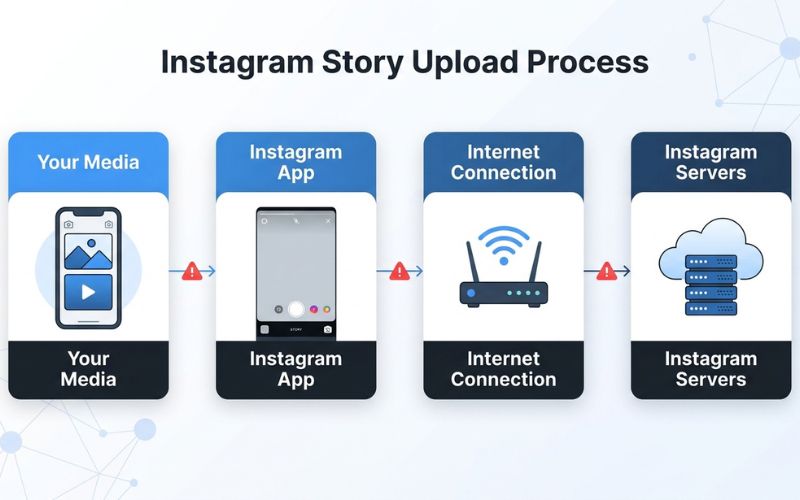
Instagram Stories rely on a simple path to post your content. A failure at any point in this chain causes an error.
[ Your Media ] ──> [ Instagram App ] ──> [ Wi-Fi / Data ] ──> [ Instagram Servers ]
Here is a summary of why these breakdowns happen:
| System Area | Primary Problem | Direct Result |
| Network | Weak upload signal | Upload gets stuck or fails |
| Instagram App | Corrupted cache or old app version | Features glitch or camera turns black |
| Your Phone | Low storage space or low RAM | App freezes during video processing |
| Meta Servers | Outages or system maintenance | App displays “Something Went Wrong” |
Common Instagram Story Error Messages Explained
Here is what specific error messages mean, why they happen, and the best way to solve them.
“Upload Failed”
- Meaning: The app started sending your file, but the transfer stopped before it finished.
- Typical reason: Your internet connection dropped for a split second.
- Immediate fix: Tap the red icon next to your Story thumbnail and select Retry. If that fails, switch to mobile data.
“Something Went Wrong”
- Meaning: The app ran into an internal software glitch without a specific error code.
- Typical reason: Corrupted temporary files or small connection glitches with Meta servers.
- Immediate fix: Force close the app, wait five seconds, and open it again.
Story Stuck on “Posting”
- Meaning: Your video file is stuck while processing.
- Typical reason: The video file size is too big, or your phone ran out of active memory.
- Immediate fix: Toggle Airplane Mode on for ten seconds to stop the loop. Then, delete the draft and upload a smaller clip.
- Community Workaround: Reddit users note that adding a tiny GIF sticker to a stuck draft can force the app to render the clip again.
“This Story Is Unavailable”
- Meaning: The media file is no longer accessible on Meta servers.
- Typical reason: The user deleted the Story, the 24-hour limit ended, or you were blocked.
- Immediate fix: Pull down on your main home feed to refresh your active Story tray. No other action is needed.
Story Uploads Then Disappears
- Meaning: Meta accepted the file, but safety systems removed it right after posting.
- Typical reason: Background music triggered copyright protection, or automated filters flagged the post as spam.
- Immediate fix: Post the clip again without background music.
Can’t View Other People’s Stories
- Meaning: Your phone cannot download video streams from Instagram servers.
- Typical reason: Slow download speeds or full device storage.
- Immediate fix: Clear your app cache (Android) or offload the app (iPhone).
Music, GIF, Poll, or Sticker Not Working
- Meaning: The app cannot load interactive tools from Instagram servers.
- Typical reason: Your app version is outdated, or your account type lacks music licensing rights.
- Immediate fix: Update Instagram in the App Store or Google Play. If you use a business account, switch to a creator account to unlock full music libraries.
Error Message Comparison Table
| Error Message | Typical Reason | Best Immediate Fix |
| Upload Failed | Network drop | Tap Retry or switch to data |
| Something Went Wrong | Software glitch | Force close the app |
| Stuck on “Posting” | Large video file | Toggle Airplane Mode to cancel |
| Story Unavailable | Post deleted or expired | Refresh main feed |
| Upload Disappears | Copyright or spam flag | Remove audio and repost |
| Blank / Black Screen | Camera permission block | Reset permissions in phone settings |
Step-by-Step Troubleshooting Checklist
Work through these solutions in order. They start with the easiest fixes before moving to advanced options.
[ Step 1: Check Servers ] ──> [ Steps 2-3: Fix Network ] ──> [ Steps 4-5: Restart App & Phone ] ──> [ Steps 6-10: Clean App Data ]
Step 1 — Check Instagram Server Status
Check if Instagram is online before changing any phone settings.
- Time: 30 seconds | Difficulty: Very Easy | Success Rate: High (during outages)
Check third-party outage trackers like Downdetector or IsDown.app for Instagram service status. If outage reports spike, wait for Meta engineers to fix the issue.
Step 2 — Test Your Internet Connection
Instagram Stories work best with a stable internet connection.
- Time: 1 minute | Difficulty: Easy | Success Rate: High
Open a test app like Speedtest to check your connection speed. If your connection is slow or drops frequently, turn off Wi-Fi and use mobile data, or move closer to your router.
Step 3 — Toggle Airplane Mode
Toggling Airplane Mode resets your phone’s wireless connections.
- Time: 15 seconds | Difficulty: Very Easy | Success Rate: Medium
- Open your phone’s Control Center or Quick Settings panel.
- Tap Airplane Mode to turn it on.
- Wait ten seconds.
- Tap Airplane Mode again to turn it off.
Step 4 — Force Close Instagram
Closing the app completely clears stuck background tasks.
- Time: 20 seconds | Difficulty: Easy | Success Rate: Medium
- iPhone: Swipe up from the bottom of your screen, pause in the middle, and swipe the Instagram card off the top.
- Android: Swipe away the app from your recent apps view, or go to Settings > Apps > Instagram > Force Stop.
Step 5 — Restart Your Phone
Restarting clears temporary device memory and resets your system services.
- Time: 1 to 2 minutes | Difficulty: Easy | Success Rate: High
Turn your phone off completely. Leave it off for 30 seconds, then turn it back on and open Instagram.
Step 6 — Update Instagram
New updates fix software bugs and restore server compatibility.
- Time: 1 to 2 minutes | Difficulty: Easy | Success Rate: Medium
Search for Instagram in the App Store or Google Play Store. Tap Update if a new version is available.
Step 7 — Clear Cache (Android)
Clearing your cache deletes temporary files without logging you out.
- Time: 1 minute | Difficulty: Easy | Success Rate: High (Android only)
Go to Settings > Apps > Instagram > Storage > Clear Cache.
Common Mistake: Do not tap “Clear Data” unless you know your password. Clearing data logs you out of your account.
Step 8 — Offload or Reinstall Instagram (iPhone)
iOS does not have a direct button to clear cache, but offloading refreshes app files without removing your account settings.
- Time: 2 minutes | Difficulty: Medium | Success Rate: High
Go to Settings > General > iPhone Storage > Instagram. Tap Offload App, then tap Reinstall App.
Step 9 — Free Up Storage Space
Your phone needs free space to render video clips before uploading.
- Time: 2 minutes | Difficulty: Easy | Success Rate: Medium
Check your phone settings to ensure you have at least 2 GB to 3 GB of free internal storage. Delete old files or apps if your drive is full.
Step 10 — Log Out and Log Back In
Logging out resets your session security key with Meta servers.
- Time: 1 to 2 minutes | Difficulty: Easy | Success Rate: Medium
- Go to your Instagram profile and tap the top right menu icon.
- Select Settings and Activity.
- Scroll to the bottom and tap Log Out.
- Wait 1 to 2 minutes before logging back in to allow your session to fully reset.
Step 11 — Try Uploading a Different File
Corrupted files will fail every time you post them.
- Time: 1 minute | Difficulty: Easy | Success Rate: High
Try capturing a live photo directly inside the Instagram camera. If it posts, your original media file is damaged, saved in an unsupported format, or too large.
Step 12 — Contact Instagram Support
If all other options fail, report the issue to Meta.
- Time: 2 minutes | Difficulty: Easy | Success Rate: Low (response times vary)
Go to Settings and Activity > Help > Report a Problem. Describe your exact issue and submit your report.
Troubleshooting Priority Matrix
| Step | Action | Time | Success Rate | Priority |
| Step 1 | Check Server Outages | 30s | 90% (in outages) | Essential |
| Step 2 | Test Connection Speed | 1m | 70% | Essential |
| Step 3 | Toggle Airplane Mode | 15s | 50% | High |
| Step 4 | Force Close App | 20s | 60% | High |
| Step 5 | Restart Phone | 2m | 80% | High |
| Step 6 | Update App | 2m | 65% | Medium |
| Step 7/8 | Clear Cache / Offload | 2m | 75% | Medium |
| Step 9 | Free Storage Space | 2m | 40% | Low |
| Step 10 | Relog Account | 2m | 50% | Low |
| Step 11 | Swap Media File | 1m | 85% | High |
| Step 12 | Contact Support | 2m | 10% | Last Resort |
Android vs. iPhone Fixes
Operating systems process camera hardware, permissions, and app memory differently. Here is how to handle platform differences.
| Problem Area | Android Fix Strategy | iPhone Fix Strategy |
| App Storage | Clear cache directly in system settings | Offload the app in iPhone Storage |
| App Permissions | Adjust in App Info > Permissions | Adjust in Settings > Privacy & Security |
| Background Refresh | Disable Battery Saver Mode | Enable Background App Refresh |
Android Specific Notes
Android runs on many phone models. Aggressive battery settings on phones made by Samsung, Xiaomi, or OnePlus can shut down Instagram while it renders videos. Turn off Battery Saver mode before posting long clips.
iPhone Specific Notes
If you see a black camera preview screen, Apple permissions may be blocked. Go to Settings > Privacy & Security > Camera, toggle Instagram OFF, wait five seconds, and turn it back ON.
Check Your Instagram Account Health
Account restrictions can block your Story posts even when your phone and app work fine.
How to Access Account Status
To view your active feature standing:
- Open your Instagram profile.
- Tap the menu icon in the top right corner.
- Select Settings and Privacy > More Info and Support > Account Status.
Account Status Menu
├── Community Guidelines
├── Restricted Features (Posting, commenting, going live)
└── Recommendation Eligibility
If you see green checkmarks, your account is in good standing. Yellow or red icons mean your account has feature blocks.
Avoid Temporary Spam Locks
To keep automated safety filters from locking your account:
- Space out your uploads to avoid posting an unusually high volume of Stories in a short time.
- Do not add dozens of web link stickers back-to-back.
- Avoid third-party tools that post content outside Meta’s official tools.
If you receive a restriction by mistake, tap the violation notice on your Account Status page and select Request a Review. Most official appeals take 24 to 48 hours to process.
File Format and Media Compatibility Guide
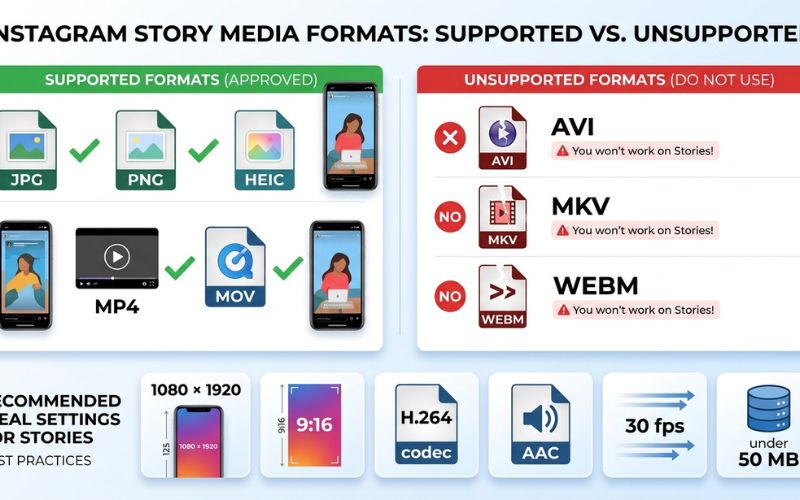
Unsupported file formats cause instant upload failures. Use this guide to format your photos and videos correctly.
Supported File Types
- Photos: JPG, PNG, and HEIC files are supported. Convert HEIC files to JPG if your upload gets stuck.
- Videos: MP4 and MOV files work best. Use the H.264 video codec with AAC audio for smooth processing.
Ideal Media Limits
- Aspect Ratio: 9:16 vertical format (1080 x 1920 pixels).
- Video Size: Instagram allows Story videos up to 4 GB (or 100 MB per some 2026 reports), but keeping files under 50 MB improves upload reliability.
- Image Size: Instagram supports Story photos up to 30 MB. For best results, keep files under 8 MB to avoid compression issues.
- Frame Rate: 30 frames per second (fps) is ideal for smooth uploads; 60 fps is supported, but videos filmed at 120 fps may cause rendering issues.
Real Example: The 4K Video Freeze
Example Scenario: An iPhone user recorded a 60-second video in 4K resolution at 60 fps. When trying to upload it directly to Instagram Stories, the app froze on the rendering screen.
The Fix: The user exported the clip in CapCut at 1080p resolution and 30 fps using the H.264 codec. The file size dropped from 180 MB to 22 MB, and it uploaded instantly.
Compatibility Reference Table
| Media Type | Recommended Format | Ideal Settings | Result |
| Standard Photo | JPG / PNG | 1080 x 1920 pixels, under 8 MB | Uploads instantly |
| Standard Video | MP4 / MOV | 1080 x 1920, 30 fps, H.264 | Best performance |
| High-Res Video | 4K / 60 fps Clips | Exceeds ideal hardware processing | May crash or freeze |
| Unsupported File | AVI, MKV, WEBM | Incompatible codecs | Fails immediately |
Instagram Story Errors After an App Update
New software updates can introduce temporary code bugs that clash with older app files.
- Clear App Data: Clear your cache on Android or offload the app on iPhone right after updating to remove old code files.
- Avoid Beta Versions: Beta builds on Apple TestFlight or Google Play contain experimental code that causes frequent crashes. Leave the beta program and use the public app build for better stability.
- Wait for Bug Fix Patches: Meta usually releases follow-up bug fix updates within 24 to 48 hours of a broken update. Check your app store daily for new patches.
Creator Tips to Prevent Instagram Story Errors
If you create content regularly, use these creator habits to avoid posting errors.
Creator Pre-Posting Checklist
- [ ] Use Standard Export Settings: Export edits from CapCut, Canva, or Adobe Express using 1080 x 1920 resolution, H.264 video, and AAC audio.
- [ ] Trim Video Length: Cut long videos into short 15-second clips using your phone gallery editor before importing them.
- [ ] Limit Interactive Elements: Use no more than two or three stickers, tags, or poll widgets on a single Story frame.
- [ ] Publish from Gallery: Save edited media to your phone camera roll first rather than publishing live edits directly from third-party design tools.
- [ ] Avoid HDR Video: Disable HDR video recording in your phone camera settings to avoid color display bugs and long rendering times.
When to Wait vs. When to Keep Troubleshooting
Use this decision table to decide whether to fix an issue or wait for an official patch:
| Situation | Action | Recommended Steps |
| Global Meta Outage | Wait | Do not change phone settings. Wait 30 to 60 minutes for server repairs. |
| Account Restriction | Wait | Check Account Status and wait out the 24-hour limit, or submit an appeal. |
| Single Upload Failure | Act | Toggle Airplane Mode, check internet speed, or retry using mobile data. |
| Unsupported Video File | Act | Convert or compress the video to a 1080p MP4 file before retrying. |
| Black Camera Preview | Act | Reset camera permissions in your system settings and restart the app. |
Frequently Asked Questions
Why does my Instagram Story keep saying error?
Instagram Story errors happen because of weak internet signals, outdated app software, corrupted temporary cache files, or Meta server outages.
Why won’t my Instagram Story post even though my internet works?
Fast download speeds do not guarantee stable upload speeds. Your video file may also exceed storage limits, or your account may have a temporary posting restriction.
How do I fix Instagram Story upload failed?
Tap the red icon next to your post thumbnail to retry. If that fails, toggle Airplane Mode on and off, switch to mobile data, or restart your phone.
Why is my Story stuck on posting?
This happens when a video file size is too large or when your phone runs out of RAM. Turn on Airplane Mode to stop the loop, delete the stuck draft, and upload a compressed file.
Why can’t I see other people’s Stories?
Slow download connections or a full phone drive can stop new media from downloading. Clear your app cache or pull down on your main home feed to refresh the view.
Does clearing cache delete my Stories?
No. Clearing your app cache only deletes temporary system files. It will not delete your posted content, saved drafts, account photos, or login details.
Can an account restriction stop Story uploads?
Yes. If your account breaks Community Guidelines or posts too quickly, Meta may temporarily block your ability to post media.
Why do stickers or music fail to load?
Missing stickers or music tracks point to an outdated app version, regional licensing rules, or connection glitches with asset servers. Update your app to fix this issue.
Is Instagram down or is it just me?
Check third-party trackers like Downdetector or IsDown.app. If user reports spike, the issue is on Meta’s end.
Should I reinstall Instagram?
Reinstalling the app fixes deep system bugs, corrupted cache files, and missing tools. Make sure you know your password before deleting the app.
Does HEIC cause Instagram Story problems?
While Instagram supports HEIC photos, older app versions sometimes fail to convert them. Convert HEIC files to JPG format if uploads fail. Refer to our Media Guide for details.
How long do Instagram Story bugs usually last?
Most app bugs disappear after you force close or update the app. If the error is caused by a global server outage or account restriction, it usually resolves within 1 to 24 hours.
You May Also Like:
SnapJotz com Explained: What It Is, What It Covers & Whether It’s Worth Using (2026)
Instagram Story Filters: How to Find and Save Them
Disclaimer:
This article is for informational and educational purposes only. We do our best to keep the information accurate, but features and settings may change over time. Some images may be AI-generated for illustration only. All trademarks, logos, product names, and copyrights belong to their respective owners.

Eleanor Karen is an administrator at PVStory.co.uk who writes about digital tools, social media trends, and online resources. She shares helpful insights on Instagram Story Viewer tools and other web-based solutions, helping readers stay informed and make the most of their online experience.