

Quick Answer
The Instagram Story Green Screen effect replaces your real-life background with any photo or video from your phone. You do not need a real green cloth background.
Quick Steps (Takes less than 1 minute):
- Open the Instagram Story camera.
- Swipe left on the bottom circles to search the Effects Gallery.
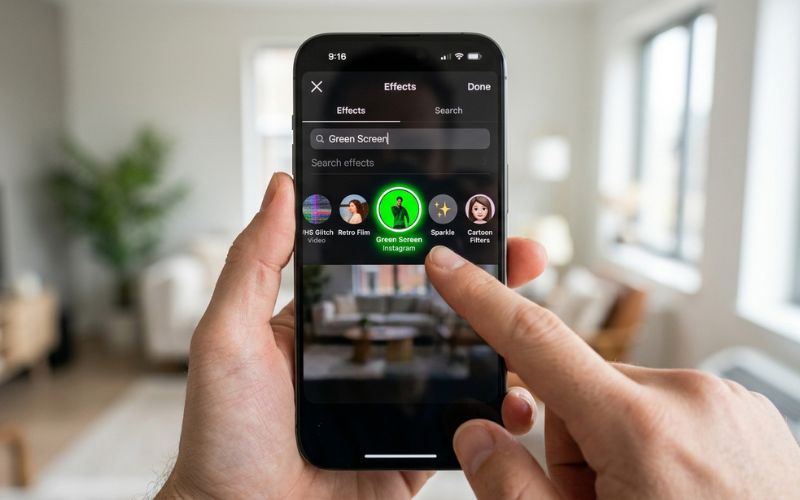
- Search for “Green Screen” and pick the official effect made by Instagram or Meta.
- Tap Add Media to choose a background from your phone gallery.
- Record your video or photo, then post it!
Pro Tip: Tap the small bookmark icon on the effect to save it to your favorites. This lets you open it faster next time.
What Is the Instagram Story Green Screen Effect?
The Instagram Story Green Screen effect is a built-in camera tool made by Instagram (Meta). It uses smart software to separate you from your room, putting any picture or video background behind you.
In regular video studios, people stand in front of a real green cloth wall. Video editing software removes the green color to put in a new scene. Instagram uses smart software that finds your body and removes your background right away without extra tools.
The official camera effect made by Instagram usually works best, but other creators make green screen effects too. Keep in mind that Instagram app screens change often, so buttons might look a little different depending on your app version.
How to Use the Instagram Story Green Screen Effect (Step-by-Step)
Follow these exact steps on your iPhone or Android phone.
Step 1 — Open Instagram Stories
Open the Instagram app on your mobile phone. Swipe right from your main feed to open the Instagram camera.
Step 2 — Browse Camera Effects
Look at the round circles at the bottom of the screen. Swipe all the way to the right end. Tap the magnifying glass icon to open the Effects Gallery.
Step 3 — Search for “Green Screen”
Tap the search bar at the top of the Effects Gallery. Type “Green Screen”.
Select the official Green Screen effect made directly by Instagram (or Meta). Some other green screen effects can glitch or leave messy edges around your hair and face on some phones. The official version gets regular updates so it works well on most phones.
Step 4 — Add a Photo or Video Background
Tap the Add Media button on your screen to open your phone gallery.
Choose any background file that follows normal Instagram rules:
- Allowed file types: Instagram accepts normal file types like JPG and PNG for photos, or MP4 and MOV for videos.
- File sizes: Photos work best under normal limits (around 8 MB to 30 MB depending on format), while video clips for Stories work best under 100 MB for fast uploads.
- Picture shape: Tall vertical photos fill the screen naturally. Wide photos work too, but Instagram cuts off the sides to make them fit.
Step 5 — Position Yourself
Hold your phone in front of you. Use two fingers on the touchscreen to pinch the screen and make yourself smaller. Move yourself to a bottom corner so viewers can see your background clearly.
Tap the flip button to switch between your front selfie camera and back camera.
Step 6 — Record and Share Your Story
Hold down the main circle button to record a video clip. Tap it once to take a still picture instead.
Add text, stickers, or music using the top editing icons. Tap Your Story at the bottom left to share your post with followers.
Best Background Images and Videos for Green Screen Stories
Good quality backgrounds keep your posts looking clean and sharp. Using tall vertical photos and videos made for Stories and Reels gives you the best look.
The best size for Stories and Reels is 1080 pixels wide by 1920 pixels tall.
| Background Type | Recommended | Notes |
| Photo | ✔ | Gives clear picture quality and uses less phone battery. |
| Portrait image | ✔ | Fills tall vertical screens perfectly without cutting off edges. |
| Landscape image | Works | Works fine, but Instagram zooms in and cuts off the sides. |
| Video | ✔ | Makes moving backgrounds. Keep video files short so they load fast. |
| Low-resolution image | ✖ | Looks blurry and fuzzy on phone screens. |
Instagram Story Green Screen vs Instagram Reels Green Screen
Instagram Stories and Instagram Reels use green screen in different ways.
| Feature | Instagram Stories | Instagram Reels |
| How to find it | Effects Gallery in Story Camera | Effects menu in Reels Camera / Remix tool |
| How you record | Quick, single-take recording | Record multiple short clips with a timer |
| Editing tools | Basic text, stickers, and clickable links | Add music tracks and cut video clips |
| Best ways to use it | Daily updates, quick news reactions, polls | Viral trends, step-by-step guides, permanent posts |
| Where it goes | Sent directly to followers and DMs | Posted to your profile feed and the Explore page |
| How long it stays | Disappears after 24 hours | Stays on your profile page forever |
| How people reply | Private DM replies and sticker taps | Public comments, likes, shares, and remixes |
When should you use Stories instead of Reels?
Use Instagram Stories when you want to share casual daily updates or quick news with your followers. Use Instagram Reels when you want to reach new people through the Explore page or build posts you want to keep on your page forever.
Why Is the Instagram Story Green Screen Effect Missing or Not Working?
If the background effect stops working, one of these reasons is usually why:
- Old app version: Using an old version of Instagram blocks new features.
- Gradual app updates: Meta gives new features to a few groups of people at a time in different areas.
- App permissions turned off: The app needs permission in your phone settings to open your photos.
- Full phone storage or cache: Low phone space can slow down your camera during live video effects.
- Older phones: Older phone parts might be too slow to run live green screen effects smoothly.
[Quick Fix Guide]
If background won't load → Check app permissions for Photos & Camera
If camera freezes → Clear app cache and free up phone space
If effect is missing → Search "Green Screen" inside the Effects Gallery
If nothing works → Restart your phone or log out and back in
How to Fix Instagram Story Green Screen Problems
Use this checklist to fix green screen problems step by step:
- [ ] Allow Camera permissions: Give Instagram permission to use your camera and microphone in phone settings.
- [ ] Allow Photos permissions: Give Instagram permission to access your photo gallery so it can open your pictures.
- [ ] Free up phone space: Delete unused apps or files to make sure your phone has enough free space.
- [ ] Clear app cache (Android): Open phone Settings, choose Apps, select Instagram, tap Storage, and tap Clear Cache.
- [ ] Offload app (iPhone): Open iPhone Settings, select General, tap iPhone Storage, choose Instagram, and tap Offload App. This works like clearing cache on iPhone, but it saves your personal data.
- [ ] Restart your phone: Turn your phone off and on again to clear small system glitches.
- [ ] Log out and log back in: Sign out of your account and sign back in to reload your settings.
- [ ] Update or reinstall the app: Visit the Apple App Store or Google Play Store to download the newest version.
When to contact Instagram Support
If the camera still does not work after trying every fix on the checklist, report the problem. Make sure “Shake phone to report a problem” is turned on in your Help settings, then shake your phone while in the camera and tap Report a Problem. You can also report issues through the main app menu or check help articles in the Instagram Help Center.
Android vs iPhone Differences
Rules on Apple iPhones and Android phones change how each phone manages app settings and files.
| Feature | Android Devices (Android 14+) | iPhones (iOS 17+) |
| Cache clearing | Clear extra files in phone Settings without deleting your personal data. | Must offload or delete the app to remove extra files, though some app data stays. |
| Permissions | Phone asks for Photos and Media permissions through Google settings. | Phone asks for Full Access or Selected Photos through Apple settings. |
| Gallery access | Opens the phone file picker, including Google Drive cloud storage. | Opens Apple Photos, sorting by albums and recent pictures. |
| Common issues | Older phones may lag when recording live video. | Low storage space can cause the app to freeze or close suddenly. |
| Typical fixes | Force stop the app or clear cache in phone settings. | Update iPhone software or offload the app. |
Creative Ways to Use Instagram Story Green Screen
Here is how different creators use this green screen tool:
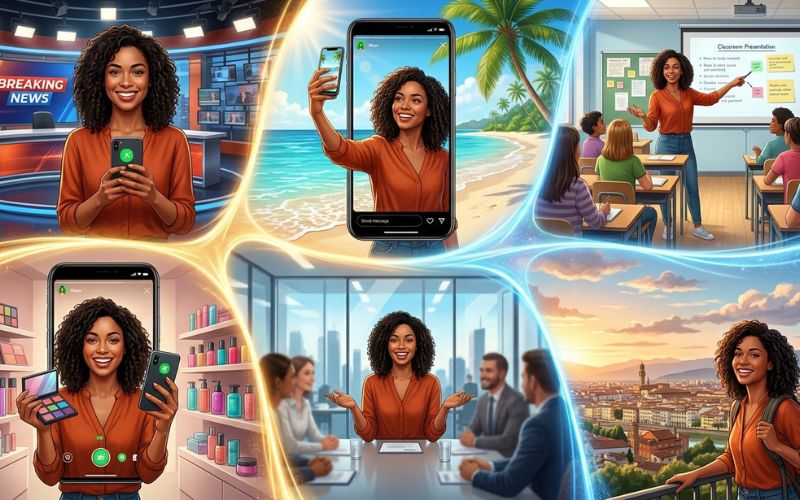
- Reacting to news: Put a screenshot of a news headline behind you while sharing your thoughts.
- Product showcases: Hold your coffee mug or item while showing your website page behind you.
- Tutorials: Stand in front of learning slides while explaining a step-by-step guide.
- Travel Stories: Put pictures of famous places behind you to share hotel ideas.
- Event promotions: Show an event flyer behind you while telling people how to sign up.
- Before/after comparisons: Show a room transformation picture behind you while explaining the changes.
- Meme reactions: Put a funny picture behind you and record your real face reaction.
- Business promotions: Share daily restaurant menus or real estate listings behind you while answering questions.
Tips for Better Green Screen Stories
Follow these tips to get clean video results:
- Face the light: Sit facing a bright lamp or window so your outline stays clean and sharp.
- Avoid busy backgrounds: Stand in front of a plain wall so the background software stays steady.
- Speak clearly: Keep your hands close to your body so the video outline does not flicker.
- Keep text in safe areas: Avoid putting stickers near the top or bottom edges of the screen where buttons sit.
- Test before posting: Record a short test video to check your microphone sound and background layout.
Best Alternatives to Instagram’s Green Screen Effect
If you want more editing tools, try other video editing apps before posting to Instagram.
| App | Free Version | Platforms | Best For | Pros & Cons |
| CapCut | Yes | Android / iOS | Advanced editing and clean background cutouts. | Pros: Very clean cutouts. Cons: Advanced tools require a paid plan. |
| Canva | Yes | Android / iOS | Mixing pictures with slide presentations. | Pros: Lots of design templates. Cons: Video editing tools are basic. |
| InShot | Yes | Android / iOS | Fast video edits, simple cropping, and quick filters. | Pros: Easy to use for beginners. Cons: Free version shows ads. |
| VN Editor | Yes | Android / iOS | Edit multiple video clips without a logo watermark. | Pros: Full control over video layers. Cons: Harder to learn. |
Who should use external editing apps?
Use CapCut or VN Editor if you need super clean edges, multiple audio tracks, or fancy effects. Use built-in Instagram features when you want the fastest way to record and post quickly.
Common Mistakes to Avoid
Avoid these simple mistakes to save time while editing:
- Searching in wrong menus: Search inside the Effects Gallery, not your main phone settings or basic color filters.
- Using low-resolution images: Small, stretched photos make your whole video look blurry and hard to read.
- Ignoring permissions: Blocking phone media access stops Instagram from opening your photo library.
- Poor room lighting: Dark rooms cause fuzzy, messy edges around your hair and clothes.
Frequently Asked Questions
Do I need a real green screen to use Instagram Green Screen?
No. Instagram uses smart software to find your body and remove your background automatically.
Can I use my own photos and videos as backgrounds?
Yes. Tap the Add Media button after picking the effect to select normal photo or video files from your phone gallery.
Why is the Green Screen effect missing from my account?
Your app may need an update, or your account may be waiting for a feature rollout. See our quick fix guide above for easy fixes.
Is Green Screen available on Android and iPhone?
Yes. The official camera effect works on both iPhone and Android mobile phones inside the main Instagram app.
Can business accounts use Green Screen?
Yes. Business, creator, and personal accounts all have access to green screen tools in Stories.
Why won’t my gallery photos load?
Instagram needs photo access permissions turned on in your phone settings to view your photo gallery.
Can I save Green Screen Stories before posting?
Yes. Tap the three dots icon in the top corner of the Story screen and select Save to store the video on your phone.
Does Green Screen reduce video quality?
Instagram shrinks video files slightly to save space. Running background effects on older phones adds extra processing work, which can make videos look a little less sharp.
You May Also Like:
Common Instagram Story Errors and How to Fix Them
SnapJotz com Explained: What It Is, What It Covers & Whether It’s Worth Using (2026)
Disclaimer:
This article is for informational and educational purposes only. Features and app screens may change with Instagram updates. Some images in this article may be AI-generated for illustration only. All trademarks, logos, brand names, and copyrights belong to their respective owners. Always check official Instagram resources for the latest information.

Eleanor Karen is an administrator at PVStory.co.uk who writes about digital tools, social media trends, and online resources. She shares helpful insights on Instagram Story Viewer tools and other web-based solutions, helping readers stay informed and make the most of their online experience.