
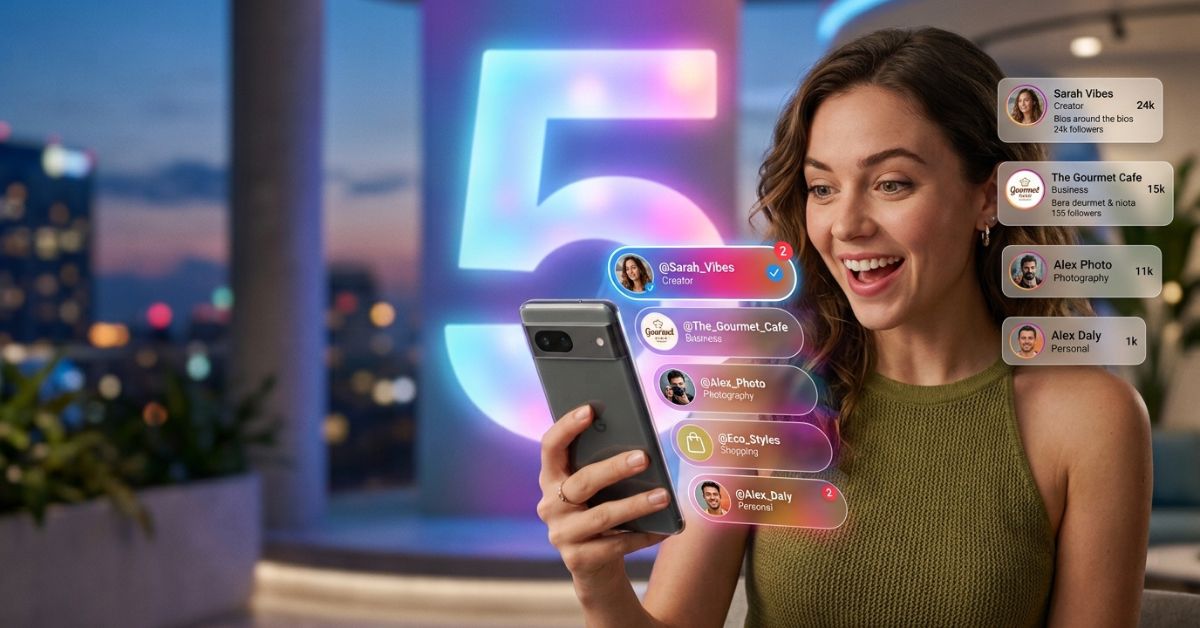
Managing more than one account is easy, and Instagram lets you do it. You can run personal, business, and work accounts all from one phone.
Quick Answer Box
You can stay signed into up to 5 Instagram accounts at the same time on one phone app. You can switch between them in two taps without typing your password every time.
Meaning Box
Multiple Instagram Accounts: Using two or more separate Instagram profiles on the same phone. Each profile has its own username, followers, posts, and private messages.
Can You Have More Than One Instagram Account?
Yes, you can have more than one Instagram account. According to Instagram, you can make and manage several profiles right inside the app.
| Question | Answer | Details |
| Allowed by Instagram? | Yes | Managing many accounts is built right into the app. |
| Allowed on different devices? | Yes | You can log into your accounts on phones, tablets, and computers. |
| Against the rules? | No | It is completely safe if you follow normal community rules. |
| Need extra phones? | No | You can run many accounts on just one phone. |
Instagram Account Limits
Instagram sets specific rules to stop spam and protect user privacy.
How Many Accounts Can One Person Own?
Instagram does not set a hard limit on how many total accounts you can own. However, making many accounts quickly from the same internet connection can trigger automatic safety blocks. An IP address is like the unique street address of your internet connection.
How Many Accounts Can Stay Logged In on One Phone?
You can keep up to 5 Instagram accounts logged in at the same time on one phone. If you want to add more, you must log out of one account first.
Simple Login Feature Explained
Simple Login lets you link several Instagram accounts under one main password. When you log into your main account, the app logs into your linked accounts automatically. This works great for personal accounts, but you should avoid it for work or client accounts.
| Account Limit Item | Limit Rules |
| Logged in on one phone app | Up to 5 accounts maximum |
| Accounts per email address | 1 account per email (recommended) |
| Simple Login feature | Up to 5 accounts linked to one main password |
How to Add Another Instagram Account
Adding another account to your app takes less than two minutes. You can create a new account or connect one you already have.
On Android
- Open Instagram and tap your profile picture in the bottom right corner.
- Tap your username at the top or tap the menu icon (three lines).
- Tap Add Account.
- Choose Log Into Existing Account or Create New Account.
On iPhone
- Open Instagram and go to your profile page.
- Press and hold your profile picture in the bottom right corner.
- Tap Add Instagram Account.
- Choose Log Into Existing Account or Create New Account.
On a Computer
- Open Instagram.com in your web browser.
- Go to your profile menu and open Accounts Center to link your accounts. Then, log in through Facebook or Accounts Center to switch. You can also log out and pick a different account on the sign-in screen.
- Log into an existing account or sign up for a new one.
Computer browsers let you post photos and reply to messages. However, computer browsers do not let you save draft posts or get pop-up alerts.
Making a Brand-New Account
- Choose Create New Account from the menu.
- Pick a unique username.
- Make a strong password.
- Type in a new email address and enter the security code sent to your inbox.
Adding an Existing Account
- Choose Log Into Existing Account.
- Type in your username, email, or phone number.
- Type in your password.
- Enter your security code if you use extra login protection (two-factor authentication).
How to Switch Between Instagram Accounts
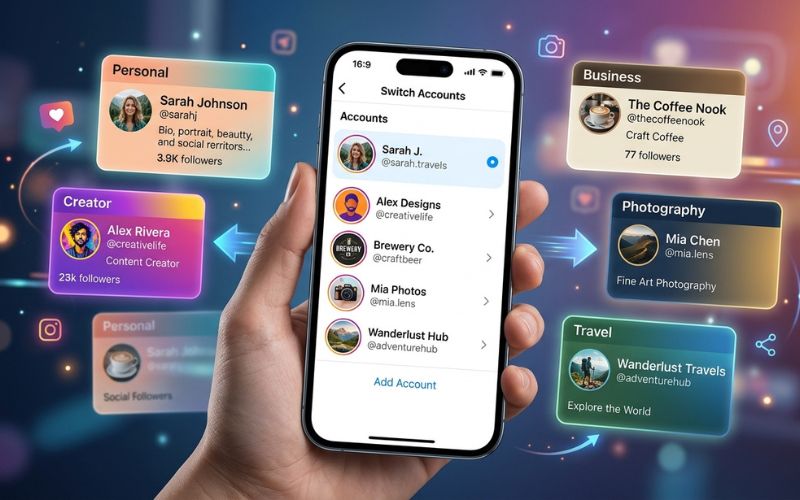
Switching between accounts takes just two taps once your accounts are added.
Profile Switching Shortcuts
The fastest way to switch is the long-press trick. Press and hold your profile picture in the bottom right corner. Tap the account you want to open from the menu.
On some phones, you can also double-tap your profile picture in the bottom right corner to quickly swap between accounts.
Switching on a Computer
On a computer, use Accounts Center to link your accounts. Then log in through Facebook or Accounts Center to switch profiles, or log out and pick another account from the main screen.
How to Keep Your Accounts Separate
Keeping your accounts organized protects your privacy and stops you from posting to the wrong page by mistake.
Organization and Email Setup
Use a different email address for every account you make. Using separate emails makes sure password reset links go to the right inbox.
If you share your phone contacts, Instagram might suggest your second account to your real-life friends. You can stop this by turning off “Disconnect Contacts” inside your app settings.
Meta Accounts Center
The Meta Accounts Center controls linked features across Instagram, Facebook, and Threads. Unlink accounts inside Accounts Center if you want to keep your profiles completely separate.
Connecting an Instagram account automatically connects your login to your Threads account. If you log out of Instagram, your Threads login updates on that phone too.
Avoiding Post Mistakes
Sharing a personal photo on a work page by accident can be embarrassing. Check this quick safety list before sharing any post:
“Before Posting” Checklist
- [ ] Check the profile picture in the bottom right corner.
- [ ] Make sure the correct username is at the top of the post screen.
- [ ] Check that your caption matches the tone of this account.
- [ ] Check tagged accounts and hashtags to make sure they are correct.
- [ ] Double-check your linked Facebook Page sharing options.
Can People See If You Have Other Instagram Accounts?
No, Instagram does not show a public list of your other accounts on your main profile page. Followers cannot see your other usernames.
However, Instagram’s system suggests accounts to people based on shared phone contacts and linked Facebook pages. Here is how privacy works:
| Privacy Item | Visible to Followers? | How to Protect Yourself |
| Username list on profile | No | Instagram never shows your other accounts publicly. |
| Shared phone contacts | Possible | Turn off Contact Syncing in settings. |
| Suggested Accounts feature | Possible | Turn off Similar Account Suggestions on a computer. |
| Linked Meta / Facebook accounts | Possible | Unlink accounts inside the Meta Accounts Center. |
Choosing the Right Instagram Account Type
Instagram offers three account types. Choosing the right one gives you access to the right tools.
Personal Account
Personal accounts work best for private sharing with friends and family. They give you full access to popular music for Reels and standard privacy controls.
Creator Account
Creator accounts fit public figures, influencers, and artists. For example, a travel blogger or video game creator uses this type to see follower growth stats and organized inbox folders.
Business Account
Business accounts fit online stores, local shops, and agencies. For example, a local restaurant or hair salon uses this type to add contact buttons, schedule posts, and view the Professional Dashboard. The Professional Dashboard shows how many people saw your posts and how fast your account is growing.
| Feature | Personal | Creator | Business |
| Private Account Option | Yes | No | No |
| Stats & Insights | No | Yes | Yes |
| Post Scheduling | No | Yes | Yes |
| Contact Buttons | No | Yes | Yes |
| Ad Tools | No | Yes | Yes |
Best Ways to Manage Accounts Easily
Managing several accounts takes simple organization to save time.
Work Habits and Password Safety
Save your login info in safe password tools like 1Password or Bitwarden. Never write passwords in plain text files or shared chat messages.
When running business accounts, use Meta Business Suite to manage who gets access. This tool lets two or more people manage one account safely using their own logins without sharing main passwords.
+-------------------------------------------------------------------+
|                        DAILY WORKFLOW                             |
|  1. Check notifications & DMs on all profiles                     |
|  2. Publish scheduled posts                                       |
|  3. Spend 10 minutes engaging with target audience comments       |
+-------------------------------------------------------------------+
                                  |
                                  v
+-------------------------------------------------------------------+
|                       WEEKLY CHECKLIST                            |
|  1. Review audience analytics on Professional Dashboard           |
|  2. Plan and batch-create content for the upcoming week           |
|  3. Schedule posts using Meta Business Suite                      |
|  4. Assign secondary backup admins for account safety             |
+-------------------------------------------------------------------+
Regular Instagram vs. Outside Tools
Built-in Meta tools work well for daily posting. Other management tools offer extra features for team approval and content planning.
- Meta Business Suite: Meta’s official free tool for scheduling posts, checking account stats, and managing messages across Facebook and Instagram.
- Hootsuite: A social media tool with bulk post-scheduling and topic-tracking features.
- Sprout Social: A professional tool made for deep stats and team teamwork.
- Planable: A visual calendar tool made for fast team approvals.
| Feature | Instagram App | Meta Business Suite | Hootsuite | Sprout Social | Planable |
| Post Scheduling | Basic | Advanced | Advanced | Advanced | Advanced |
| Team Access | No | Yes | Yes | Yes | Yes |
| Detailed Stats | Basic | Medium | Advanced | Deep | Basic |
| Price | Free | Free | Paid | Paid | Paid |
Is It Safe to Use Multiple Accounts on One Phone?
Yes, managing several accounts on one phone is safe. Instagram is designed to support multiple accounts.
Account Safety and Rules
Using one phone means your accounts share a single internet connection (IP address). Instagram expects this normal setup. Instagram focuses on stopping spam and rule-breaking, so sharing an internet connection will not hurt your account.
Safety blocks happen because of spam behavior, not because you switch accounts. Using fake automated tools, buying fake followers, and sending mass private messages break official rules and get your account blocked.
Important Security Protections
Turn on Two-Factor Authentication (2FA) for every account. Use security code apps like Google Authenticator or Microsoft Authenticator instead of text messages. These security apps create safe temporary codes that protect your accounts from phone-number hacks.
Quick Safety Checklist
- [ ] Secure every account with a unique password.
- [ ] Turn on Two-Factor Authentication using a security code app.
- [ ] Save your backup recovery codes in a safe place.
- [ ] Set a second account manager on Meta Business Suite for account recovery.

Common Problems and How to Fix Them
Can’t Add Another Account
- Cause: You hit the limit of 5 logged-in accounts.
- Solution: Log out of one active account before adding a new one.
Account Switching Not Working
- Cause: Glitched temporary files or an outdated app.
- Solution: Close Instagram, update the app in your phone’s app store, and restart your phone.
Login Keeps Failing
- Cause: Wrong password/username or locked security sessions.
- Solution: Use the “Forgot Password” link on the sign-in screen to get a recovery email.
Lost Access to Your Email
- Cause: Your registered email account is closed or locked out.
- Solution: If you are still logged in, update your email address right away in your account settings. If you are logged out, use your verified phone number to get a security code.
Alerts Not Working
- Cause: Your phone’s alert settings are turned off.
- Solution: Open your phone’s main Settings app, tap Notifications, select Instagram, and turn alerts on.
Final Thoughts
Managing several Instagram accounts is easy with the right setup. The official app supports up to 5 logged-in accounts, letting you switch between them in seconds.
- Use 1 account: Best for personal sharing with family and friends.
- Use 2 accounts: Best for keeping your personal life separate from a project or small business.
- Use up to 5 accounts: Best for social media managers, agencies, and creators running several brands.
Start by using built-in tools like Meta Business Suite before spending money on paid management software. Use separate email addresses and security apps to keep all your accounts safe.
Frequently Asked Questions
Can I have two Instagram accounts?
Yes, you can run two separate Instagram accounts on the same phone.
How many Instagram accounts can I have?
You can keep up to 5 Instagram accounts logged in at the same time on one phone app.
Can I use one email for multiple Instagram accounts?
It is best practice to use a separate email address for every account to keep security alerts organized.
Can people see my other Instagram accounts?
No, Instagram does not show your other accounts on your profile page.
Can I switch accounts without logging out?
Yes, you can switch between accounts using the profile menu without logging out.
Is it safe to manage multiple Instagram accounts?
Yes, managing multiple accounts is an official feature and is safe to use.
Do business accounts count toward the limit?
Yes, all account types count toward the 5 logged-in account limit on phones.
What is the difference between removing an account and deleting it?
Removing an account just logs you out of the app menu. Deleting an account permanently erases your profile, photos, and messages from Instagram forever.
You May Also Like:
Instagram Restrict vs Block vs Mute: What’s the Difference?
How to Pin Posts on Instagram Profiles
Disclaimer:
This article is for informational and educational purposes only. It is not official advice from Instagram or Meta. Some images in this article may be AI-generated for illustration only. All trademarks, logos, product names, and copyrights belong to their respective owners. Always check official Instagram guidance for the latest updates.

Eleanor Karen is an administrator at PVStory.co.uk who writes about digital tools, social media trends, and online resources. She shares helpful insights on Instagram Story Viewer tools and other web-based solutions, helping readers stay informed and make the most of their online experience.