
Quick Answer:
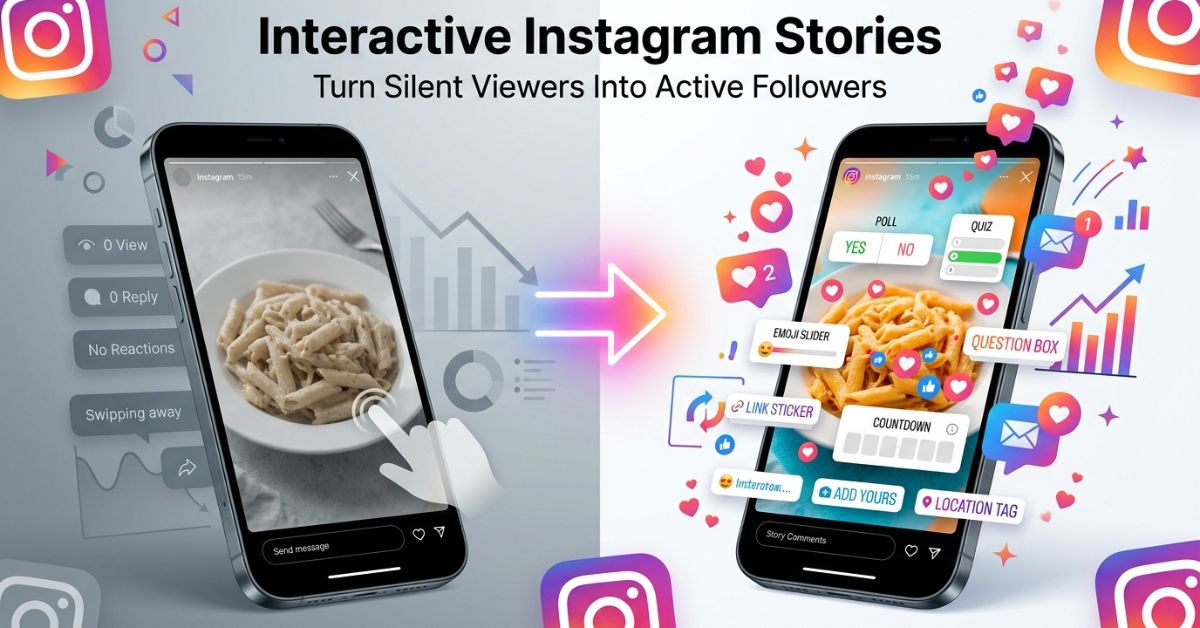
Interactive Instagram Stories use tap buttons, votes, website links, and public comments to get people involved. Adding these tools helps you connect with viewers and turn casual readers into loyal followers.
Posting pictures to your Instagram Stories is a good start. But getting people to answer them is even better. Interactive Stories help turn quiet viewers into active friends.
In this guide, you will learn how to use every sticker, link, and tool on Instagram. We will also cover new tools like public Story comments, AI photo tools, and smart glasses. By the end, you will know how to turn simple posts into fun conversations.
What Are Interactive Instagram Stories?
An interactive Instagram Story is a post that asks viewers to do something. Instead of just skipping your post, viewers tap a button, answer a question, or leave a quick note. Normal Stories only show pictures. Interactive Stories give viewers something fun to do.
+-------------------------------------------------------------+
|                     STORY TYPE COMPARISON                   |
+------------------------------+------------------------------+
|        NORMAL STORY          |      INTERACTIVE STORY       |
|                              |                              |
|   +----------------------+   |   +----------------------+   |
|   | Just a photo of a    |   |   | Photo + Poll Sticker |   |
|   | coffee cup.          |   |   | "Coffee or Tea?"     |   |
|   +----------------------+   |   +----------------------+   |
|                              |                              |
|   Viewers watch for 2        |   Viewers tap an option to   |
|   seconds and swipe away.    |   join in.                   |
+------------------------------+------------------------------+
Types of Story Actions
- Replies: Viewers send a Direct Message (DM) right from your Story slide.
- Sticker Taps: Viewers tap buttons, quizzes, sliders, and text boxes.
- Shares: Viewers send your Story slide to their friends.
- Link Clicks: Viewers tap a link button to visit an outside website.
- Story Comments: Viewers leave public notes at the bottom of your Story slide.
| Feature | Normal Story | Interactive Story |
| User Action | Watches for a few seconds | Taps, types, slides, or clicks |
| Viewer Interest | Low | Very High |
| Main Goal | Getting Seen | Action and Conversation |
| Normal Result | Skipped past quickly | Longer watch time and direct messages |
Why Interactive Instagram Stories Matter
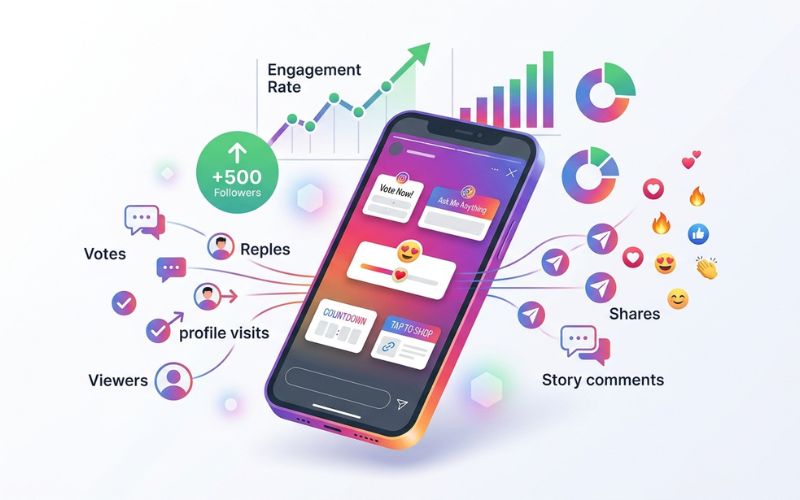
Instagram wants people to stay inside the app longer. When people click on your Stories, the app notices. Higher activity is one of many things that can help move your profile picture to the front of your followers’ Story bar.
Main Benefits
- Better Reach: Lots of activity tells the app to push your posts to the top of the feed.
- More Direct Replies: Fun stickers make it easy to start private chats in Direct Messages.
- Stronger Connection: Viewers feel good when you ask for their opinion.
- Product Discovery: Adding product tags and links leads viewers to your online shop.
- More Profile Visits: Curious viewers often tap your name to look at your main page or Reels.
- Better Audience Feedback: Polls and questions give you free feedback straight from your followers.
Using fun stickers keeps people focused on your posts. Instagram says that when viewers respond to your posts, it helps show your content to more people across the app.
Interactive Instagram Story Features You Can Use Right Now
Instagram offers standard stickers along with modern AI tools. Here is how each tool works and when to use it.
Poll Sticker
- What it does: Asks a simple question with two to four tap-to-vote options.
- When to use it: Fast choices like “Yes or No” or “This or That.”
- Best example: A coffee shop asking, “Which drink should we put on sale tomorrow? Iced Latte or Cold Brew?”
- Common mistake: Writing long option text that gets cut off on phone screens.
Quiz Sticker
- What it does: Shows a multiple-choice question with one correct answer.
- When to use it: Testing what your audience knows or teaching fun facts.
- Best example: A fitness coach asking, “Which food has the most protein?”
- Common mistake: Asking questions that are too hard, making people skip the slide.
Question Sticker
- What it does: Opens a text box where viewers send typed answers directly to you.
- When to use it: Hosting Q&As, asking for feedback, or getting advice.
- Best example: A business asking, “What is your biggest problem at work this week?”
- Common mistake: Forgetting to share the best answers back to your Story.
Emoji Slider
- What it does: Lets users slide an emoji left or right to show how they feel.
- When to use it: Checking how much people like or feel excited about something.
- Best example: A restaurant showing a plate of tacos and asking, “How hungry are you right now?”
- Common mistake: Picking an emoji that does not make sense for the question.
Add Yours Sticker
- What it does: Starts a public photo chain that viewers can join with their own photos.
- When to use it: Starting fun trends and collecting user photos.
- Best example: A local shop asking followers to share photos of their morning coffee.
- Common mistake: Using an idea that is too hard for most people to join.
Link Sticker
- What it does: Places a button that sends viewers straight to a website page.
- When to use it: Sending people to blog posts, shop pages, or sign-up forms.
- Best example: A shoe brand linking directly to a brand new sneaker release.
- Common mistake: Hiding the sticker in a bottom corner where people miss it.
Countdown Sticker
- What it does: Counts down to a specific date and time. Viewers can tap it to set a reminder.
- When to use it: Building excitement for sales, live videos, or new items.
- Best example: A tech business counting down to a big app update.
- Common mistake: Setting a timer without posting a new Story when the time runs out.
Music Sticker
- What it does: Plays songs or sound effects with moving words on screen.
- When to use it: Setting a mood, adding excitement, or using popular music clips.
- Best example: Playing a fun upbeat song over a morning routine video.
- Common mistake: Setting background music too loud over people speaking in the video.
GIFs, Mentions, and Location Stickers
- What it does: Adds moving pictures, tags other profiles, or marks a real place on a map.
- When to use it: Adding fun graphics, giving credit to partners, or helping locals find your shop.
- Best example: A clothing shop tagging its street location so local shoppers can visit.
- Common mistake: Crowding the screen with too many moving stickers at once.
Story Comments
- What it does: Lets viewers write public notes directly at the bottom of your Story slide.
- When to use it: Starting group talks that all viewers can see and join.
- Best example: Asking followers to talk about their favorite holiday movies in the comments.
- Things to know: This feature is slowly rolling out and might not be on every account yet. When available, comments can be seen by anyone watching the Story. You can turn them on or off in Privacy settings. You can block words or users, but comments disappear automatically when the Story ends after 24 hours.
AI Story Restyle & Backdrop
- What it does: Uses smart AI to change photo backgrounds or visual styles.
- When to use it: Fixing simple photos or adding creative backgrounds to your pictures.
- Best example: Turning a plain wall photo into a colorful, artistic background.
- Rollout Note: Meta releases AI tools in steps, so availability depends on where you live and your account type.
Hands-Free Video (Meta AI Glasses Integration)
- What it does: Shares hands-free photos, video clips, or live streams taken with Ray-Ban Meta smart glasses.
- When to use it: Showing hands-free work, workspace tours, or behind-the-scenes videos.
- Best example: A baker sharing a hands-free view of icing a cake from their own point of view.
- Common mistake: Moving your head too quickly while recording hands-free video.
Quick Feature Comparison
| Feature | Best For | Action Type | Ideal Call to Action |
| Poll | Fast choices | Single tap | “Vote below!” |
| Quiz | Learning & fun | Single tap | “Test your knowledge!” |
| Question | Feedback and Q&A | Typed text | “Ask me anything!” |
| Emoji Slider | Quick reactions | Dragging slider | “Slide to rate!” |
| Add Yours | Photo trends | Photo upload | “Add your photo!” |
| Link | Website traffic | Tap button | “Tap to shop now!” |
| Countdown | Event launches | Tap for reminder | “Set a reminder!” |
| Story Comments | Open discussions (where available) | Typed text | “Leave a comment!” |
How to Create Interactive Instagram Stories Step by Step
Follow these eight simple steps to make a great Story sequence from scratch.
   [STEP 1] Plan Your Goal
       │
       ▼
   [STEP 2] Choose Story Format
       │
       ▼
   [STEP 3] Add Your Media
       │
       ▼
   [STEP 4] Insert Interactive Sticker
       │
       ▼
   [STEP 5] Add a Clear CTA
       │
       ▼
   [STEP 6] Publish Slide
       │
       ▼
   [STEP 7] Reply to Interactions
       │
       ▼
   [STEP 8] Review Analytics
- Plan your goal: Pick what you want to happen. Goals can be getting link clicks, votes, or direct messages.
- Choose your Story format: Pick a single photo, video clip, or text layout.
- Add your photo or video: Open the Instagram camera. Take a new picture or swipe up to upload one from your phone.
- Insert a fun sticker: Tap the Sticker icon (the square smiling face) at the top of the screen. Pick the sticker you want, like a Poll or Question box.
- Add clear instructions: Put simple text near your sticker telling people what to do. Use arrows or bright colors to show them where to tap.
- Publish your Story: Tap Your Story at the bottom to share it with everyone. You can also pick Close Friends for a private group.
- Reply to your viewers: Check your notifications as votes and comments come in. Answer typed messages within a few hours to keep the chat going.
- Check your numbers: Swipe up on your live Story to see views and taps. Use these numbers to make even better posts next time.
The 3-Slide Story Formula That Gets More Responses
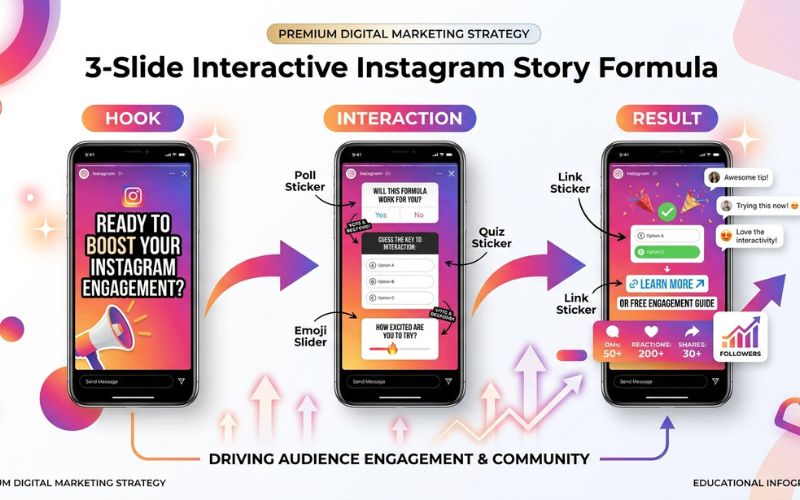
Using random stickers gives random results. Using a clear three-slide setup creates a short story that keeps viewer attention.
+-------------------------------------------------------------------+
|                   THE 3-SLIDE STORY FORMULA                       |
+-------------------+-----------------------+-----------------------+
|  SLIDE 1: SETUP   |   SLIDE 2: CHOICE     |   SLIDE 3: PAYOFF     |
|                   |                       |                       |
| Hook the viewer   | Ask for input using   | Deliver the answer,   |
| with a problem or | an interactive        | result, or website    |
| question.         | sticker.              | link.                 |
+-------------------+-----------------------+-----------------------+
Slide 1 — Setup
Grab your viewer’s attention right away. State a simple problem, ask a question, or share an interesting picture without giving away the main answer.
Slide 2 — Choice
Ask for audience input on this slide. Add an interactive sticker so viewers can vote, guess an answer, or share an opinion.
Slide 3 — Payoff
Show the final result. Give the correct answer, reveal the solution, or add a Link sticker that sends people directly to your full page.
3-Slide Formula Examples
| Business Type | Slide 1 (Setup) | Slide 2 (Choice) | Slide 3 (Payoff) |
| Restaurant | “We are making a new weekend pasta special…” | Poll Sticker: “Do you want Spicy or Creamy pasta?” | “Spicy won! Tap here to book a table for Friday [Link Sticker].” |
| Fitness Coach | “I tried a new 30-day exercise plan…” | Quiz Sticker: “How much did my squat weight go up?” | “I added 25 lbs! Watch my full video breakdown [Link Sticker].” |
| Software Company | “Tired of wasting hours on computer spreadsheets?” | Question Sticker: “How many hours do you lose each week?” | “Here is how our tool does that work for you [Link Sticker].” |
| Online Shop | “Our summer shoe line drops tomorrow!” | Countdown Sticker: “Set a timer for the launch!” | “We are live! Tap to grab your size before they sell out [Link Sticker].” |
Best Interactive Instagram Story Ideas
Group your Story ideas by account type to stay helpful.
For Personal Accounts
- “Help me pick an outfit for tonight!” (Poll Sticker)
- “Rate my cat’s funny sleeping pose.” (Emoji Slider)
- “Send me your favorite song choices!” (Question Sticker)
- “Show me your weekend setup!” (Add Yours Sticker)
- Action Example: “Tap your favorite choice below!”
For Creators
- “Guess where I am traveling for my next video!” (Quiz Sticker)
- “Ask me anything about my video tools.” (Question Sticker)
- “Which photo thumbnail should I use for today’s post?” (Poll Sticker)
- “My new video is live!” (Link Sticker)
- Action Example: “Tap the button to watch the video!”
For Small Businesses
- “Which item should we put on sale this Friday?” (Poll Sticker)
- “Visit us at our main downtown shop today!” (Location Sticker)
- “Count down with us until our big sale starts!” (Countdown Sticker)
- “Leave a public comment with your order question!” (Story Comments)
- Action Example: “Leave your question in the comments below!”
For Online Shops
- “Which style fits your everyday look best?” (Poll Sticker)
- “Guess which jacket style sold out first this morning!” (Quiz Sticker)
- “Slide to show how much you love fall boots!” (Emoji Slider)
- “Tap here to shop our newest items.” (Link Sticker)
- Action Example: “Tap the link button to get your discount!”
For Coaches
- “What is your biggest daily struggle right now?” (Question Sticker)
- “True or False: Skipping meals helps you lose weight.” (Quiz Sticker)
- “How energized do you feel waking up today?” (Emoji Slider)
- “Download our free daily habit guide.” (Link Sticker)
- Action Example: “Type your answer in the box above!”
For Events
- “Our live strategy stream starts in two hours!” (Countdown Sticker)
- “Which topic should we talk about first?” (Poll Sticker)
- “Drop your questions for our guest speaker.” (Question Sticker)
- “Save your free spot before seats fill up.” (Link Sticker)
- Action Example: “Tap the countdown to set an alert!”
For Product Launches
- “Something brand new arrives in three days…” (Countdown Sticker)
- “Can you guess the main ingredient in our new skin cream?” (Quiz Sticker)
- “Rate this new box design on a scale of 1 to 10.” (Emoji Slider)
- “Order yours now before our first supply sells out!” (Link Sticker)
- Action Example: “Click the link button to order today!”
For User Photo Campaigns
- “Show us how you wear your favorite brand hoodie!” (Add Yours Sticker)
- “Tag our profile in your unboxing videos to get featured!” (Mention Sticker)
- “Which customer photo should be our main banner?” (Poll Sticker)
- “Leave a review on our latest product slide!” (Story Comments)
- Action Example: “Tap ‘Add Yours’ to share your photo!”
How to Use the “Add Yours” Sticker to Build Community
The Add Yours sticker turns a single post into a public chain. It lets you start a photo group that anyone on Instagram can join.
+-------------------------------------------------------------------+
|                   ADD YOURS CAMPAIGN FLOW                         |
+-------------------+-----------------------+-----------------------+
|  1. CREATE PROMPT |   2. AUDIENCE JOINS   |   3. RESHARE & REWARD |
|                   |                       |                       |
|  Post a sticker:  |  Viewers tap sticker  |  Feature top posts to |
|  "Show your desk" |  and upload photo     |  keep the chain going |
+-------------------+-----------------------+-----------------------+
How It Works
When you add an Add Yours sticker to your Story, viewers tap it to post their own photo or video. Instagram creates a public group of these answers. Anyone can tap the sticker to see all shared posts.
Simple Plan
- Pick an easy topic: Choose a simple theme like pets, desk setups, or lunch choices.
- Start with your own photo: Share your picture first so people see an example.
- Share the best posts: Pick four or five entries daily and share them to your Story. Tag the creators to build trust and keep the trend going.
Interactive Story Best Practices
- Keep Stories short: Use three to five slides per topic. Too many slides make viewers swipe away.
- Build a strong first slide: Use bold pictures and clear text to grab attention in under two seconds.
- Use one action per slide: Avoid putting multiple links or stickers on one screen. It confuses viewers.
- Keep text easy to read: Keep text large, place stickers in the middle, and make sure text stands out clearly against the background.
- Add text for sound: Many people watch Stories with the sound off. Always add text over videos with spoken words.
Weekly Sticker Schedule to Keep Content Fresh
Using the same sticker every day makes people lose interest. Rotating your stickers keeps your posts fresh and protects your response rates.
Weekly Schedule Example
| Day | Main Sticker | Goal |
| Monday | Question Sticker | Collect Q&A topics for the week |
| Tuesday | Poll Sticker | Quick choice or opinion vote |
| Wednesday | Quiz Sticker | Teach followers something fun |
| Thursday | Add Yours Sticker | Build community with a photo trend |
| Friday | Link Sticker | Send weekend traffic to your website |
| Saturday | Emoji Slider | Quick check-in on how people feel |
| Sunday | Story Comments | Open group chat |
Why Doing the Same Thing Hurts Engagement
When followers see the exact same poll every morning, they stop clicking. The app tracks viewer activity. If taps go down, the system shows your Stories to fewer people. Change your stickers daily to keep viewers curious.
How Often Should You Post Interactive Instagram Stories?
How often you post depends on your account type, goals, and schedule.
| Account Type | Total Stories Per Day | Interactive Stories Per Day |
| Personal Accounts | 1 – 3 Slides | 1 Interactive Slide |
| Creators | 3 – 7 Slides | 2 – 3 Interactive Slides |
| Businesses | 3 – 5 Slides | 1 – 2 Interactive Slides |
| Local Shops | 2 – 5 Slides | 1 – 2 Interactive Slides |
Weekdays vs. Weekends
Posting times depend on audience habits. Weekdays are often great for getting website link clicks during work breaks. Weekends usually bring more views for fun photo prompts and casual content.
Spacing Rules
Never post all your daily Stories at the same time. Space your posts across morning, afternoon, and evening hours. Spacing your posts pulls your profile icon back to the front of the Story bar throughout the day.
How to Measure Your Success
Checking data in Instagram Insights helps you improve your posts over time.
Main Numbers Explained
- Reach: Total number of single accounts that saw your Story slide.
- Impressions: Total number of times your Story slide was viewed.
- Sticker Tap Rate: The percentage of viewers who tapped your sticker out of your total reach.
- Story Completion Rate: The percentage of viewers who watched your entire set of slides from start to finish.
- Replies: Direct messages sent from your Story.
- Link Clicks: Total taps on your website link button.
- Taps Forward: Times viewers skipped to your next slide.
- Taps Back: Times viewers went back to re-watch a previous slide.
- Exits: Times viewers closed your Story feed completely.
   [POST] Publish your Story set
     │
     ▼
   [MEASURE] Check sticker taps, replies, and exits
     │
     ▼
   [IMPROVE] Change sticker placement, text, or visual style
     │
     ▼
   [REPEAT] Post updated set next week
Common Mistakes That Lower Engagement
Avoid these common mistakes to keep people watching your Stories.
| Mistake | Why It Hurts Your Account | Better Choice |
| Using Too Many Polls | Asking basic questions every day bores viewers. | Limit polls to three times a week with a clear goal. |
| Too Many Slides | Posting 15 slides in a row makes people leave. | Keep Story sets under five total slides. |
| Weak Instructions | Stickers without directions get fewer taps. | Add text like “Tap your answer below!” above stickers. |
| Ignoring Messages | Unanswered DMs lower trust and engagement. | Answer incoming messages within 24 hours. |
| Messy Design | Crowding slides with moving GIFs hides important text. | Keep designs clean so viewers see stickers fast. |
| Skipping Stats | Guessing performance stops your account from growing. | Check Instagram Insights at the end of each week. |
Recommended Design Tools
Using special app tools makes designing visual Story slides faster and easier.
| Tool | Best For | Main Strengths | Price |
| Canva | Graphic layouts | Thousands of pre-made Story layouts | Free option available |
| Adobe Express | Quick graphic edits | Great text effects and mobile design tools | Free option available |
| Meta Business Suite | Free scheduling | Direct scheduling for Stories and managing DMs | 100% Free |
| Later | Content planning | Easy drag-and-drop visual story planner | Free option available |
| Buffer | Scheduling posts | Simple post planning across networks | Free option available |
| Metricool | Deep reporting | Great reporting on Story reach and main metrics | Free option available |
Interactive Instagram Stories Checklist
Use this simple summary checklist before posting your next Story set.
- Planning: Pick a clear goal (clicks, votes, or replies) for your post set.
- Design: Use easy-to-read text and clean background pictures.
- Sticker Choice: Match your sticker to your goal (Polls for fast choices, Links for website visits).
- Action Text: Put clear directions right next to your sticker.
- Review: Open Instagram Insights after 24 hours to check views, taps, and skips.
Conclusion
Creating interactive Instagram Stories is one of the best ways to build an active following. Swapping plain posts for tap stickers, polls, and comments gives your audience a reason to stop, tap, and respond.
Start small today. Pick one sticker type, pair it with a simple 3-slide story setup, and check your results in Instagram Insights after 24 hours. The main goal is staying consistent, so commit to testing new ideas weekly to keep your audience coming back!
Frequently Asked Questions
What are interactive Instagram Stories?
Interactive Instagram Stories are slides that include tap buttons like polls, quizzes, links, and text boxes. They let viewers join in on your posts instead of just watching.
How do I add a poll to my Instagram Story?
Open the Instagram camera and upload your photo or video. Tap the square smiley face icon at the top of the screen, tap the Poll sticker, type your question, and share it to your Story.
What is the Add Yours sticker?
The Add Yours sticker creates a public photo chain on Instagram. Viewers tap the sticker to submit their own photo or video to a shared topic chain.
Which sticker gets the most responses?
Poll stickers and Emoji Sliders get the most taps because voting takes just one second. Question stickers get fewer total answers, but lead to deeper direct message chats.
How many Stories should I post each day?
Most accounts perform best posting 3 to 5 Story slides per day. Make sure 1 or 2 of those slides have an interactive sticker or link button.
Can personal accounts use interactive stickers?
Yes. Personal accounts, creator profiles, and business profiles all have access to interactive stickers like Polls, Quizzes, Questions, and Links.
How do I get more Story replies?
Use open Question stickers, post interesting choices, or share real behind-the-scenes moments that make people want to send a private message.
What numbers should I track?
Focus on Reach, Sticker Tap Rate, Link Clicks, Replies, and Story Completion Rate. These numbers show how much viewers like your content.
Should I use Story comments or DMs?
Use public Story comments when available to start open group chats. Use Direct Messages (DMs) when answering private customer questions or building one-on-one relationships.
How often should I switch stickers?
Switch your main sticker type every day or two. Changing between Polls, Quizzes, Sliders, and Add Yours prompts keeps your audience from getting bored.
Can I add links to Stories?
Yes. Anyone can add a Link sticker to their Story regardless of how many followers they have. Tap the sticker icon, select Link, paste your website web address, and place the button on your slide.
Do interactive Stories help with the Instagram algorithm?
Yes. When viewers tap stickers, leave comments, or send replies, Instagram sees that your content is fun to watch. Active responses help show interest, which can move your profile picture closer to the front of your followers’ Story bar.
You May Also Like:
How to Change the Background Color of an Instagram Story
How to Add Links to Instagram Stories
Disclaimer:
This article is for informational and educational purposes only. It does not provide official advice from Instagram or Meta. Some images in this article may be AI-generated for illustration only. All trademarks, logos, brand names, and copyrights belong to their respective owners. Always check official sources for the latest updates.

Eleanor Karen is an administrator at PVStory.co.uk who writes about digital tools, social media trends, and online resources. She shares helpful insights on Instagram Story Viewer tools and other web-based solutions, helping readers stay informed and make the most of their online experience.