
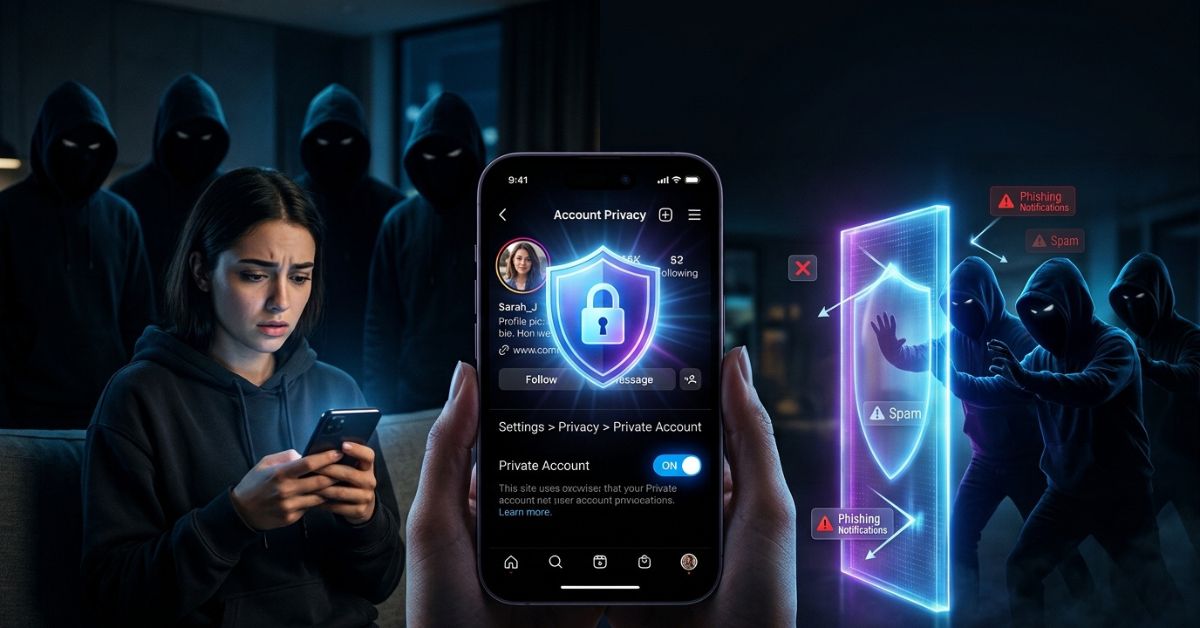
Keeping yourself safe on the internet is very important. Social media apps collect a lot of information about you and connect millions of people every second. Instagram is a great place to share photos and chat with friends. But public profiles can face real safety problems.
People you do not know can watch what you do every day. Scammers can send you fake links in private messages. Fake bot accounts often leave bad comments under photos on public accounts. Also, Meta uses public posts to help train smart computer systems (AI), though the exact rules depend on where you live.
You do not have to delete your account to stay safe. Changing your privacy settings helps you control who can see your photos and talk to you. This guide shows you easy Instagram privacy settings you can turn on today to protect your account.
How We Tested This:
These steps work on phones and computers right now. Keep in mind that menu names can look a little different depending on your app version, your account type, and where you live.
Quick Privacy Checklist (Do These First)
If you want fast protection without looking through lots of menus, start with this quick list. Doing these easy steps will fix the most common safety problems right away.
- Make your account private: Make it so only approved followers can see your posts, stories, and reels.
- Hide your active status: Stop people from seeing when you are online or using the app.
- Control your private messages: Choose who can send you message requests and stop people from adding you to group chats you do not want to be in.
- Choose who sees your stories: Share personal photos using a special Close Friends list.
- Filter comments: Automatically block bad words, fake links, and mean comments.
- Approve your tags: Check photos you are tagged in before they show up on your profile page.
- Limit mentions: Choose who can type your username in post descriptions, comments, or public posts.
- Clean up connected apps: Turn off old websites and tools so they cannot access your account in the future.
- Manage Meta ad choices: Change your ad settings and clear out the history of websites Meta tracks.
Why This Matters:
Why it helps: Doing these quick steps protects you from unwanted messages, people copying your profile, and mean behavior.
Who it helps: Regular users, teens, and anyone dealing with mean people online will feel much safer.
What it cannot do: These steps cannot delete information that websites already copied while your account was public.
Where to Find Instagram Privacy Settings
Finding your privacy controls only takes a few taps. We show you the main path here so you can follow along easily.
To open your main safety page:
- Tap your profile picture at the bottom right corner of the app.
- Tap the three lines (menu icon) at the top right corner.
- Tap Settings and Activity (or Settings on some app versions).
Phone vs. Computer Differences
The Instagram app on iPhone and Android gives you the most control over your safety. The computer website lets you change basic things like your password and who sees your profile. But computer browsers might be missing some detailed controls for messages, stories, or photo tags.
Make Your Instagram Account Private
Making your account private is the fastest way to hide your profile from people you do not know.
How to switch to a private account
To make your account private, go to Settings and Activity and tap Account Privacy. Turn on the Private Account switch, then tap Switch to Private to agree.
What changes when your account is private
When your account becomes private, who can see your profile changes right away:
- Posts and Reels: Only followers you approve can see your photos and short videos.
- Stories: Your daily stories stay hidden from everyone except approved followers.
- Followers: New people cannot follow you right away. They must send a request that you can accept or decline.
- Likes and Comments: Strangers cannot see your posts or leave comments on them.
- Explore Page: Your posts will not show up on the public Explore page or search pages for people who do not follow you.
- Hashtags: Topic tags will not show your posts to the public on hashtag pages.
- Search Results: People can search for your username, but non-followers will only see your picture and account name.
Public vs. Private Account Comparison
| Feature | Public Account | Private Account |
| Who can see posts | Anyone on or off Instagram | Approved followers only |
| Follower approval | Not needed. Anyone follows right away | Needed. You accept each request |
| Appears on Explore page | Yes | No |
| Hashtag search results | Everyone can see | Hidden from non-followers |
| Private messages | Goes to a requests folder | Requests are dropped or held |
| Sharing posts | Anyone can share or reuse based on settings | Sharing choices are limited for non-followers |
What you lose by going private
A private account is safer, but fewer people will see your posts:
- Total Reach: People who do not follow you cannot find your photos naturally.
- Getting Discovered: Your short videos (Reels) will not get thousands of views from strangers.
- Account Growth: Getting new followers takes longer because people have to wait for you to approve them.
- Brand Deals: Companies cannot see your work easily unless you let them in.
Control Who Can Contact You
Unwanted messages can make social media stressful. Instagram gives you several tools to stop bad messages and group invites.
Instagram private message settings
You can set strong rules for who can send messages straight to your inbox. Under Settings and Activity, tap Messages and Story Replies, then tap Message Controls.
Message requests
When people you do not follow try to text you, their message goes into a separate Requests folder. You can read these messages without letting the person know. Then you can accept, delete, or block them. You can also change your settings so only people you follow can send you message requests.
Group chat invites
Fake accounts often add random people to big group chats. Inside Message Controls, tap Who can add you to groups. Change this setting to Only people you follow on Instagram to stop unwanted group chats.
Restrict vs. Block vs. Mute vs. Report
Learning how these safety tools work helps you pick the right choice for any problem:
| Action | Best Time to Use | Does it notify them? | Can you undo it? | How it affects messages |
| Restrict | Stop quiet mean behavior without starting an argument | No | Yes, anytime | Moves their texts to requests and hides when you read them |
| Block | Completely cut off mean or dangerous people | No | Yes, in your blocked list | Completely stops all messages and hides your profile |
| Mute | Hide annoying posts from friends or family | No | Yes, turn it back on | No. Messages work normally |
| Report | Tell Instagram about bad or illegal behavior | No. Reports stay secret | No. Instagram checks it | No. You should block them too |
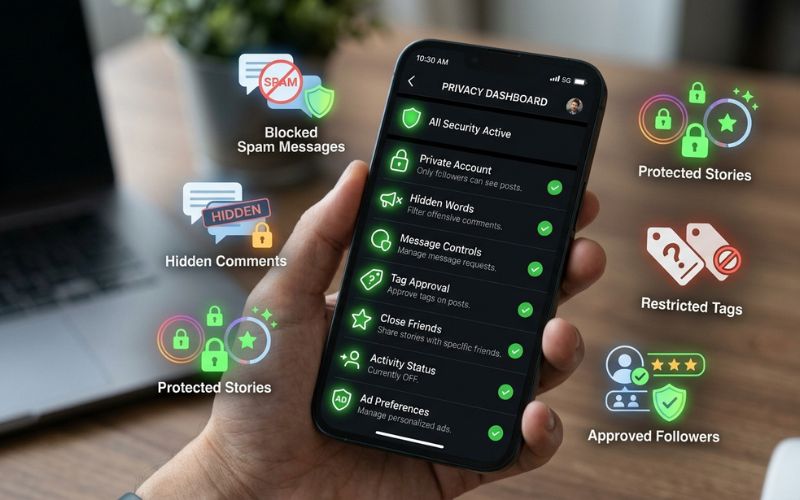
Control Who Sees Your Stories
Stories show where you are and what you are doing, so story safety is very important.
Hide stories from specific people
If you want a public profile but want to stop certain people or family members from seeing your daily posts:
- Open Settings and Activity.
- Tap Hide Story and Live.
- Pick the specific people you want to block from seeing your current and future stories.
Close Friends
The Close Friends tool lets you share personal stories with a small group of people you trust. Make your list under Settings and Activity > Close Friends. When you post a story, tap the green Close Friends button to show it only to those chosen people.
Story replies and sharing
Stop mean comments by controlling who can reply to your stories. Under Messages and Story Replies, tap Story Replies to allow replies only from people you follow back. To control how people share your posts, open your Sharing and Reuse settings to change your sharing choices.
Live video safety
When you start a live video, it follows the same rules as your stories. Hiding your story from certain people also stops them from watching your live videos.
Control Comments, Mentions, Tags, and Sharing
Controlling how other people interact with your profile stops online bullying and keeps your page clean.
Comment controls
You can choose who is allowed to comment on your photos. Under Settings and Activity, tap Comments. You can allow comments from everyone, people you follow back, or your followers. You can also block specific people from commenting at all.
Hidden Words
Instagram can automatically hide mean comments and spam messages using a list of words. Open Hidden Words inside your settings to filter out bad language. Scroll down to type in specific words, emojis, or terms you never want to see.
Mention controls
Stop fake accounts from typing your username (@username) in advertisement comments. Open Tags and Mentions inside your settings. Change the option to Allow mentions from people you follow or limit mentions to your contacts.
Photo tag approval
When someone tags you in a photo, that photo automatically shows up on your profile’s tagged tab. To check tags yourself first:
- Tap Tags and Mentions.
- Tap Manually Approve Tags.
- Turn on Tag Approval. Now, tagged photos stay hidden until you look at them and approve them.
Stop people from sharing your posts and Reels
Other users can take your public posts or videos and put them in their own content using remix tools. To keep full control of your photos and videos, open Sharing and Reuse in settings and turn off remixing tools.
Personal Privacy Settings
If you want to use Instagram quietly without letting your friends track what you are doing, change these choices.
Online Status and Read Receipts
Your active status shows a small green dot when you are using the app. It also shows text like “Active 10m ago” in your private message inbox.
- Open Messages and Story Replies.
- Tap Show Activity Status and turn it off.
- Look at your message settings to turn off read receipts if your app has that choice.
Note: Turning off your active status also stops you from seeing when other people are online.
Profile visibility limits
A lot of people want to hide who follows them. On a public account, everyone can see your followers list. On a private account, this list is hidden from people who do not follow you. But basic details like your username, profile picture, and bio text can always be seen by anyone.
Hiding Likes and Filtering Content
You can hide how many likes posts get by tapping Like and Share Counts in settings. To control what kinds of posts show up on your Explore page, tap Content Preferences, tap Sensitive Content, and pick Less.
App Privacy and Data Sharing with Meta
Meta uses information from your Instagram account to show you targeted ads and run its app services.
Off-Meta Activity
Meta gets information about what you do on certain outside websites. You can look at and clear this history inside your account hub:
- Open Accounts Center at the top of settings.
- Tap Your Information and Permissions.
- Tap Your Activity Off Meta Technologies.
- Choose Clear Previous Activity or disconnect specific stores.
Ad choices and linked accounts
See fewer targeted ads by going to Accounts Center > Ad Preferences. Here, you can change your interest topics and ad settings. Connecting your profile to Facebook or Threads in Accounts Center turns on shared tools between the apps based on your settings.
Meta AI training and downloading your data
Meta uses public posts, comments, and photos to help train its Meta AI tools, but the rules for opting out depend on where you live. You can download a copy of all your photos and messages by opening Accounts Center > Your Information and Permissions > Download Your Information.
Manage connected apps and websites
Over time, you might use your Instagram account to log into outside editing tools, games, or websites. To turn off their access, tap Apps and Websites in settings and remove old tools you do not use anymore.
Can You Remove Instagram Photos from Google Search?
Making your account private stops search engines like Google from finding your profile in the future. But removing old search results from Google takes time.
- Check Your Privacy: Public accounts let search engines like Google save your picture, bio, and public photos. Private accounts block search engines from saving your page going forward.
- Switch to Private: Make your profile private in Instagram settings to block new web searches.
- Wait for Google to Update: Search engines take time to clear out old saved web pages and images naturally.
- Ask Google to Remove It: If old saved search results are still showing up, you can use Google’s outdated content tool to ask them to remove the image.
Note: Outside websites that copy public photos might still show your pictures. You have to contact those website owners directly to ask them to take down copied photos.
Pick the Best Privacy Settings for You
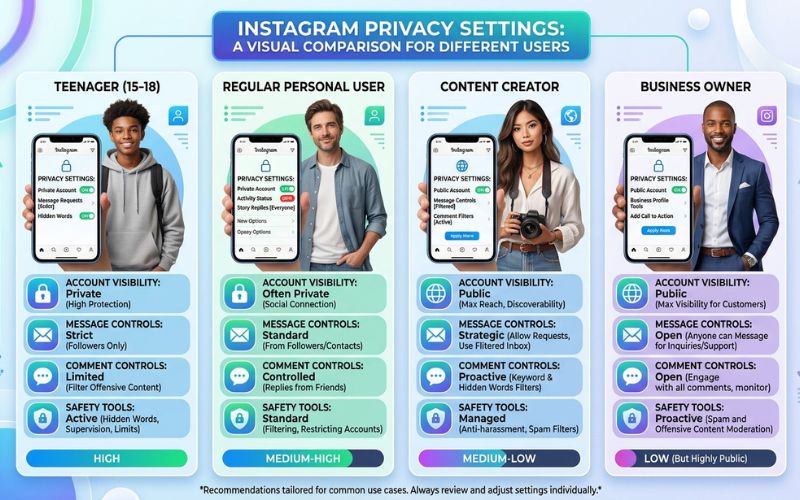
Different people need different safety rules. Here is how to set up your account based on what you need.
Account Setups for Different Users
| User Type | Best Setup | Safety Level | Who sees your posts |
| Maximum Privacy | Private account, messages limited to friends, manual tag check on, online status off. | High | Only approved followers. |
| Teen Safety | Private account, messages limited to friends, sensitive content set to Less. | High | Very few people. |
| Regular Personal | Private account, Close Friends list active, group invites blocked. | Medium | Friends only. |
| Creator | Public account, Hidden Words turned on, manual tag check on. | Medium | Lots of public people. |
| Business | Public account (required for business tools), comment filters turned on. | Low | As many people as possible. |
Real Examples
- A teen stopping spam: Maya sets her account to private and limits message requests to people she follows. Now, random fake accounts cannot text her easily or add her to group chats.
- A creator keeping peace: Alex runs a public art page. He turns on Hidden Words and tag approvals so mean comments and fake products never show up under his art.
- A parent helping a child: Sarah sets her daughter’s page to private, turns sensitive content to Less, and turns off story sharing to keep family photos safe.
- A worker avoiding trouble: David turns off his online status and limits direct messages so unwanted people cannot track when he is working.
Privacy vs. Account Growth
Picking privacy settings usually means balancing your personal safety with how many people see your page.
| Setting | How it helps privacy | How it affects account growth | What we suggest |
| Private Account | Stops non-followers from seeing your posts | Stops strangers from sharing your posts | Best for personal accounts. |
| Hide Active Status | Stops people from seeing when you are online | Does not affect how many people see your posts | Keep turned on for extra privacy. |
| Limit Messages | Blocks spam and fake sales texts | Might slightly delay messages from new people | Great for personal accounts. |
| Tag Approval | Stops spam photos from showing on your main page | None. You can still approve good photos | Turn on for everyone to keep your profile clean. |
| Comment Filters | Automatically removes bad language | None. Keeps your comment section safe | Turn on for all public and business pages. |
| Story Controls | Limits personal updates to friends you trust | Fewer total people will watch your stories | Use Close Friends lists for private moments. |
Do an Instagram Privacy Check
App updates can add new safety choices over time. Go through this quick checklist every few months to check your account.
Privacy Checklist
- [ ] Look at your followers list: Remove people you do not know or trust.
- [ ] Check connected apps: Remove access for old web tools under Apps and Websites.
- [ ] Update Hidden Words: Add new bad words or spam phrases to your block list.
- [ ] Check blocked accounts: Make sure mean accounts stay blocked or restricted.
- [ ] Check Meta ad settings: Change your ad choices and clear out website tracking history in Accounts Center.
- [ ] Check security tools: Turn on two-factor protection for extra login safety.
- [ ] Save your choices: Take a quick screenshot of your main safety page after big app updates.
Summary
Keeping your account safe does not mean you have to stop sharing fun moments with people you care about. Privacy on social media is just a group of smart choices that give you better control over who can reach you and who can see your posts.
Take a few minutes today to open your settings, change your message rules, and remove old connected apps. Checking your profile regularly keeps your Instagram fun, safe, and comfortable.
Frequently Asked Questions
How do I make everything private on Instagram?
Turn on Private Account in settings. Then, turn off your active status, turn off read receipts if you have that choice, limit messages to people you follow back, and turn on manual tag approvals.
What are the best Instagram privacy settings to use?
A strong basic setup is a private account, clearing off-Meta web tracking, turning off your online status, and checking your photo tags manually.
Can people see my followers if my account is private?
No. Strangers who look at your private profile cannot click or open your follower or following lists.
Can strangers message me on Instagram?
By default, strangers can send messages to your Requests folder. But you can change your message settings so only people you follow can send you messages.
Can I stop people from tagging me?
Yes. Go to Tags and Mentions inside your settings. Turn on Manually Approve Tags to check tagged photos before they show up on your profile.
Can I hide my likes?
Yes. Open Settings and Activity, tap Like and Share Counts, and turn on the switch to hide like numbers across your feed.
Can I remove my Instagram page from Google Search?
Making your account private stops Google from saving your page in the future. You can also ask Google to clear out old saved results using Google’s outdated content tool.
Can Creator accounts be private?
Creator accounts usually need to stay public to use full creator tools and brand features, though choices can vary depending on where you live.
Can Business accounts be private?
No. Instagram requires business accounts to stay public. You have to switch to a personal profile if you want a private account.
Does making my account private hide my old posts?
Yes. Switching to a private account instantly hides all your old posts and short videos from people who do not follow you.
Can I stop Meta from using my data?
You can share less data by clearing off-Meta activity, changing your ad settings, and making your profile private. But Meta still processes basic data needed to run its app.
How often should I check my privacy settings?
Do a quick safety check every three to six months, or right after Instagram releases big app updates.
You May Also Like:
How to Use Instagram Insights to Grow Faster
Instagram Story Ideas for Businesses and Creators
Disclaimer:
This article is for informational and educational purposes only. While we aim to keep the information accurate and up to date, settings may change over time. Some images may be AI-generated for illustration only. All trademarks, logos, and copyrights belong to their respective owners. Always verify important settings through Instagram’s official Help Center.

Eleanor Karen is an administrator at PVStory.co.uk who writes about digital tools, social media trends, and online resources. She shares helpful insights on Instagram Story Viewer tools and other web-based solutions, helping readers stay informed and make the most of their online experience.