

Can You Recover Deleted Instagram Posts? (Quick Answer)
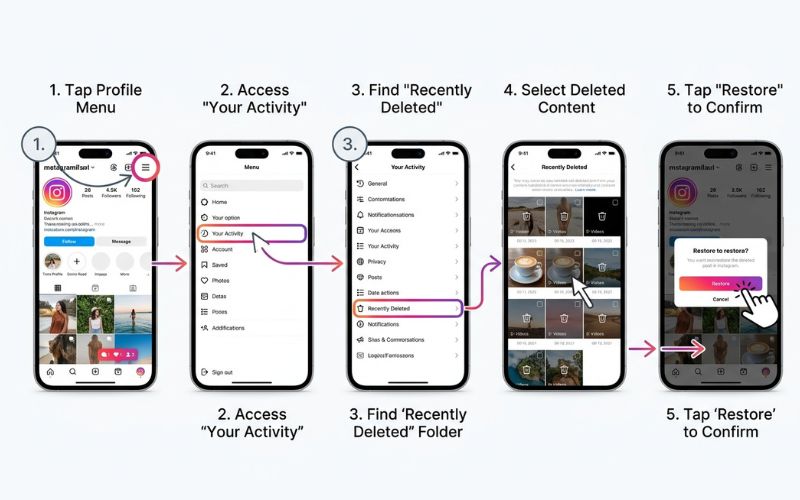
Yes. You can recover deleted Instagram posts within 30 days using the Recently Deleted folder. Go to Profile → Menu → Your activity → Recently Deleted, select the post, tap the three dots, and tap Restore. Deleted stories can be recovered for up to 24 hours if they were not archived. After this time, Instagram removes the content for good.
Step-by-Step: Recover Deleted Posts from Recently Deleted
I have used these exact steps to restore missing content on real accounts.
Recover Deleted Instagram Posts on Android
- Open the Instagram app and tap your profile picture.
- Tap the Menu (☰) icon and select Your activity.
- Scroll down to find Recently Deleted under the “Removed and archived content” section.
- Select the Posts tab, tap the specific post, tap the three dots, and select Restore.
- Confirm the action when prompted, which may require a password or one-time password (OTP) for security.If you do not see your post, it may be older than 30 days. In that case, check your phone Gallery, cloud backups, or your Archive folder. Make sure your Instagram app is updated. An old app version can hide the Recently Deleted option.
Recover Deleted Instagram Posts on iPhone
- Access your Profile via the bottom navigation bar.
- Tap the Menu (☰) icon in the top right and tap Your activity.
- Tap Recently Deleted and select the Posts category.
- Open the post you wish to keep, tap the three dots, and choose Restore.
- Complete any necessary identity verification prompts to finish the process.If the Restore button is missing, the post is likely past the 30-day limit. You can still try to find the original photo in your Photos app or a backup. If you still cannot find the post, check your Archive. Sometimes posts are hidden, not deleted.
Recover Deleted Reels, Videos, and Stories
Reels and videos follow the same recovery path as standard posts via the Recently Deleted folder. When you restore a Reel or a multi-photo video, it comes back with the same captions and tags.
Recover Deleted Instagram Stories
To find deleted Stories, go to Profile, tap Menu, select Your activity, and tap Recently Deleted. Access the Stories tab to view items deleted within the last 24 hours. If your Story was already archived, it will not appear here; it will be in your Archive instead.
Archive vs Recently Deleted: What’s the Difference?
Knowing where your content lives helps you manage your profile.
| Feature | Archive | Recently Deleted |
| Purpose | Hide posts/stories from public view | Hold items you chose to delete |
| Duration | Indefinitely | 30 days (posts) or 24 hours (stories) |
| Outcome | Can be restored to profile anytime | Permanently removed after timer ends |
Use Archive when you want to hide a post but keep it safe. Use Recently Deleted when you want to remove a post but may change your mind soon. Archived posts stay safe until you move them back. Deleted posts vanish after the timer ends.
How to Unarchive Posts (Show on Profile)
- Go to your Profile and tap the Menu (☰).
- Select Archive and ensure you are in the Posts archive view.
- Tap the post you want to restore, tap the three dots, and select Show on profile.
Note: You can also check and restore Stories from the Archive section by toggling the menu to “Stories archive.” This lets you view past stories to re-share them or save them to your device.
Recover Instagram Photos from Your Phone
Android: Check your Gallery or Photos app under the Albums folder for an Instagram folder. You can also use a File Manager app to look in the Pictures > Instagram folder to find copies of your uploads. If you find the file here, you can manually re-upload it to your profile.
iPhone: Open the Photos app and check your Albums for an Instagram folder. If you deleted the photo from your device, check the Recently Deleted album inside the Photos app. Recovering files here saves the image to your phone, but it does not restore the original post to the Instagram app.
Restore Instagram Photos from Backups
Google Photos and Google Drive: Search “Instagram” in the Google Photos app to find past uploads synced from your device. For Google Drive, check your manual backup folders for any exported media. Once located, download the file and re-upload it to Instagram.
iCloud and Time Machine (Mac): iPhone users should check the Photos app for any cloud-synced images. If you use a Mac, use Time Machine to browse backups of your local Pictures or Photos library to recover lost media files. These backups work only if you turned on sync before you deleted the file.
What If It’s Been More Than 30 Days?
After 30 days, Instagram removes the content for good. You cannot restore these posts inside the app.
Download Your Instagram Data
- Go to Settings and tap Accounts Center.
- Select Your information and permissions and choose Download your information.
- Request a download; once the file is ready, check the media folders for copies of your past posts.This download can take from a few hours to a few days. Instagram will send you an email when your file is ready. Open the email and follow the steps to get your data. Keep your email safe. You will need the link to download your file. Save the file in a safe folder on your phone or computer.
Note: This method is not guaranteed, as it often omits very old or previously deleted content. Additionally, if the photo or video still exists on your device’s internal storage or an SD card, data recovery software might find the file. No third-party app can “pull” a post back into the Instagram interface, and you should be wary of any service claiming otherwise as these are often scams.
If Instagram Removed Your Post or You Were Hacked
Check Account Status: Go to Settings and select Account Status to see if a post was removed for violating community guidelines. If the removal was a mistake, you can submit an appeal directly through this menu.
Report a Problem: Navigate to Profile > Menu > Help > Report a problem. Provide clear details about the issue, such as a suspected hack, and attach any relevant screenshots. This notifies the official support team to review your case.
Prevent Future Loss of Instagram Posts
Save Original Photos and Turn On Auto-Backups: Ensure you have the “Save Original Photos” or “Save Original Posts” toggle turned on within your Account settings. Keep Google Photos or iCloud Photos backups active on your phone to ensure you always have a copy of your content.
Use Archive Instead of Deleting: When cleaning your profile, use the Archive feature. This keeps your content safe and accessible, allowing you to restore it to your grid whenever you choose. Periodically review your Archive and Recently Deleted folders to ensure no important content is lost.

The Final Verdict on Recover Deleted Instagram Posts
You can recover deleted Instagram posts within 30 days using the Recently Deleted folder. Stories have a 24-hour window. After that, you can only use backups, data downloads, or file recovery tools. Turn on Save Original Photos and use Archive instead of Delete to stay safe. Have you recovered a deleted post before? Tell us which method worked for you in the comments.
FAQs About Recovering Deleted Instagram Posts
Can I get back deleted Instagram posts?
Yes, you can recover them within 30 days via the Recently Deleted folder in your activity settings.
How to recover permanently deleted Instagram posts after 30 days?
Instagram does not allow direct recovery after 30 days; your only options are checking personal cloud backups or data downloads.
Is it possible to restore permanently deleted posts?
There is no direct restore function within the app; you can only recover the original media file if you saved it elsewhere.
How to recover deleted Instagram stories?
You can restore them within 24 hours via Recently Deleted > Stories, while older stories can be found in your Archive. If the 24-hour window is over, check your Stories archive for saved copies.
Can I recover deleted Instagram messages?
No, deleted direct messages cannot be recovered through any built-in Instagram tools.
Where is Recently Deleted on Instagram?
Go to your Profile, tap the Menu (☰), select Your activity, and look under “Removed and archived content.” If you do not see it, update your Instagram app to the latest version from the App Store or Google Play.
How to recover deleted Instagram reels?
Use the Recently Deleted folder and select the Reels or Posts tab within the 30-day window.
How to see deleted posts on Instagram of others?
You cannot see deleted posts from other accounts; Instagram only provides access to your own removed content.
You May Also Like:
Foullrop85j.08.47h gaming: What It Is, How It Works, and Is It Real?
Instagram Reels vs Stories: Which Gets More Reach?
Disclaimer
This article is for information and educational purposes only. It is not official advice. While we try to keep information correct, we are not responsible for any data loss. Some images may be AI-generated for illustrative purposes. All copyrights and trademarks belong to their respective owners. Please use these methods at your own risk.

Eleanor Karen is an administrator at PVStory.co.uk who writes about digital tools, social media trends, and online resources. She shares helpful insights on Instagram Story Viewer tools and other web-based solutions, helping readers stay informed and make the most of their online experience.