
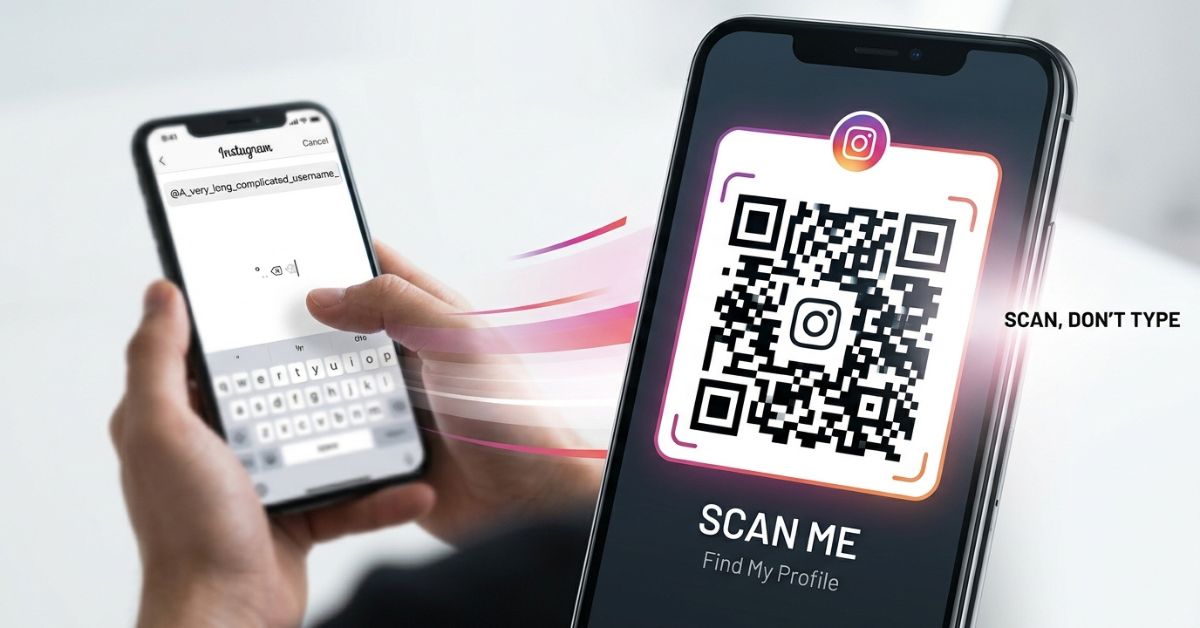
Sharing your Instagram account used to mean spelling out your username and hoping people typed it correctly. Today, you can just show a scannable image on your phone screen.
An instagram qr code makes connecting instant. This guide shows you how these codes work, where to find yours, and how to use them safely.
Quick Answer Box
- What is it? A scannable square image that generally encodes an Instagram profile or content link.
- Where is it? Open the Instagram app, go to your profile, and look for Share profile or the QR code option in your menu.
- Is it free? Creating and sharing a native Instagram profile QR code does not require a separate subscription.
- Can I print it? Yes. You can save or share the image to print it on cards, flyers, or signs.
What Is an Instagram QR Code?
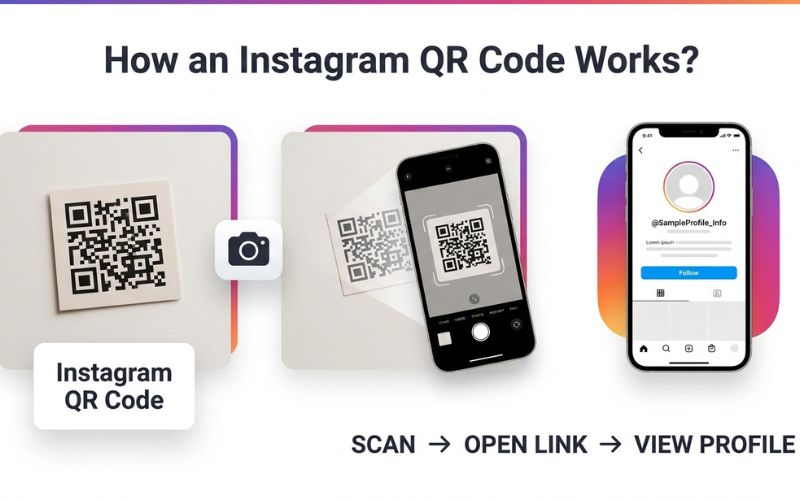
An Instagram QR code is a square image made of dark and light shapes. It works like a digital barcode for your social media account. When someone points their phone camera at it, their phone normally detects the link and gives them an option to open your page.
An Instagram QR code generally encodes an Instagram profile or content URL. Scanning a code opens the target destination, but it does not automatically make the scanner follow your account. The scanner still chooses whether to tap the follow button.
While most people use them for profile pages, users can also create codes from the web links of profiles, posts, Reels, and some Instagram pages using Instagram’s sharing tools or a third-party generator.
[ Your Printed QR Code ] ──( Scan with Camera )──> [ Instagram Destination Page ]
How to Find Your Instagram QR Code
Finding your personal profile code takes only a few seconds. The easiest method is using the mobile app on your phone.
On iPhone and Android
You can locate your code directly inside your account settings, though button labels and menu locations may vary by app version.
- Open the Instagram app on your phone.
- Tap your profile picture in the bottom right corner.
- Tap Share profile, or open the profile menu (three lines) and select QR code.
- Your unique QR code will appear on the screen.
+-------------------------------------------------------+
|  [ Profile Picture ]   @yourusername                  |
|                                                       |
|  [ Edit Profile ]      [ Share Profile ] <-- TAP HERE |
|                                                       |
|  +-------------------------------------------------+  |
|  |             ( Instagram QR Code )               |  |
|  +-------------------------------------------------+  |
+-------------------------------------------------------+
On a Computer
Desktop Instagram may show a QR code option in the profile settings menu rather than the mobile “Share profile” button.
- Open your web browser and go to your profile page (
[instagram.com/yourusername](https://instagram.com/yourusername)). - Look for the QR code option in your profile settings, or copy your profile link from the browser address bar.
- If using the link, paste it into a free or paid QR generator, depending on the features required.
- Test the generated code with your phone camera, then save the image.
How to Share, Download, and Print Your Instagram QR Code
Once your code is on your screen, you can share it digitally or save it for physical printing.
- Share Digitally: Tap the Share profile or share button to send your code through text messages, email, or other apps.
- Save to Phone: Use the available download or share option to save the image to your device. Taking a screenshot is a fallback option, though it may result in a lower-quality image for large printing.
- Print on Materials: Put your saved image on physical items like flyers, business cards, posters, or storefront signs.
How to Scan an Instagram QR Code
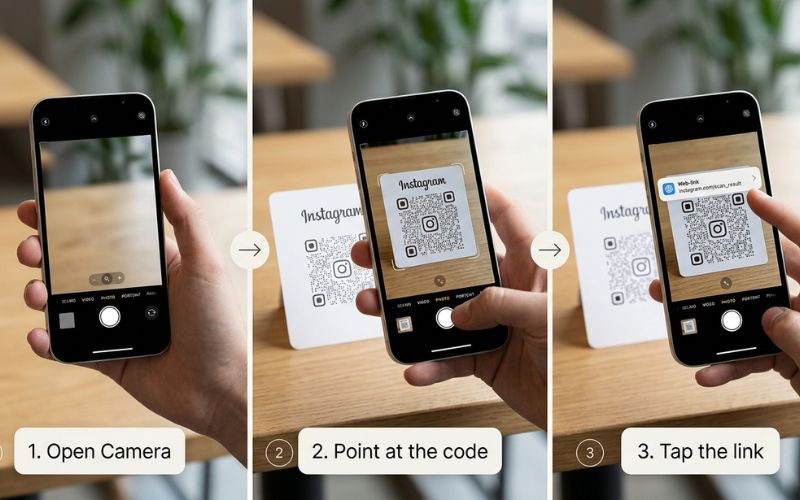
Scanning a code requires no special apps for most users. Many recent iPhone and Android phones can scan QR codes with the built-in camera, though users can also use a dedicated QR scanner app if the camera does not detect it.
- Open your phone’s main Camera app or QR scanner.
- Point the camera at the code so it shows clearly on your screen.
- Tap the web link banner or notification that appears over the code.
[ Step 1: Open Camera ] ──> [ Step 2: Point at Code ] ──> [ Step 3: Tap Web Link ]
The link may open in the Instagram app or a web browser, depending on the phone and link-handling settings. Scanning does not bypass a private account’s privacy settings; users generally need to log in and request to follow the account to access private content.
How to Create an Instagram QR Code for a Profile, Post, or Reel
Different goals require different web link destinations. You can choose where your audience lands based on what you want to share.
Profile QR Code
Use a profile QR code opens the profile page, where visitors can view the information and public content Instagram makes available.
Instagram Post QR Code
Use a post code to promote a single item, such as a product sale, an event announcement, or a specific photo. You can use the native QR option in the post share menu when shown, or copy the post URL as a reliable fallback for a generator.
- Open the post in your Instagram app.
- Tap the Share icon or three dots.
- Select QR code if available, or copy the post link into a QR builder.
Instagram Reel QR Code
Use a Reel code when you want to send offline audiences directly to a video tutorial, short clip, or product demonstration. The code opens the selected Reel and lets users view it.
- Open the Reel you want to share.
- Tap the three dots or Share icon.
- Copy the URL or select the native QR share option if displayed.
Instagram Location QR Code
Local businesses can direct offline foot traffic to an Instagram location page. This allows customers to view public Instagram content associated with that location, when available.
- Search for your business location tag inside Instagram.
- Copy the web link URL for that location page.
- Paste the URL into any standard QR generator site.
Destination Choice Guide
| Goal | Best Destination | Why Choose It |
| General Followers | Profile Page | Shows your public profile details and main feed |
| Product Sale | Specific Post | Directs attention to one offer or announcement |
| Video Demo | Specific Reel | Opens your video content for viewing |
| Store Visits | Location Page | Shows public posts tagged at that location |
Instagram QR Code vs. Third-Party QR Code Generator
Instagram offers a simple built-in code feature, but you can also use outside websites to build custom codes.
| Feature | Built-in Instagram Code | Third-Party QR Generator |
| Basic Profile Sharing | Yes | Yes |
| Free Basic Use | Yes | Often free for static codes |
| Custom Branding | Native options (colors, emojis) | Custom choices depending on provider |
| Scan Tracking | No publicly documented scan counts | Available on some providers and plans |
| Editable Destination | No | Offered with dynamic codes on select plans |
| Vector Formats (SVG/PDF) | Subject to interface options | Offered by some generators and plans |
| Best For | Quick, simple profile sharing | Advanced branding and campaign needs |
The built-in feature works best for simple, everyday use. Outside services offer additional options for business campaigns that require tracking or custom design export.
Static vs. Dynamic Instagram QR Codes
Understanding how codes store web address data helps you pick the right tool for your project.
STATIC:  [ Printed Code ] ──( Fixed Web Link )──> [ Specific Instagram Page ]

DYNAMIC: [ Printed Code ] ──( Flexible Short Link )──> [ Web Server ] ──> [ Instagram Page ]
Static Codes
A static code writes the destination web address directly into the pattern. A static QR image normally remains unchanged, but its usefulness depends on the destination URL continuing to work.
Dynamic Codes
A dynamic code links to a flexible short link managed by an online service. That service then redirects the user to your final Instagram page.
A dynamic code can often be updated without reprinting, provided the service remains active and the destination is updated in the provider dashboard. Dynamic features may be free with usage limits or may require a paid plan.
Can Instagram QR Codes Be Customized or Branded?
Custom designs help your code stand out, but excessive styling can make scanning fail.
- Colors: Instagram offers built-in customization options that may include colors, emoji backgrounds, or other styles depending on the current interface. Some third-party tools offer custom colors, subject to their design limits and plans.
- Logos: Some third-party generators allow adding a small logo to the center of a square code.
- Formats: Instagram lets users save or share the QR image. Some generators offer SVG or PDF export, subject to the provider and plan.
GOOD DESIGN (Scans Easily):
+-----------------------+
|  [ Dark Pattern ]     |  <-- High Contrast
|  [ White Background ] |  <-- Simple Center Logo
+-----------------------+

BAD DESIGN (Fails to Scan):
+-----------------------+
|  ( Light Gray Pattern )|  <-- Low Contrast
|  ( Busy Photo Back )  |  <-- Overly Large Logo
+-----------------------+
Every customized result must be tested on a phone camera before printing.
How to Print an Instagram QR Code So It Scans
Printing physical codes requires careful layout choices. Poor print quality will stop phone cameras from reading the link.
- Use High-Resolution Source Files: Use sharp image files for small prints like flyers. Vector formats like SVG stay sharp for large banners.
- Maintain High Contrast: Place dark patterns on a plain white or light background. Dark black on white works best.
- Keep the Quiet Zone Clear: Leave a clean, blank border (the quiet zone) of at least four modules around all outer edges of the square. Do not let text touch the edges.
- Keep the Square Shape: Always scale the image evenly. Stretching the square into a rectangle breaks the code pattern.
- Sizing Considerations: Test your physical print at the intended viewing size and distance.
- Test Physical Copies: Print a test page on ordinary paper first. Test the print with different phone models under normal lighting before printing final copies.
Print Quality Checklist
| Print Check | Recommended Setting | What to Avoid |
| File Type | High-resolution PNG or SVG | Low-resolution, blurry JPG files |
| Contrast | Dark pattern on light background | Light gray patterns or dark backgrounds |
| Outer Border | Quiet zone of at least 4 modules | Text or images touching the code border |
| Shape | Perfect square | Stretched or compressed rectangles |
Can You Track Instagram QR Code Scans?
Instagram’s documented profile QR feature does not provide a publicly documented scan-count dashboard. If you need scan analytics, you can use a dynamic third-party generator.
Campaign Tracking Example
Separate dynamic QR links can identify scans by campaign, while Google Analytics can measure downstream visits only on a website or landing page under the publisher’s control. Some dynamic services offer scan analytics, potentially including approximate location and device data, subject to the provider’s features and privacy policy.
[ Storefront Sign QR ] ──> ( Dynamic Short Link A ) ──> Instagram Profile (Tracked: Front Window)
[ Table Tent QR ]      ──> ( Dynamic Short Link B ) ──> Instagram Profile (Tracked: Dining Table)
[ Paper Receipt QR ]   ──> ( Dynamic Short Link C ) ──> Instagram Profile (Tracked: Checkout Receipt)
What Happens If You Change Your Instagram Username?
Changing your Instagram handle changes your profile web link. This change affects your printed codes depending on how you made them.
- Static Codes: A static code containing the old profile URL may stop reaching the intended profile after a username change. Test native Instagram codes and regenerate static codes if necessary.
- Dynamic Codes: A dynamic code can often be updated without reprinting, provided the service remains active and the destination is updated in your provider dashboard.
Instagram QR Code Troubleshooting
If a phone fails to read your code, use these quick solutions to fix the problem.
The QR Code Will Not Scan
- Fix Image Blur: Replace low-resolution files with a sharp image or vector file.
- Fix Low Contrast: Switch to a dark pattern on a plain white background.
- Fix Border Space: Maintain a clear quiet zone around the outer edges of the square.
- Fix Glare: Move window signs away from direct light or use non-glossy paper.
The QR Code Opens the Wrong Page
- Fix Destination Link: Check that the destination URL is still valid and re-copy the link if needed.
- Test the Link: Paste the web link directly into a browser tab to confirm it reaches the correct account.
The QR Code Option Is Missing
- Check Menu Options: Look under your profile menu for QR code or Share profile.
- Update the App: Install the latest version of Instagram from your device’s app store.
- Use Desktop Fallback: Copy your profile URL manually from a browser and paste it into a web builder.
Is an Instagram QR Code Safe to Use?
The QR image pattern does not automatically install software, but the link it opens can be unsafe.
Follow standard online safety habits:
- Inspect the URL: Check the web link banner on your phone screen before tapping it.
- Avoid Suspicious Pages: Avoid entering personal details or login credentials on unfamiliar pages.
- Privacy Controls: Scanning a code that links to a private account still respects Instagram privacy settings. Visitors must be approved before seeing private posts.
Which Instagram QR Code Method Should You Use?
Use this decision guide to pick the right option for your situation:
| Your Goal | Recommended Option |
| Share your profile quickly | Built-in Instagram QR code |
| Put Instagram on a business card | Built-in code or sharp static file |
| Promote one video or offer | Direct QR code to a post or Reel URL |
| Match exact company colors | Custom third-party generator |
| Track offline print marketing | Dynamic third-party platform |
| Compare performance at different locations | Separate dynamic campaign codes |
Best Practices for Using an Instagram QR Code
Follow these core principles to get the best results from your social media codes:
- Pick the Right Destination: Direct traffic to a specific Reel or post if you are running a temporary sale or event promotion.
- Include a Call to Action: Print clear instructions next to the image, such as “Scan to follow us on Instagram.”
- Test Before Printing: Scan a physical paper proof with multiple phone cameras under ordinary lighting before printing final copies.
- Keep Destination Links Valid: Make sure your linked Instagram posts, account handles, or video Reels stay active over time.
Frequently Asked Questions About Instagram QR Codes
Where is my Instagram QR code?
To find your code, open the Instagram app, go to your profile, and tap Share profile or check the QR code option in your profile menu.
Is an Instagram QR code free?
Creating and sharing a native Instagram profile QR code does not require a separate subscription. Basic static third-party code builders are also usually free.
Does an Instagram QR code expire?
A static QR symbol normally does not contain an expiration date, but its destination or dynamic redirect service can stop working.
Can I download and print my Instagram QR code?
Yes. Use the available save or share option in the app to keep the image file, then print it on paper materials.
Can I create a QR code for an Instagram post or Reel?
Yes. Open the post or Reel, tap the share icon, and select the QR option if available or copy the link into a generator.
Can I make a QR code for someone else’s Instagram profile?
You can create a QR code from an accessible profile URL, but access to the destination remains controlled by Instagram and the account owner.
Does scanning an Instagram QR code automatically follow someone?
No. Scanning only opens the target page on the screen. The visitor must manually tap the Follow button to follow the account.
Can I track Instagram QR code scans?
No publicly documented native scan-count feature was found for Instagram codes. To track scan numbers, use a dynamic third-party generator.
What happens if I change my Instagram username?
A static code containing the old profile URL may stop reaching the intended profile after a username change. Dynamic codes can be updated online without reprinting.
Do users need the Instagram app to scan the code?
No. Standard phone cameras or camera apps can scan the code. If the user does not have the app installed, the link opens inside their web browser.
Why is my Instagram QR code not working?
Common reasons include low contrast, blurry print quality, text touching the border edges, or an invalid destination web link.
Can I customize an Instagram QR code?
Yes. The built-in tool offers native options like colors and emojis. Outside generator websites allow custom colors or logos on supported plans.
Can I use an Instagram QR code for a business card?
Yes. A static or built-in code works well on business cards. Always test a physical print at your chosen size and keep a clear quiet zone.
You May Also Like:
Tubehalote Explained: What It Is, Is It Legit, and Is It Safe?
How to Turn on Instagram Dark Mode
Disclaimer:
This article is provided for informational and educational purposes only. Instagram features, menus, and QR code options may change over time. Always verify important details with official sources before relying on them. Some images may be AI-generated for illustrative purposes. All copyrights and trademarks belong to their respective owners.

Eleanor Karen is an administrator at PVStory.co.uk who writes about digital tools, social media trends, and online resources. She shares helpful insights on Instagram Story Viewer tools and other web-based solutions, helping readers stay informed and make the most of their online experience.