
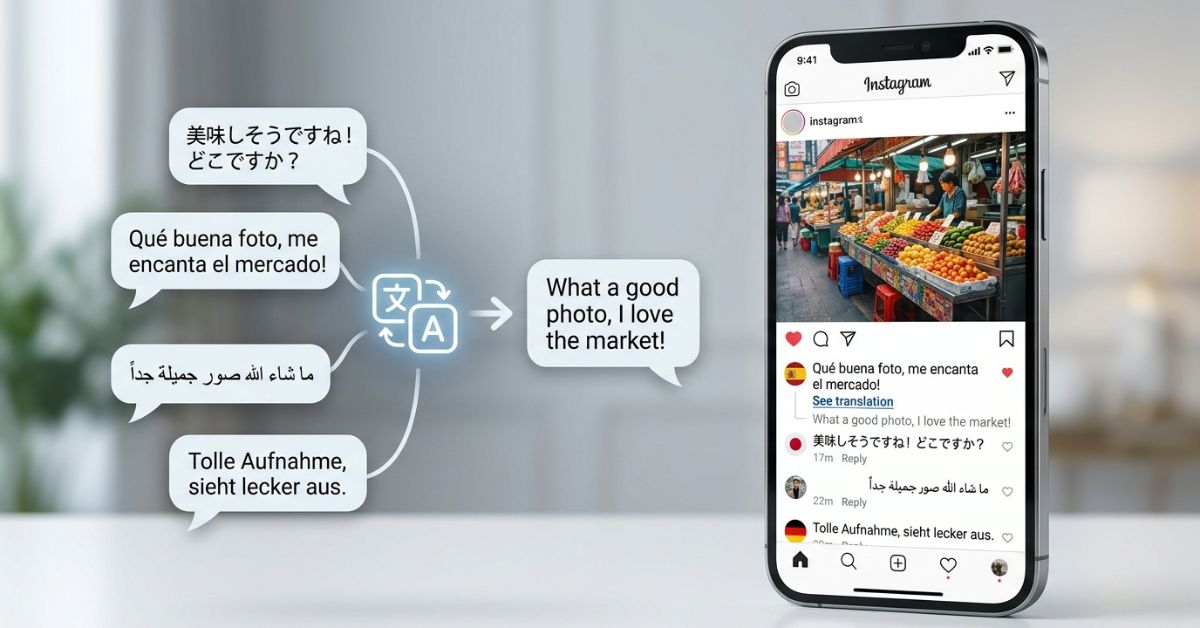
Instagram brings millions of people together from all over the world. You might follow a creator in Japan, a friend in Mexico, or a brand in France. But what happens when you cannot read the comments or captions on a post?
Luckily, learning how to translate Instagram comments and captions is easy. Instagram, owned by Meta, figures out the language automatically. It shows a See translation link whenever it finds a foreign language it supports.
At a Glance
- Main Way: Tap the See translation link under the text.
- Where It Works: Comments, post captions, profile bios, and Stories.
- Chosen Language: Based on your Instagram app language settings.
- If Missing: Update your app, check your language settings, or use another translation tool.
How to Translate Instagram Comments
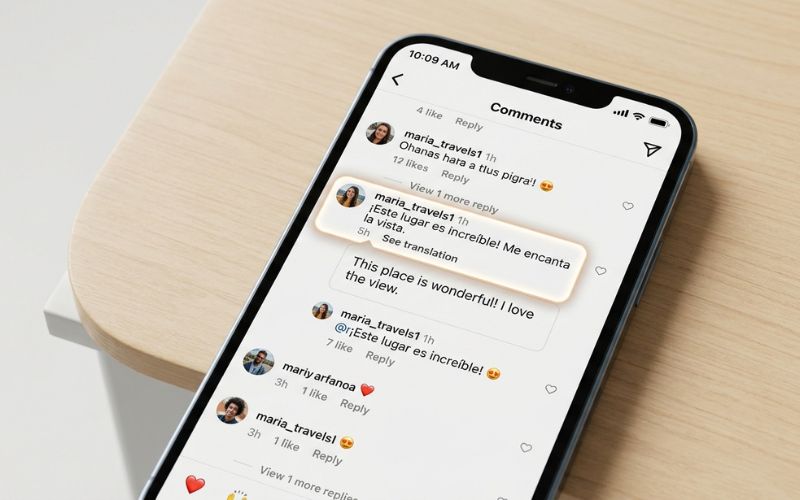
To translate an Instagram comment, open the comment section and tap the small See translation button right under the foreign text. The app changes the words into your main language right away.
Instagram uses smart translation computer programs to find the original language (the starting language). It then changes those words into the language you chose in your settings (the ending language).
Foreign Comment -> Language Found -> "See translation" Button -> Translated Text
How to Translate Comments on Mobile (iPhone & Android)
The Instagram app works the same way on both iPhone and Android phones:
- Open the Instagram app on your phone.
- Go to the post and tap View all comments.
- Find the foreign comment you want to read.
- Tap See translation right under the comment text.
- Tap See original if you want to switch back to the starting language.
Example:
- Original Comment: “¡Este lugar es increíble! Me encanta la vista.”
- Translated Comment: “This place is amazing! I love the view.”
How to Translate Instagram Captions
To translate an Instagram caption, scroll to the post and tap the See translation link right below the caption text. You will find this option just above the comment section on supported posts.
Unlike short comment translations, caption translations often handle whole paragraphs. When you tap the translation button, Instagram opens up the full text and changes it on your screen.
Instagram does not change or replace the creator’s original post. The translation only shows up for you while you are looking at it. If you tap See original, the caption goes back to its starting language.
How Instagram Translation Works
Instagram uses software made by Meta to find languages automatically.
- Finding the Language: Meta software checks the letters and words in a comment or caption to name the starting language.
- Comparing Languages: Instagram compares that starting language with your app’s language settings.
- Your Turn: If the text is in a different language, Instagram shows a See translation option. You only see translations when you tap them, which keeps your feed clean.
Whether you see a translation depends mostly on language support, your app settings, and your app version. If a comment is very short, uses local slang, or mixes different alphabets, Instagram might not recognize the language.
How to Change the Translation Language on Instagram
Instagram translates text into the main language you picked in your app settings. If your translations show up in the wrong language, you can fix your settings inside the app.
- Open Instagram and tap your profile picture in the bottom right corner.
- Tap the menu button (three lines) in the top right corner.
- Tap Settings and activity, then tap Language and translations.
- Tap Set language and pick your preferred language from the list.
On iPhones, tapping Set language opens your iPhone’s main setting page for Instagram. Change your language choice there, then go back to the app. On Android phones, you can pick your language right inside the app. Close and reopen Instagram if your changes do not show up right away.
Why Is “See Translation” Missing From Instagram Comments?
The See translation button disappears when Instagram cannot tell what language is used, or when the text is already in your app’s language.
Here are the main reasons why the translation button might be missing:
- Unclear Text: The text is too short, has spelling mistakes, uses strange symbols, or contains heavy slang.
- Unsupported Languages: Instagram supports dozens of popular languages, but it cannot translate every local dialect.
- Matching Languages: The app sees that the comment is already written in your language.
- Old App Version: An outdated app can have small bugs that turn off translation tools.
- Temporary System Glitches: Server updates or slow internet can stop features from loading properly.
How to Fix Instagram Comment Translation
If Instagram translation stops working, you can fix the app or use another tool to read the text.
Easy Fixes to Get the Translation Button Back
Try these basic steps to get the built-in See translation button back in your app:
- Update Instagram: Go to the App Store or Google Play Store to get the newest app update.
- Check Language Settings: Make sure your main language is set correctly in your profile settings.
- Restart the App: Close Instagram fully and open it again.
- Test Other Posts: Look at a different post to see if the problem is on all comments or just one.
- Log Out and Log In: Sign out of your account, then sign back in to clear small bugs.
| Problem | Likely Reason | Best Fix |
| No button under one comment | Unclear text, typos, or slang | Use an outside translation tool |
| No button under any post | App bug or wrong settings | Update the app and check language settings |
| Button will not click | Weak internet connection | Reconnect to Wi-Fi or mobile data |
Other Ways to Translate When the Button Is Missing
When Instagram’s built-in tool does not work, you can use these simple tricks to translate text:
- Copy and Paste: Press and hold the comment to copy the text. Paste it into an outside tool like Google Translate or DeepL.
- Take a Picture and Scan: Take a screenshot of the comments. Open the picture in Google Photos or Apple Photos and use the camera text reader tool to read it.
Example:
- Original Comment: “Das ist der Hammer, wirklich gut gemacht!”
- Copied Text Result: “That is awesome, really well done!”
Safety Tip: Never give your Instagram password or account details to outside translation apps. Stick to safe tools like Google Translate or your phone’s built-in photo scanner.
Can You Translate Instagram Comments on a Computer?
Yes, you can translate Instagram comments on a computer by clicking See translation on Instagram.com when it appears, or by using your web browser’s translation tools.
When using Instagram on a computer, many users will see a See translation button under supported comments and captions. Click the link to read the translation right on the page.
If the button does not show up on the website, use your browser’s page translation tools:
- Google Chrome: Right-click the page and pick Translate to English (or your chosen language).
- Apple Safari: Click the translate button inside the web address bar at the top of your screen.
- Microsoft Edge: Click the translate icon in the address bar to convert the text.
Can Instagram Translate DMs, Stories, and Other Text?
Instagram lets you translate text across different parts of the app, though it depends on the type of post.
| Type of Post | Translation Support | How It Works |
| Comments | Works | Tap See translation under the comment text. |
| Captions | Works | Tap See translation under the main post text. |
| User Bios | Works | Tap See translation on profile pages when available. |
| Stories | Works | Tap See translation in the top left corner under the username. |
| Direct Messages (DMs) | Limited / Not Always Available | Not fully supported; only works for some languages and users. |
Keep in mind that normal text translation is different from video tools. Text translation changes written words on screen. Newer Meta AI tools for Reels focus on voice translation, which changes spoken words into different languages.
Instagram Translation vs. Google Translate and Other Tools
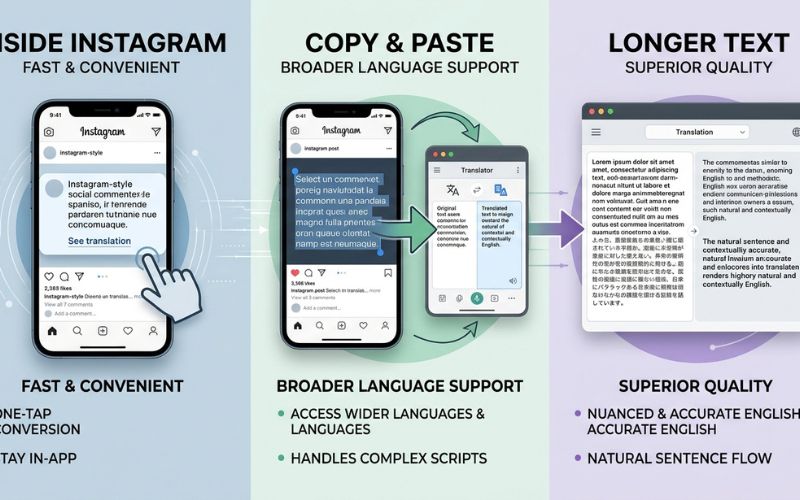
Instagram’s built-in tool is great for fast reading, while outside tools work better for uncommon languages and longer text.
| Method | Best For | Main Good Point | Main Limitation |
| Instagram Built-in | Quick app browsing | Translates text with one tap inside your feed | Misses heavy slang; depends on app tools |
| Google Translate | Long text & foreign alphabets | Supports over 100 languages and different writing styles | Forces you to leave Instagram to paste text |
| DeepL | Natural wording | Gives very high-quality translations for full sentences | Supports fewer total languages than Google |
| Photo Scanner | Text inside pictures | Translates text directly from screenshots | Uses up extra picture storage space on your phone |
How to Write Instagram Captions That Translate Better
Writing simple captions helps computer programs translate your content for people around the world. If you run a business or creator account, plain wording makes translations much more accurate.
- Use short sentences: Simple sentences make fewer translation mistakes in automated systems.
- Avoid heavy slang and local idioms: Local sayings often turn into confusing words in other languages.
- Explain cultural words: If you use a local phrase, add a quick sentence to explain what it means.
- Keep call-to-actions simple: Plain directions like “Link in bio” translate well into every language.
- Use two languages: Write your message in two main languages separated by a clear emoji if you have followers in different countries.
- Check your text first: Run important business text through a translation app to test how clear it is before you post.
Hard-to-Translate Caption:
“Spilled the tea with my bestie, this new spot is lowkey fire!”
Easy-to-Translate Caption:
“I had a great chat with my friend today. This new restaurant is amazing!”
Frequently Asked Questions About Instagram Comment Translation
How do I translate a single Instagram comment?
Tap the small See translation link right below the comment text to change it into your main language.
How do I translate an Instagram caption?
Find the post in your feed and tap See translation located right below the main caption text.
How do I change my target translation language on Instagram?
Go to your profile, tap the menu button, pick Settings and activity, tap Language and translations, and choose Set language to pick your main language.
Why is “See translation” not showing on Instagram?
The option disappears if Instagram cannot figure out the starting language, if the text uses heavy slang, or if your app needs an update.
Does Instagram automatically translate comments?
No, Instagram shows the original text first and only translates it when you tap See translation.
Can I translate Instagram comments on desktop?
Yes, click See translation on Instagram.com when available, or use your web browser’s built-in page translation tool.
Can Instagram translate DMs and Stories?
Instagram translates text on Stories using a button in the top corner. DM translation is limited and is not available for all users or languages.
Is Google Translate better than Instagram’s built-in translation?
Google Translate supports more languages and handles tricky text better, but Instagram’s built-in tool is faster for quick browsing.
You May Also Like:
About Aelftech com: Services, Company, Domains & What to Know
Voomixi com Explained: What It Is, Is It Safe, and Which Voomixi Domain Is Official?
Disclaimer:
This article is for informational and educational purposes only. Instagram features, settings, and translation options may change over time, so results can vary by device, account, or region. Some images may be AI-generated for illustrative purposes. All copyrights, trademarks, and brand names belong to their respective owners.

Eleanor Karen is an administrator at PVStory.co.uk who writes about digital tools, social media trends, and online resources. She shares helpful insights on Instagram Story Viewer tools and other web-based solutions, helping readers stay informed and make the most of their online experience.