
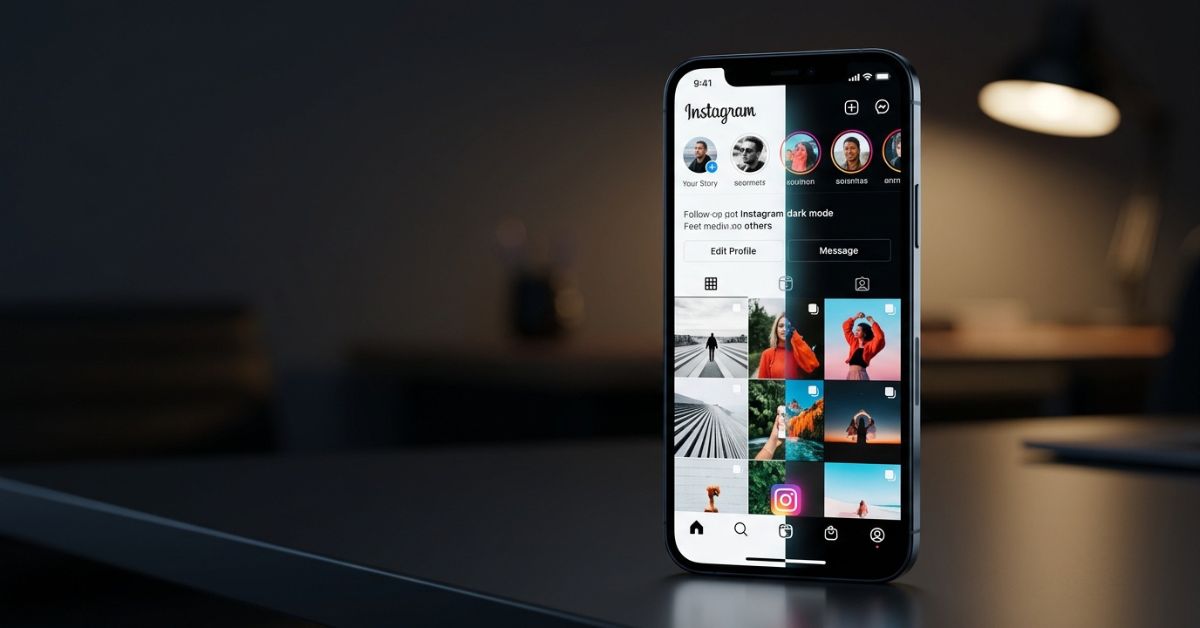
Turning on Instagram dark mode changes the app background from bright white to black or dark gray. Many people find that this makes looking at the screen in dark rooms feel better on their eyes.
To turn on dark mode, change your phone screen settings on an iPhone, use the app settings or phone theme on Android, or change the site settings on Instagram.com.
How to Turn on Instagram Dark Mode
Here is a quick look at where to find the dark mode setting on each device:
| Device | Where to change it |
| iPhone / iPad | Phone screen settings (Settings > Display & Brightness) |
| Android | Instagram settings (if available) or main phone theme |
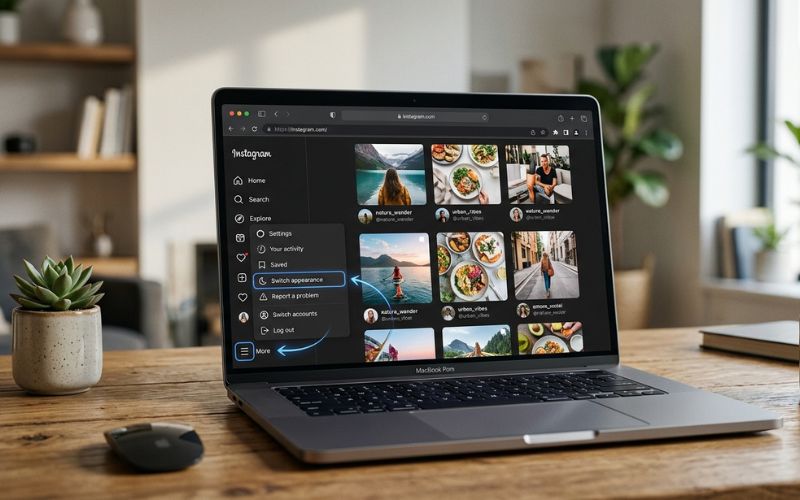
| Computer (PC / Mac) | Instagram.com menu (More > Switch appearance) |
Turn on Instagram Dark Mode on iPhone or iPad
On Apple devices, Instagram uses your main phone settings instead of having its own dark mode button inside the app.
- Open the Settings app on your iPhone or iPad.
- Scroll down and tap Display & Brightness.
- Tap Dark to change your phone screen.
- Open Instagram to see the dark background.
Tip: iPhones let you turn on Automatic in display settings. This lets your phone switch between Light and Dark mode based on sunset or a time you set.
Turn on Instagram Dark Mode on Android
Some Android app versions let you change the screen look inside Instagram. On other phones, Instagram simply follows your phone’s main theme.
Method 1: Inside the Instagram App (if available)
- Open Instagram and tap your profile picture in the bottom right corner.
- Tap the three lines in the top right corner to open the menu.
- Tap Settings and activity.
- Scroll down to Your app and media and tap Accessibility.
- Tap Dark mode.
- Choose On, Dark, or the option shown in your app.
Method 2: Through Android Phone Settings
- Open your phone’s Settings app.
- Tap Display (or Display & Brightness).
- Turn on Dark theme or Dark mode.
Turn on Instagram Dark Mode on a PC or Mac
Changing settings on your mobile phone will not change your computer screen. You must turn on dark mode directly on the Instagram website.
- Go to Instagram.com in your web browser and log in.
- Click More (the three lines icon) in the bottom left corner.
- Click Switch appearance.
- Turn the dark mode switch on.
How to Turn Off Instagram Dark Mode
You can change Instagram back to a white background at any time.
- iPhone / iPad: Go to Settings > Display & Brightness and pick Light.
- Android: Open Instagram, go to Settings and activity > Accessibility > Dark mode, and pick Off. (Or turn off Dark theme in your main phone settings).
- PC / Mac: Click More on Instagram.com, click Switch appearance, and turn off dark mode.
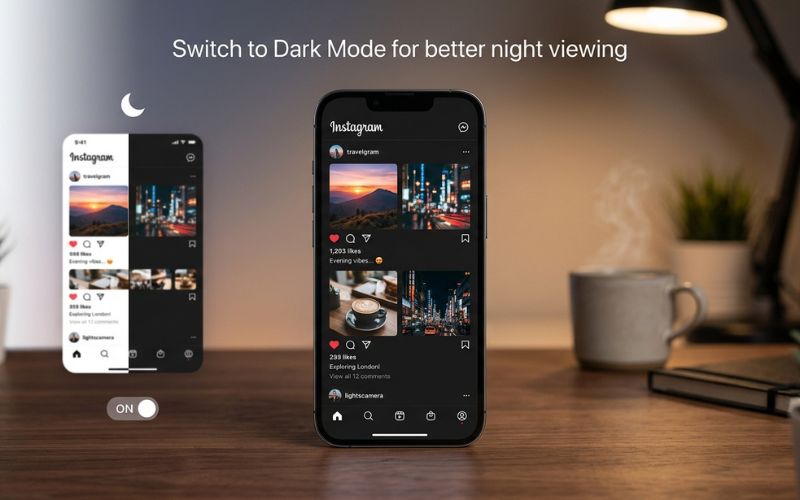
Can Instagram Dark Mode Follow Your Phone’s Theme?
Yes, Instagram can automatically match your phone’s light or dark theme when set up correctly.
iPhones can switch automatically through their main phone settings. On Android, automatic switching depends on your specific phone model and software version.
To use this feature:
- On iPhone: Leave your phone setting on Automatic.
- On Android: Choose System default inside Instagram’s Dark mode menu if you see it.
When set to follow your phone theme, Instagram should usually change when your phone changes. If it does not change right away, you may need to close and reopen the app.
Why Is Instagram Dark Mode Missing or Not Working?
If the dark mode option goes away or does not turn on, use this table to find a quick fix:
| Problem | Likely cause | What to try |
| Dark mode option is missing | Old app version, new menu layout, or phone settings mismatch | Update Instagram in the app store and check your phone or app settings. |
| Instagram stays light | App glitch or wrong menu choice | Set Instagram to System default, check your phone theme, or restart the app. |
| Works on phone, light on computer | Mobile apps and websites use separate settings | Turn on dark mode separately on Instagram.com. |
| Setting does not respond | Short-term app or system problem | Force close the app or restart your phone. |
Update or Restart Instagram
Updating your app can fix screen problems. Open the Apple App Store or Google Play Store and search for Instagram. Tap Update if a new version is ready.
If the app is still stuck, close Instagram completely and open it again. You can also restart your phone or delete and reinstall the app as a last step (make sure you know your password before deleting the app).
Look for Different Menu Words
Instagram menu words can look different depending on your app version, phone type, or language.
If you cannot find the exact menu path, open Instagram settings and look for similar words. You might see words like Theme, Appearance, Display, or Accessibility.
Instagram Dark Mode on Mobile vs. Desktop
Instagram works differently on mobile phones than it does on computer browsers. Mobile apps rely on app or phone settings, while the computer website works on its own inside your browser.
| Feature | iPhone / iPad | Android | Instagram.com |
| Dark screen available | Yes | Yes | Yes |
| Matches phone theme | Yes | Yes, when set to System default; otherwise uses its own setting | No (Separate setting) |
| In-app switch button | No | Depends on app version | Yes |
| Where to change it | Phone settings | App or phone settings | Website menu |
What Does Instagram Dark Mode Actually Change?
Dark mode changes the background colors of the app, but it does not change your posted pictures or videos.
- What changes: Main screen areas like the bottom menu bar, main feed background, comment areas, and Direct Messages generally change to darker colors.
- What stays the same: Photos and videos keep their original colors. Dark mode does not change how your posts look to your followers on their own screens.
Dark mode is different from lowering your screen brightness or using blue-light night filters. It changes the background colors, but it does not replace your main screen brightness control.
Does Instagram Dark Mode Save Battery or Reduce Eye Strain?
Dark mode has some good benefits, but real-world results depend on your phone screen type and room light.
Battery Use
Dark mode can save battery power on phones with OLED or AMOLED screens. These screens use almost no power for parts of the screen showing pure black, though other phone parts still use energy. Overall, real-world battery savings are usually small.
On older LCD screens, dark mode does not save noticeable battery life because the screen backlight stays on behind the whole display no matter what color is shown.
Eye Comfort
Some people prefer looking at a dark screen in dark rooms. A dark background lowers the amount of bright light coming from your phone at night.
However, dark mode is a personal choice. It does not replace lowering your screen brightness and is not a medical fix for tired eyes.
Common Instagram Dark Mode Mistakes to Avoid
- Looking for an in-app button on iPhone: iPhone Instagram uses your main phone settings to change its look.
- Using modified fake apps: Do not download unofficial app versions to get dark mode. They can steal your account or put viruses on your phone.
- Installing extra browser add-ons: You do not need extra browser add-ons for Instagram.com because the website already has its own dark mode switch.
Final Check
To check if dark mode is working, open Instagram and look at your main feed. The space around posts should look dark gray or black.
If the background is still white, check your phone screen settings or read the fix-it steps above.
Frequently Asked Questions About Instagram Dark Mode
Can I use dark mode on Instagram without changing my whole phone?
Yes, on computer browsers and on Android app versions that have a dark mode switch inside the app. On an iPhone, Instagram always follows your main phone settings.
Why does dark mode look different on my friend’s Android phone?
Menu screens and options can look different depending on your Android phone brand, app version, or software updates.
Does dark mode change how my photos look to other people?
No. Dark mode only changes your own screen. It does not edit your photos or force dark mode onto your followers’ phones.
You May Also Like:
TechyTune .com: What It Is, What It Covers, and Can You Trust It?
What Is SimplifyDiggs com? Website, Content & Trustworthiness Explained
Disclaimer:
This article is for informational and educational purposes only. Instagram settings may change with app or device updates, so steps may vary. Some images may be AI-generated for illustrative purposes. Instagram copyrights, trademarks, and related rights belong to their respective owners.

Eleanor Karen is an administrator at PVStory.co.uk who writes about digital tools, social media trends, and online resources. She shares helpful insights on Instagram Story Viewer tools and other web-based solutions, helping readers stay informed and make the most of their online experience.