
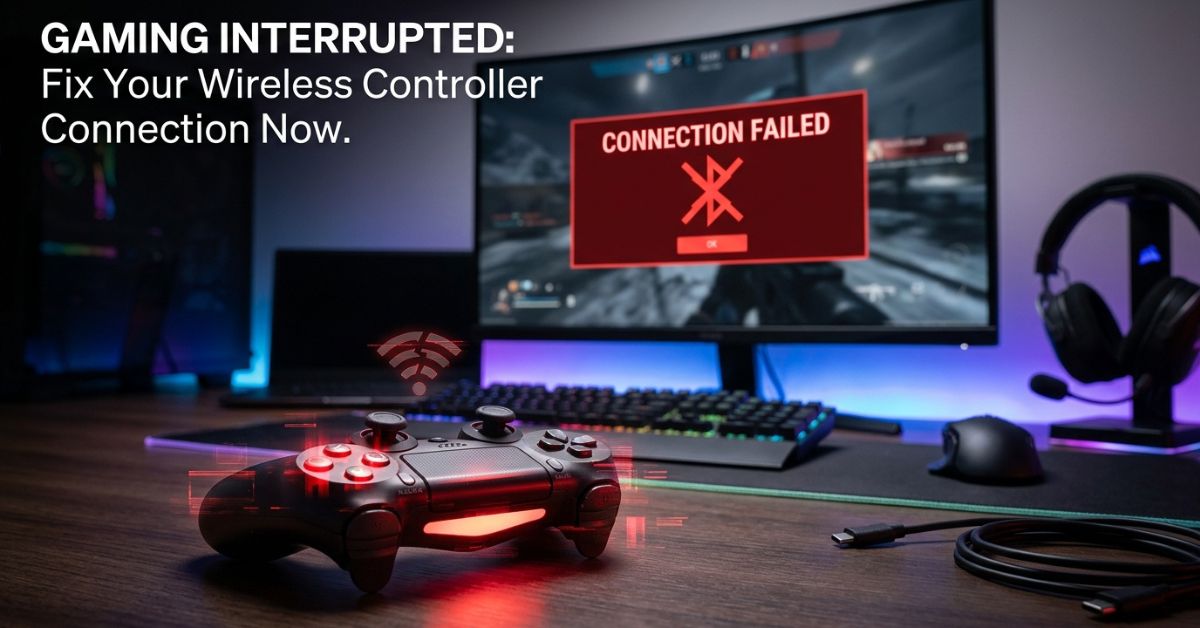
Connectivity issues with HSSGamepad happen when the controller cannot stay connected to your gaming device. The most common causes are low battery, pairing mistakes, wireless interference, and the wrong input mode. Addressing these issues quickly helps get you back to your game without extra stress.
Connectivity Issues HSSGamepad Explained
Connectivity issues are breaks in the link between a controller and gaming hardware. These failures occur when the wireless signal is too weak, the software is not compatible, or the devices are not paired correctly. When the link drops, your buttons do not work in the game. These problems are rarely permanent and are often solved by checking the connection method and the power status of your controller.
What HSSGamepad Connectivity Means
The HSSGamepad uses three distinct link types to connect to your devices. Choosing the right one for your specific setup is vital to ensure a smooth, lag-free experience.
- Bluetooth: This is the most common mode for phones, tablets, and modern laptops. It is flexible but can be sensitive to other wireless signals nearby. If you notice drops, check if many other devices are linked to your phone or computer.
- 2.4GHz Dongle: This mode is excellent for desktops and consoles because it provides a faster and steadier link than standard Bluetooth. Keep the receiver in a clear spot close to the controller for the best results.
- USB Wired: This is the most stable and reliable option. By using a physical cable, you remove all wireless interference, making it the perfect choice for competitive gaming. If the wireless modes keep failing, this is the most reliable way to stay in the game.
Main Causes
Connection failures generally happen for a few specific reasons. Identifying the root cause helps you solve the problem much faster than guessing.
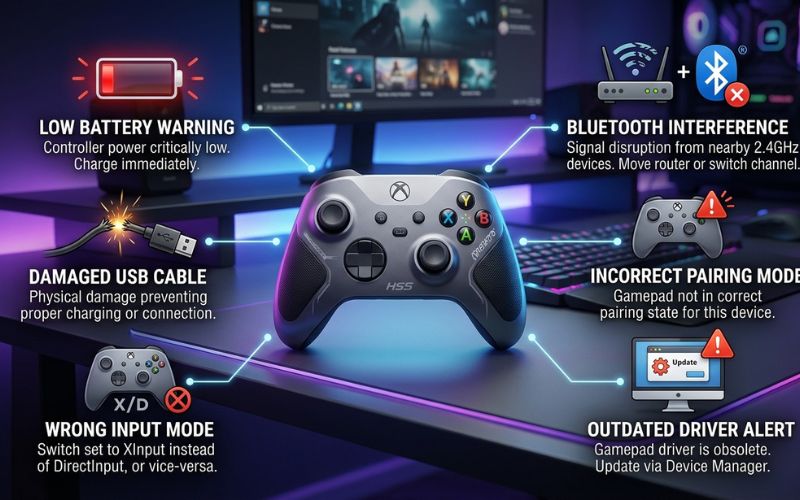
- Low battery: A weak signal often occurs when the battery power drops too low to maintain a consistent wireless link.
- Pairing mistakes: If the controller is not in the right mode, the device you are using will never find it.
- Wireless interference: Other wireless signals from routers or metal objects can block the path between your controller and the gaming system.
- Software issues: If the software on your PC or console does not work well with the controller, inputs may not register.
- Wrong input mode: Many controllers have different settings for different platforms; if this is set wrong, the device may look connected but will not work in-game.
- Hardware damage: Worn cables or dusty ports often prevent the necessary data flow required for a stable connection.
Quick Symptom Check
Use this table to identify the issue based on what you see while playing.
| Symptom | Probable Cause |
| Controller not found | Pairing mode inactive or dongle unplugged |
| Lights on, no game response | Wrong input mode or software conflict |
| Controller cuts out | Low battery or heavy wireless interference |
| Controller only works close up | Weak wireless signal or low battery |
Gamepad Won’t Pair
If the controller does not show up in your settings, it is likely not in pairing mode. Check the manual for the exact button press needed to start this. Once the controller enters this state, the light should flash. If the device still does not appear, turn the Bluetooth off and back on again to refresh the list. You should also check if the controller is already saved to another device nearby, as it might be trying to link there instead.
Connects But Does Not Work
If the controller connects but games do not react, the input mode is likely incorrect. Use the mode switch or button combination listed in the manual to toggle between settings. If that does not solve the problem, the game may not be compatible with your current setup. Always verify that your game allows controller input in the options menu, as some titles require you to manually turn this on before it will recognize your device.
Random Disconnects
Drops in connection often happen when the signal is blocked or power settings are too strict. Ensure the controller has enough battery and move other wireless devices away from your play area. If you are on a computer, check the power settings to ensure the system is not turning off the wireless port to save energy. Keep the space between the controller and receiver open and clear.
Bluetooth Pairing Fixes
To fix a broken Bluetooth link, remove the old data and start fresh.
- Open the settings on the device you are using and find the Bluetooth menu.
- Select the HSSGamepad from the list and choose to forget or remove the device.
- Turn the controller off and restart pairing mode as instructed by the manual.
- Scan for new devices and select the HSSGamepad to establish a new link.
- If Bluetooth still fails, try a wired connection to verify the controller itself is fine.
USB Connection Fixes
If a wired connection fails, check the physical hardware for damage. Try a different USB port on your device to rule out a broken port. If the cable looks worn, replace it with a new one, as internal wire breaks often cause connection errors. Additionally, open the system settings on your computer to see if the controller is shown as “ready to use.”
2.4GHz Dongle Fixes
The dongle requires a clear path to the controller to function at its best. If the connection fails, unplug the dongle, wait for a few seconds, and plug it back into a different USB port. Avoid placing the dongle behind large metal objects or tucked away in the back of a tower. A small USB extension cable can also help move the dongle closer to where you sit.
Input Lag Fixes
Lag happens when wireless signals are crowded or the battery is too weak to send data quickly. Using a wired connection is the best way to stop delay. If you must use wireless, keep the controller within a few feet of the receiver and close any background apps that might use high system power. Turn off other nearby wireless devices to clear the airwaves if the controller still lags.
Device-Specific Fixes
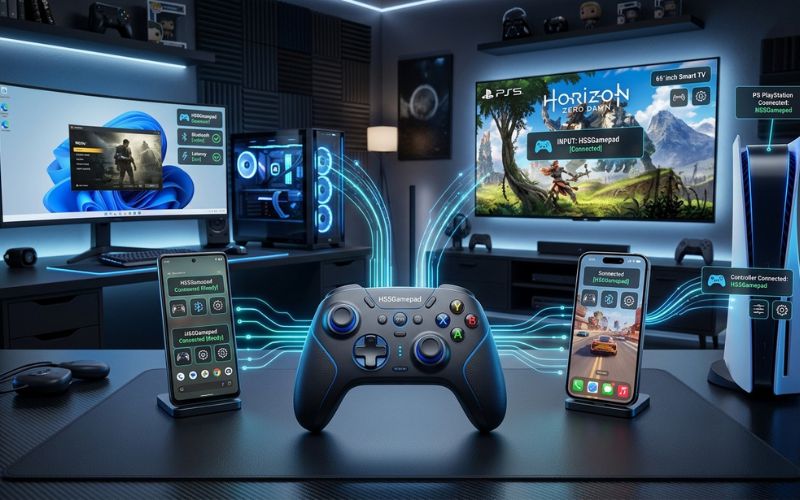
Windows Fixes
Check the device settings to ensure the controller is listed correctly without any error icons. Use the system game controller tool to test for input errors and ensure every button press sends a signal. If the system does not recognize it, look for a “game controller” driver update in your system settings.
Android and iPhone Fixes
If pairing fails, clear the Bluetooth cache in your system settings. Keep the mobile software up to date, as modern updates often include important fixes for better controller support. Restarting your phone after an update can also help clear out old connection data.
Smart TV and Console Fixes
Some systems require you to change settings to allow third-party controllers to function. Check the device manual or the system accessories menu to confirm if a support mode needs to be turned on. Some consoles also have a “reset accessories” option that can clear stubborn connection blocks.
Firmware and Drivers
Outdated software frequently creates hidden bugs that stop a controller from working correctly. Check the manufacturer website for the official update tool. Connect the controller via USB and follow the steps provided to apply the latest updates. This update replaces old files and fixes known bugs. It also helps the controller work better with newer systems.
Prevention Tips
- Keep the controller charged before starting a long game session.
- Use one connection mode at a time to prevent signal conflicts.
- Check for software updates once a month to ensure performance.
- Keep the space between the controller and receiver open and clear.
- Store the USB dongle in a small, safe container when not in use.
The Final Verdict on HSSGamepad Connectivity Issues
Most HSSGamepad connectivity issues are caused by battery, pairing, or mode problems. Start with those three basic checks first, then test the controller on another device if the issue still does not go away. By following these steps, you can identify the source of the problem and ensure your controller stays connected for all your future gaming sessions.
FAQ
Why does HSSGamepad keep disconnecting?
It is usually caused by low battery or wireless interference. Try charging the controller fully and moving it away from routers or other active wireless devices.
Why does HSSGamepad connect but not work in games?
The input mode is likely wrong. Switch the mode to match the game requirements, such as X-Input or D-Input, by using the button combination found in your manual.
Is Bluetooth or 2.4GHz better for HSSGamepad?
The 2.4GHz dongle is usually better for gaming because it offers a more stable and faster link. It is the preferred choice for most desktop and console users.
How do I reset HSSGamepad?
Find the tiny reset pinhole on the back of the controller and press it gently with a paperclip for five seconds. This will clear the saved settings and restore the default factory status.
You May Also Like:
How the Instagram Algorithm Works in 2026
2579xao6 Code Bug: Causes, Fixes, and Troubleshooting Guide
Disclaimer
This article is for general information and education only. It does not replace official technical support or manufacturer guidance. Some images in this guide are AI-generated for illustration. All trademarks and product names mentioned belong to their respective owners. Please follow your device’s official manual for safe operation and repairs.

Eleanor Karen is an administrator at PVStory.co.uk who writes about digital tools, social media trends, and online resources. She shares helpful insights on Instagram Story Viewer tools and other web-based solutions, helping readers stay informed and make the most of their online experience.