
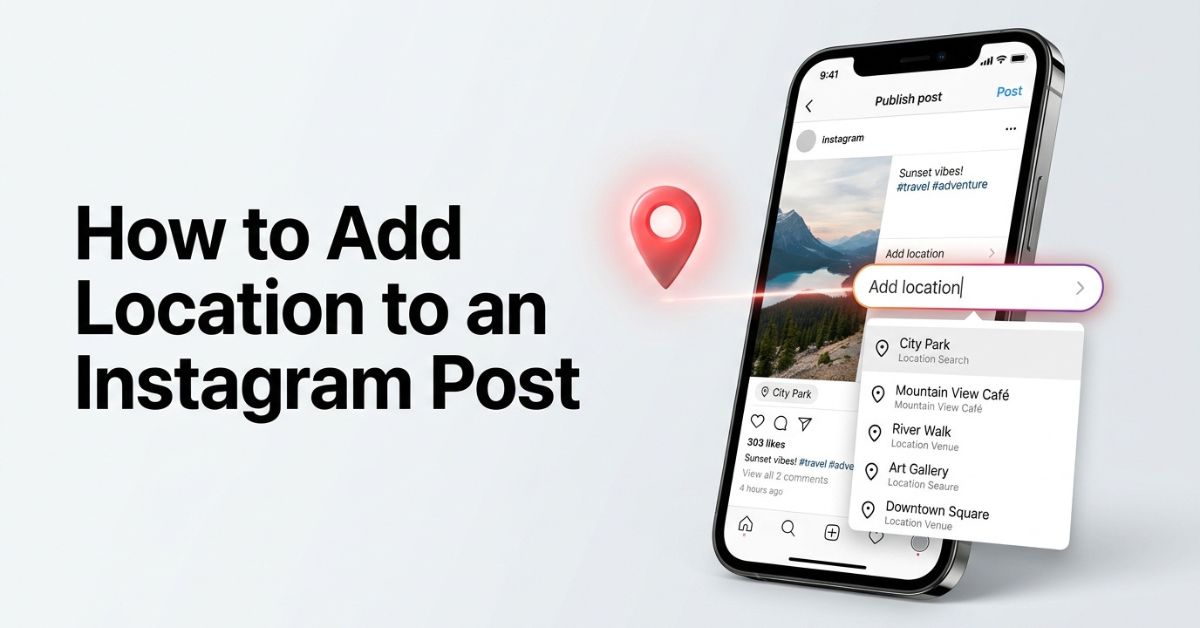
Adding a location tag can help users browse your Instagram photos and videos by place. Whether you want to share a favorite museum or help customers find your restaurant, learning how to add location instagram post details is a straightforward process.
This step-by-step guide covers how to add location tags to new uploads, update old posts, tag different formats, and troubleshoot missing places.
Quick Answer: How to Add a Location to an Instagram Post
To add a location to a new post, tap the + icon, pick your photo, and tap Add location on the final caption screen. Search for your spot, select it, and tap Share.
To add a location to a post you already published, tap the three dots above your post, select Edit, tap Add Location, and tap Done. Adding a location tag is not required to publish a standard post. The app screen may look slightly different depending on your phone software, account type, or app version.
What Is an Instagram Location Tag?
An Instagram location tag is a clickable label that shows where you took a photo or video. It appears right above your media in the Instagram Feed.
When someone taps that label, it can show content tagged at that same location on Instagram’s map, depending on profile and post privacy settings.
A location tag is different from a story sticker, a business address, or a hashtag. Here is how they compare:
| Feature | Where It Appears | Purpose |
| Location Tag | Instagram Feed Post | Shows the place name above your photo or video |
| Story Sticker | Instagram Story | Clickable sticker you place directly on your image |
| Profile Address | Business/Professional Profile | Shows your static business address in your bio |
| Location Hashtag | Post Caption | Text tag like #NYC that groups related search topics |
How to Add a Location Before Publishing an Instagram Post
Adding a location tag before you share a photo or video attaches the place name as soon as your content goes live.
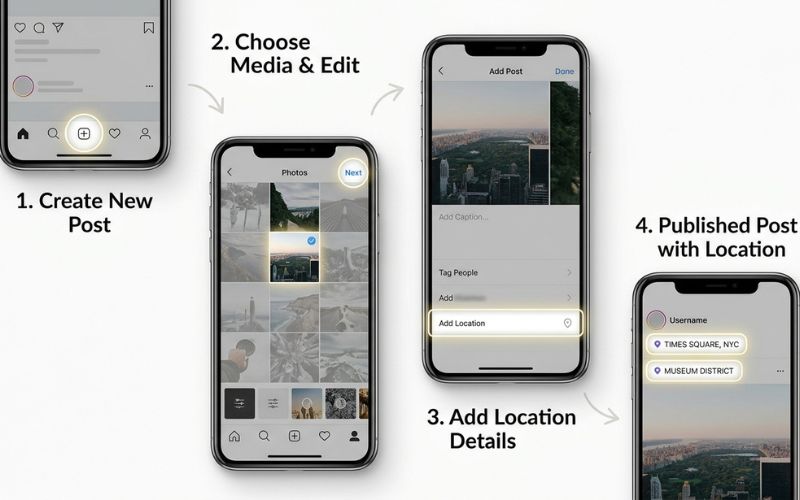
Here is how to do it step by step:
- Open the Instagram app on your iPhone or Android phone.
- Tap the + button at the bottom of the screen to create a new post.
- Choose your photo or video, then tap Next.
- Apply any filters or edits you want, then tap Next again.
- On the final share screen, tap Add location.
- Type the name of the spot in the search bar.
- Select the correct place from the results list.
- Tap Share to publish your post.
💡 Real-World Example: If you take a photo at the Louvre Museum, type Louvre Museum in the search bar. Tap the official venue name from the list so visitors can tap it to see photos tagged at the museum.
How to Add a Location to an Existing Instagram Post
If you forgot to tag a place when uploading, you can add one later through the post options. You do not need to delete and repost your media.
- Open Instagram and go to your profile.
- Tap the post you want to edit.
- Tap the three dots (…) in the top right corner of the post.
- Tap Edit.
- Tap Add Location right under your username at the top.
- Search for your spot and select it from the list.
- Tap Done (or the checkmark) to save your changes.
How to Change or Remove a Location on an Instagram Post
You can change or delete a location tag on an existing photo or video if you picked the wrong place or want extra privacy.
- Go to the post on your profile and tap the three dots (…).
- Tap Edit.
- Tap the location name displayed at the top of your post.
- Tap Change Location to pick a new spot, or tap Remove Location to clear it completely.
- Tap Done to save your update.
How to Add a Location to Different Instagram Content Types
You can tag places across various Instagram formats. The steps differ depending on whether you share to the Feed, Reels, or Stories.
Instagram Carousel Posts
Carousel posts let you share multiple photos or videos in one swipeable post. You can assign a location on the final share screen before publishing.
Instagram Reels
Reels allow location tags on the final share screen. When you reach the share screen for your Reel, tap Add Location, search for your spot, and publish your video.
Instagram Stories
Stories use a separate location sticker feature rather than the Feed location label. Take a photo in the Story camera, then tap the sticker icon at the top of your screen. Tap the Location sticker, search for your spot, and place the sticker anywhere on your image.
| Content Type | Supports Location? | Tagging Method |
| Feed Post | Yes | Tap “Add Location” on the share screen |
| Carousel | Yes | Assign a location tag on the share screen |
| Reel | Yes | Tap “Add Location” on the final share screen |
| Story | Yes | Add a clickable Location Sticker to the image |
Why Your Instagram Location Is Not Showing (Troubleshooting)
If location options do not appear or you cannot find your spot, check these common settings.
- GPS and Phone Permissions: Instagram’s location permission settings can affect whether nearby place options appear. If no locations appear, check your phone’s permission settings first.
- App Version: Outdated app versions can cause menu glitches. Keep your app updated through the Apple App Store or Google Play Store.
- Selectable Locations: You cannot create a brand-new location directly inside Instagram. If a place is not offered in Instagram’s location search, it cannot currently be tagged.
- Instagram Web Limitations: You can add, change, or remove a location on the Instagram website, though menu layouts may differ from the mobile app.
| Problem | Possible Cause | Solution |
| No nearby suggestions | Location permissions disabled | Check location permissions in your phone settings, or try searching manually. |
| Place cannot be found | Spot is not in Instagram’s search list | Search for a broader city, or update your Facebook Page address. |
| Location feature glitches | App is outdated or bugged | Update your Instagram app and restart your device. |
Can You Create a New Location on Instagram?
You cannot create a brand-new custom location directly inside the Instagram app. Only existing locations offered in Instagram’s search can be selected.
If you own a business, you can update your business address on Facebook:
- Open Facebook and log into your business Page.
- Edit your Facebook Page’s physical address and set the map pin location.
- Connect your Facebook Page to your Instagram account.
- Allow a few days for Meta to process and update the address information across its features.
💡 Local Business Example: If you open a new bakery called Sweet Oven, set up your business address and map pin on Facebook first. Once processed, customers may be able to search for and select Sweet Oven on Instagram.
Does Adding a Location Increase Reach?
Adding a location tag gives users a way to browse content tied to a place, but it does not guarantee higher reach or views.
When you tag a place, your post may be visible to people browsing that location on the map, depending on your account’s privacy settings.
Here is how different accounts use location tags:
- Local Shops: A boutique tags its neighborhood so nearby shoppers can browse store photos.
- Travel Creators: A creator tags a landmark like the Grand Canyon so travellers planning trips can view photos.
- Event Organizers: A venue tags its hall so attendees can find photos taken during an event.
Tagging an accurate place gives users a clear path to your content. However, tagging an unrelated famous city just to get views often leads to poor user response.
Privacy Tips Before You Add a Location
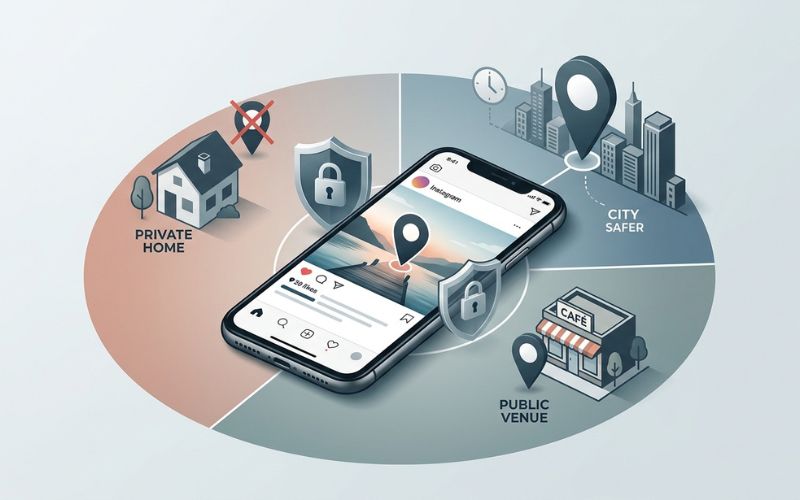
Location tags are optional. Protecting your personal safety is more important than tagging a venue.
🔒 Privacy Best Practices
- Avoid Tagging Home: Do not tag your personal home address or a friend’s private house.
- Delay Live Tagging: Post photos after you leave a venue instead of sharing your real-time location.
- Use Broader City Tags: Pick a city or general neighborhood instead of an exact building when you want extra privacy.
- Remove Tags Anytime: You can edit older posts to remove location tags whenever you prefer.
Best Practices for Choosing the Right Location Tag
Choosing the right location tag helps your content appear in relevant searches.
| Do | Don’t |
| Tag the specific venue when showcasing a local business. | Don’t tag famous places you did not visit just to get views. |
| Use broad city tags when you want to protect your privacy. | Don’t rely only on location hashtags inside your caption text. |
| Double check the place name before you tap publish. | Don’t tag multiple random places on a single Feed post. |
Frequently Asked Questions
Can I add a location after posting?
Yes. Tap the three dots above your post, select Edit, tap Add Location, and save your changes.
Do location tags reveal my exact GPS coordinates?
No. A normal Instagram location tag displays the place name you select from the search menu, rather than displaying latitude and longitude readout coordinates on your post. Visibility still depends on your privacy settings.
Why can’t I find my business location?
Your business may not be listed in Instagram’s location search yet. Check your search terms, update your Facebook Page address and map pin, and connect your Page to your Instagram account.
Can I add a location from a desktop computer?
Yes. You can select a location when creating a photo or video post on the Instagram website, as well as edit existing post locations.
Does adding a location help Instagram SEO?
A location tag associates your post with a place so users can browse it on the Instagram map. It does not guarantee higher search engine placement or algorithmic ranking.
Do I need location permissions enabled to tag a post?
Location permissions help Instagram suggest nearby spots automatically. If permissions are off, manual search may still be available depending on your device and app setup.
You May Also Like:
TheSindi com Explained: Official Website, Topics, Domain Confusion & Trust Check (2026)
Adswynk com Explained: Live Site Check, Safety, Earning Claims & Alternatives (2026)
Disclaimer:
This article is for informational and educational purposes only and is not professional advice. Instagram features, settings, and availability may change over time, so verify current options before acting. Some images may be AI-generated for illustrative purposes. All copyrights, trademarks, and brand names belong to their respective owners.

Eleanor Karen is an administrator at PVStory.co.uk who writes about digital tools, social media trends, and online resources. She shares helpful insights on Instagram Story Viewer tools and other web-based solutions, helping readers stay informed and make the most of their online experience.