

Want a fast way to get people talking on your Instagram Stories? The instagram emoji slider lets your community react to your posts with a simple drag of a finger. Viewers show how much they like an image or idea by moving an emoji along a line. It works on both personal and business accounts to help you collect quick opinions. In this complete guide, you will learn how to set up the slider, customize its look, protect your privacy, and track your results.
What Is the Instagram Story Emoji Slider?
The instagram emoji slider is an interactive Story widget that lets viewers rate how they feel about a post on a sliding scale. Viewers drag an icon across a bar to express a range of emotion, rather than tapping a basic yes or no button.
Instagram introduced this feature in May 2018 to give people a fun, visual way to share opinions. Moving a slider takes just a moment, so people are much more likely to respond. That quick interaction gets your audience involved, which helps keep your posts visible to viewers.
How to Add an Emoji Slider to Your Instagram Story
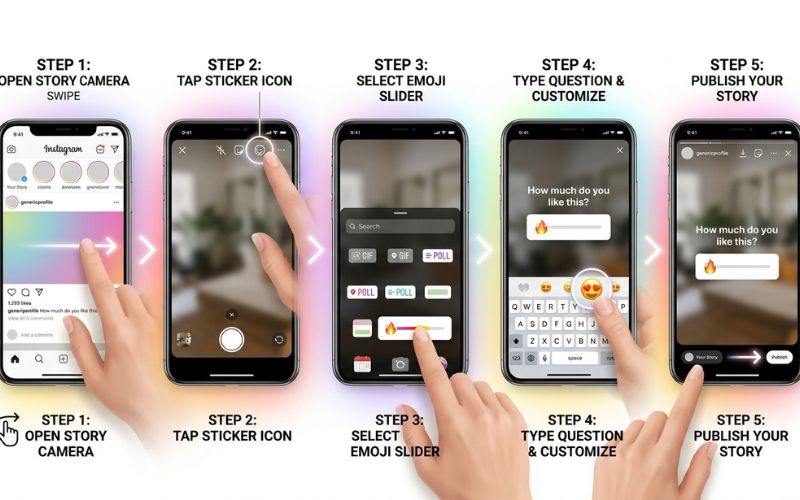
Adding a slider tool takes just a few taps. The steps are the same whether you use an Android phone or an iPhone running Instagram version 44 or later.
Step 1 – Create a Story
Open Instagram and swipe right from your main feed. You can also tap your profile picture with the plus icon. Take a photo, record a short video, or pick an image from your device gallery.
Step 2 – Open the Sticker Tray
Tap the square smiley face icon at the top of your screen to open your options.
Step 3 – Select the Emoji Slider Sticker
Scroll down the menu until you see the instagram emoji slider sticker. It displays a sliding bar with an emoji. Tap it once to place it on your screen.
Step 4 – Write Your Question
Type the prompt you want your audience to rate. Make your text clear and easy to read.
Step 5 – Publish Your Story
Tap Your Story at the bottom left to post publicly, or select Close Friends to share it with a private list. Note that features and buttons may shift slightly over time as Instagram updates the app.
How to Customize the Instagram Emoji Slider
Customizing your slider makes your post look great and encourages more people to participate. You can easily adjust the colors, size, and style of your sticker.
- Change the emoji: Tap the sticker while editing to open popular icons. You can also tap the plus sign to search the full keyboard or pick from your recently used emojis.
- Change colors: Tap the color wheel at the top of the screen to change the text and background shade.
- Resize and place: Pinch the sticker with two fingers to make it larger or smaller. Drag it to the middle of the screen so it is easy to tap.
- Match your brand: Use the eyedropper tool to pick a color directly from your photo. Keep colors high-contrast so your prompt is clear.
How Viewers Use the Emoji Slider
When people open your Story, they see your question and an icon sitting on the far left side of the track.
To answer, viewers press and hold the emoji, then slide it to the right. As they move it, the icon expands and animates to show rising feeling. When they let go, their score submits right away. The viewer then sees the current average response score from everyone who voted.
Can You See Who Voted? Are Emoji Slider Responses Anonymous?
Votes on the instagram emoji slider are not anonymous to the person who posted the Story. The account owner can see your username and exact score. However, other viewers can only see the overall average score for the post.
| Question | Answer |
| Can the creator see my vote? | Yes. The account owner sees your exact score and username. |
| Can other viewers see my vote? | No. The public only sees the overall average score. |
| Can I change my vote? | No. Once you release the emoji, your vote is final. |
| Is it anonymous? | Partially. It is private from the public, but fully visible to the account owner. |
Where to View Emoji Slider Results
You can track your voting results in real time as responses come in through your Story viewer list.
- Open your published Story frame.
- Swipe up on the screen to view your viewer list and votes.
- Look at the top of the panel to see the average rating score.
- Scroll down to view individual names and their scores.
Stories expire from the main feed after 24 hours, but your answers stay saved in your Story Archive. If you have a Creator Account or Business Account, you can access your insights for even longer, or add the post to a public Story Highlight to keep it on your profile.
Instagram Emoji Slider vs Poll vs Question vs Quiz
Instagram offers several interactive Story stickers. Pick the one that fits the kind of reply you want from your audience.
| Feature | Emoji Slider | Poll | Question | Quiz |
| Best For | Rating intensity or feeling | Picking between simple choices | Collecting typed answers | Testing audience knowledge |
| Number of Choices | Full scale | 2 to 4 fixed options | Unlimited text responses | 2 to 4 fixed choices |
| Engagement Type | Dragging an icon | Tapping a button | Typing a text reply | Tapping the right answer |
| Analytics | Average score and user votes | Percentage breakdown | List of written replies | Correct vs incorrect counts |
| Ideal Use | Rate an idea or feeling | Simple choices (This or That) | Open Q&As and suggestions | Trivia and learning games |
Decision Tree: Which Sticker Should You Use?
- Need a rating scale? $\rightarrow$ Use the Emoji Slider
- Need an A/B choice? $\rightarrow$ Use a Poll
- Need written feedback? $\rightarrow$ Use a Question Sticker
- Need to test knowledge? $\rightarrow$ Use a Quiz
Best Ways to Use the Instagram Emoji Slider
Using the slider tool strategically helps you gather useful feedback from your audience. Here is how different creators and businesses use it in real life.
Account Type Strategies
- Content Creators: Test new video topics or ask your community how much they enjoyed a recent vlog.
- Small Businesses & Shops: Test product ideas before ordering inventory. Show two options and see which one gets higher ratings.
- Coaches & Consultants: Ask your community how motivated they feel today or how much progress they made this week.
- Restaurants & Cafes: Share a photo of a lunch special and ask nearby customers how hungry it makes them.
- Personal Accounts: Keep everyday Stories fun by asking friends to rate your weekend road trip or coffee order.
Copy-Ready Prompts
- Fashion & Style: “Rate this color combo! 🎨”
- E-commerce: “How much do you need this restock? 🛍️”
- Lifestyle: “How high is your energy today? ⚡”
- Food & Cooking: “Rate this homemade pasta dish! 🍝”
- Travel: “How bad do you need a beach day? 🏖️”
- Fitness: “Rate the difficulty of today’s workout! 🏋️”
- Music: “How hard does this beat drop hit? 🎶”
- Beauty: “Rate this evening skincare routine! ✨”
- Work & Study: “How high is your coffee intake today? ☕”
- Gaming: “Rate this setup upgrade! 🎮”
Practical Ways to Improve Your Content
You can use your slider ratings to shape your future posts and grow your account metrics.
- Test Audience Interest: High scores show that your community loves a topic. Low scores mean you should try a different subject or angle.
- Sequence Your Stories: Put a slider on your first slide. Getting high interaction early improves your audience retention and keeps people watching your whole Story.
- Build Engagement Metrics: Consistently using engagement stickers improves your overall Story completion rate over time.
- Reach Out to Fans: Check your insights to see who slid the emoji all the way to the right. Send those top voters a quick direct message to build a personal relationship.
Best Practices and Mistakes to Avoid
Follow these core tips to make your posts easy to read and fun to answer.
- Ask clear questions: Make sure your prompt is short so people understand it instantly.
- Match your emoji to the topic: Use a fire icon for hot topics, a heart for things you love, or a mind-blown face for surprising facts.
- Keep stickers away from borders: Place your slider in the middle of the frame. Do not cover faces, text, or app buttons at the top and bottom of the screen.
- Use one interactive sticker per frame: Do not crowd your post with multiple tools. Keep it simple so viewers do not feel overwhelmed.
- Share your results: Post a follow-up screenshot of the average score to show your community their input mattered.
Why the Instagram Emoji Slider Isn’t Showing
If the slider tool is missing from your app, try these common troubleshooting steps. You can also visit the official Instagram Help Center for feature updates.
| Cause | Simple Fix |
| Outdated App | Update Instagram in the App Store or Google Play Store. |
| Corrupted Cache | Clear the cache in your phone settings or restart the app. |
| Connection Error | Switch between Wi-Fi and mobile data to reset your signal. |
| Temporary Glitch | Close the app completely and reopen it to refresh your settings. |
| App Glitch | Delete and reinstall the Instagram app on your smartphone. |
| Service Disruptions | Wait a short time for temporary app connection issues to resolve. |

Final Thoughts
The instagram emoji slider is a powerful, simple tool for connecting with your community. It gives people a quick way to share opinions without typing out a long response.
Use the slider whenever you want to rate a feeling or test interest levels. Check your results regularly to learn what your community likes best, and use those answers to create even better posts.
Frequently Asked Questions
What is the Instagram Story Emoji Slider?
It is a Story widget that lets viewers drag an icon along a track to rate a post on a sliding scale.
How do I add the Emoji Slider sticker?
Create a Story, tap the sticker icon at the top, choose the Emoji Slider, type a prompt, and share your post.
Can I change the emoji and color?
Yes. Tap the sticker while editing to pick any emoji from your keyboard, and tap the top color wheel to change tints.
Are Emoji Slider responses anonymous?
No. Story owners can see your exact vote and username, though other viewers only see the average score.
Where do I find my Emoji Slider results?
Open your active Story frame and swipe up to view your average score and individual voter answers. You can also check your Story Archive later.
Why can’t I find the Emoji Slider sticker?
Check for app updates, clear your app cache, or reinstall Instagram to restore missing stickers.
Can businesses use the Emoji Slider for marketing?
Yes. Businesses use sliders to test product demand, ask for quick feedback, and boost overall account activity.
Does the Emoji Slider work on both Android and iPhone?
Yes. The feature works on iOS and Android devices running Instagram version 44 or later.
You May Also Like:
How to Use Instagram Story Questions to Increase Engagement
Instagram Story Polls vs Quizzes: Which Gets More Engagement?
Disclaimer:
This article is for informational and educational purposes only. It is not official advice from Instagram or Meta. Features may change over time. Some images in this article may be AI-generated for illustration only. All trademarks, logos, brand names, and copyrights belong to their respective owners.

Eleanor Karen is an administrator at PVStory.co.uk who writes about digital tools, social media trends, and online resources. She shares helpful insights on Instagram Story Viewer tools and other web-based solutions, helping readers stay informed and make the most of their online experience.